


How to Design a Multi-Camera Production Studio with PTZ Cameras
A question I get a lot from people building their first studio is, "How many cameras do I actually need?" And that's okay! It's the right place to start, but it's only the first question. Where those cameras go, how their signals reach the switcher and who's driving them matter just as much as the camera count.
The good news is that pan-tilt-zoom (PTZ) cameras make multi-camera production far more approachable than it used to be. One operator can run three or four cameras from a single desk. Let's break down how to design a studio that works on day one and grows with you.
Start With the Shots, Not the Gear
Before you look at a single spec sheet, write down the shots your productions need. A two-host podcast, a church service and a product demo table all call for different coverage.
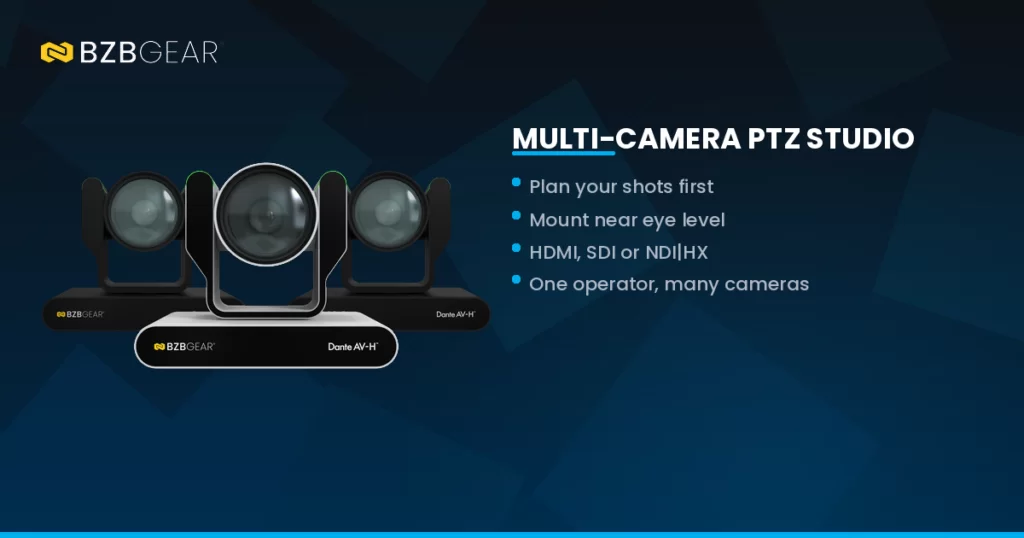
For most studios, a three-camera layout is the sweet spot:
- Camera 1, the wide shot. Shows the whole set. It's your safety shot, so you always have something to cut to.
- Cameras 2 and 3, the close-ups. Usually one per primary subject, or one on the presenter and one on whatever they're showing.
Because a PTZ camera can move between framed positions on command, each one can cover several shots in a single production. That's why a handful of PTZs can stand in for a much larger set of fixed cameras. Map your shots first, then count the cameras it takes to cover them without awkward gaps.
Placement: Height, Distance and Angles
Where you mount a camera affects your image as much as which camera you buy. A few rules of thumb:
Keep cameras near eye level. Mounting high on a wall is tempting for a clean look, but a steep downward angle makes people look smaller and less engaging. Slightly above eye level is usually the most flattering.
Match the lens to the distance. A camera mounted close to the set needs a wide field of view. A camera at the back of a deep room needs more zoom to get a tight shot. Check each camera's horizontal view angle and zoom range against your actual room dimensions.
Respect the 180-degree rule. Picture an imaginary line between two people facing each other. Keep all your cameras on one side of that line, and your cuts will feel natural instead of making people appear to jump sides of the screen.
Plan the cable path before you drill. Every camera needs power, video and control. It's no fun discovering your perfect spot has no way to get a cable to it.
We go deeper on this in our PTZ Camera Placement Best Practices guide.
Choose Your Signal Path
Next, decide how video gets from each camera to your switcher. There are three common routes:
- HDMI is simple and affordable, but it's best kept to short runs. It's a great fit for compact studios where the switcher sits close to the set.
- Serial Digital Interface (SDI) uses locking coax connectors and handles longer runs reliably. It's the broadcast standard for a reason.
- NDI|HX (Network Device Interface) sends compressed video over your Ethernet network, often on the same cable that powers and controls the camera. It's a natural fit if your switcher is software like vMix or OBS.
Think of it like plumbing. HDMI and SDI are dedicated pipes running from each camera to the switcher. NDI puts everything on a shared water main, and any device on the network can tap into it.
Plenty of studios end up with a hybrid: SDI or HDMI into a hardware switcher for the program feed, plus an IP stream for recording or an overflow room. Choose cameras with multiple simultaneous outputs and you won't box yourself in.
Control: One Operator, Many Cameras
A PTZ studio really comes together when you add a dedicated joystick controller. Instead of clicking around a web interface, your operator selects a camera, pushes the stick and rides the zoom like a traditional camera op.
Presets are the secret weapon. Save each camera's key shots (host close-up, guest close-up, product table) and recall them with a single button press. Fast, repeatable and consistent from show to show.
Check how your controller talks to your cameras. IP control, such as VISCA over IP or ONVIF, runs over the network, while serial control (RS-232 or RS-422) needs its own cable. Most new studios go IP for simpler wiring.
Two more features make life easier. Tally lights show on-camera talent which camera is live. AI auto-tracking lets a camera follow a presenter on its own, freeing your operator to focus on the other angles.
Switching, Monitoring and the Network
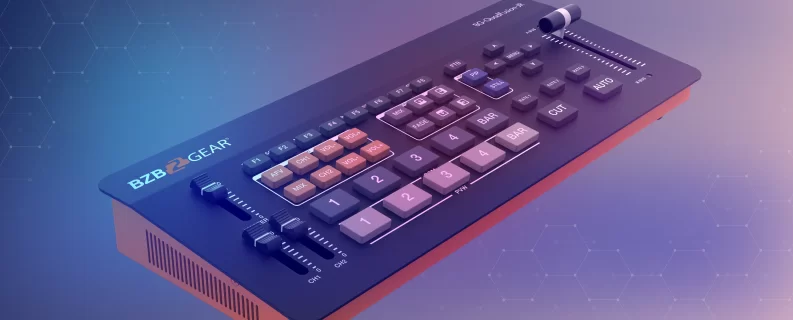
Your production switcher is where it all comes together. Look for enough inputs for your cameras plus a laptop or graphics source, a multiview output so you can see every source on one screen, and the outputs your workflow needs, whether that's a program feed, USB capture into streaming software, or direct streaming and recording.
Don't overlook the network. If your cameras run on Power over Ethernet (PoE), confirm your switch can supply enough power per port and in total, since some cameras call for PoE+. Give cameras and controllers static IP addresses, label every cable, and keep production traffic on its own network or VLAN when you can. Ten minutes of planning here saves hours of troubleshooting later.
BZBGEAR Highlight: Studio Bundles That Take the Guesswork Out
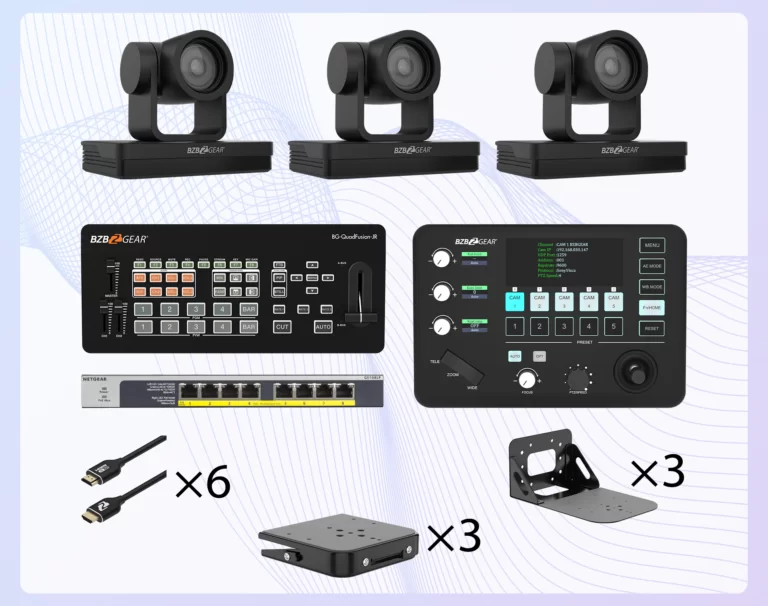
If you'd rather start from a proven design, the BZBGEAR Studio Core bundle packages a complete three-camera studio under one SKU. You get three BG-UPTZ-20XHSU Full HD PTZ cameras with 20X optical zoom and simultaneous HDMI, 3G-SDI and USB 3.0 outputs, a BG-Commander-Jr joystick controller, and a BG-QuadFusion-Jr 4-channel production switcher with multiview and USB 3.0 capture. A PoE network switch, HDMI cables, and wall and ceiling mounts for every camera are in the box too.
Building around a network workflow instead? The Studio Core-N swaps in NDI|HX cameras and leaves the switching to your production software, like vMix or OBS. Ready for 4K? The Studio Elite bundle steps up to three 4K BG-ADAMO cameras with AI auto-tracking, paired with a 4K switcher and a touchscreen joystick controller.
Designing your own system from scratch? The BG-ADAMO-4K series makes a strong anchor camera. It outputs up to 4K@60Hz over both HDMI and 12G-SDI, has built-in red/green tally lights, stores up to 255 presets, and offers both presenter and zone auto-tracking. NDI|HX3 (BG-ADAMO-4KND) and Dante AV-H (BG-ADAMO-4KDA) versions are available as well.
At the End of the Day
A great multi-camera studio isn't about having the most cameras. It's about knowing your shots, placing cameras where they flatter your subjects, choosing a signal path that fits your workflow, and giving your operator tools that make every cut feel easy.
Not sure where to start? Here at BZBGEAR, our project design team can help at no cost. Send us your room dimensions and what you want to produce, and we'll help you map out a camera plan. To explore the full lineup of PTZ cameras, controllers and switchers, visit BZBGEAR.com.


8.00 a.m. - 5.00 p.m. (PST)
10.00 a.m. - 3.00 p.m. (PST)
(by appointment only)