





How to Recall BG-IPGEAR-ULTRA Videowall and Multiview Presets in the Switch Control App
Video walls and multiview layouts are some of the most powerful things you can do with an AV-over-IP system — and once they're built, switching between them should be effortless. This guide explains how to use the BZBGEAR Switch Control app to recall the videowall and multiview presets you've already created for the BG-IPGEAR-ULTRA, so end users can change the whole wall in a single click.
Let's break it down.
Before You Begin
Recalling presets assumes you've already created your videowall or multiview presets in the web GUI. If you haven't set those up yet, start with the guide that matches what you're building:
- Video wall: BG-IPGEAR-ULTRA Video Wall Setup Guide
- Multiview: BG-IPGEAR-ULTRA Multiview Setup Guide
Once your presets exist in the web GUI, they'll be ready to recall in the app — no rebuilding required.
Part 1: Connect to Your Control Box
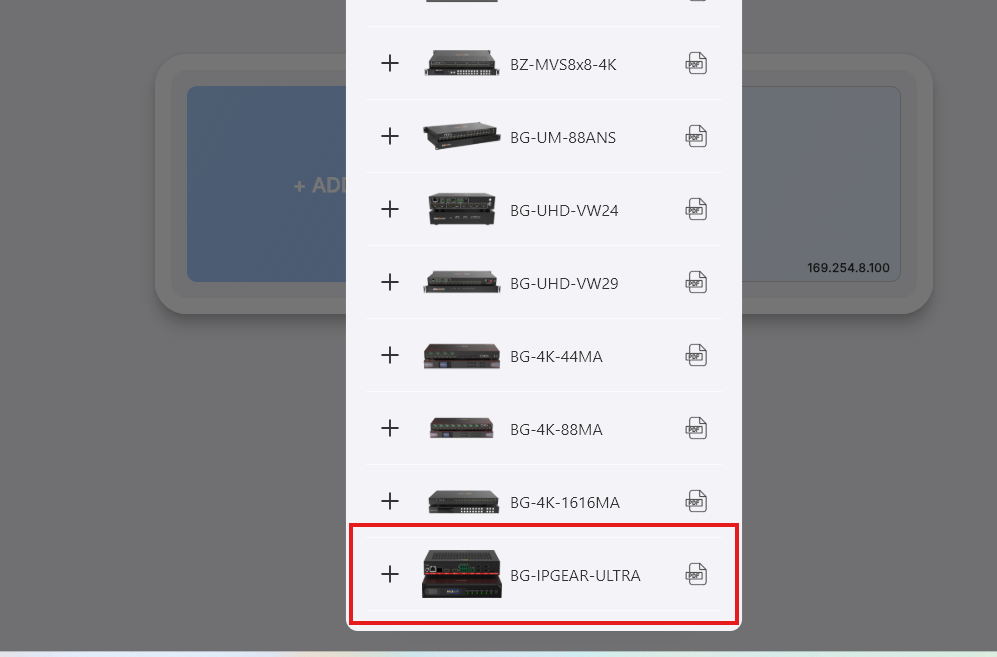
Step 1: Find the BG-IPGEAR-ULTRA in the device list
Open the Switch Control app. In the device list, locate your BG-IPGEAR-ULTRA.
Step 2: Add the control box's IP address
Connect to the control box by entering its IP address — this can be the default address or a static one you've assigned to it.
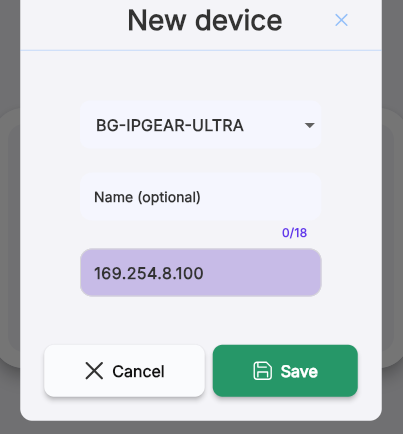
Step 3: Save and open the device
Click Save, then click on the device window. This opens the main page, where you'll see all of your connected source encoders (inputs) and your current active videowall layout.
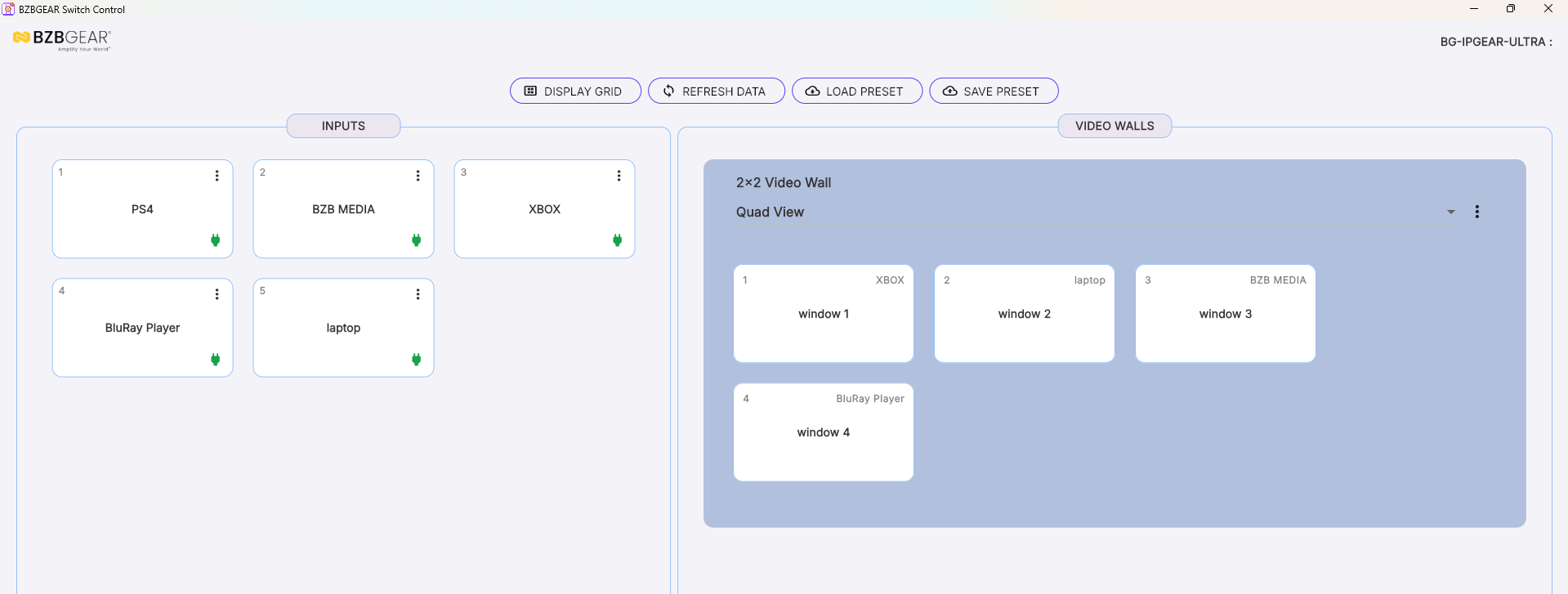
Tip: If you already labeled each encoder and decoder in the web GUI, those names will automatically populate in the app — making it easy to tell your sources and displays apart at a glance.
Part 2: Recall a Videowall or Multiview Preset
Because you already created all of your presets in the web GUI, that same list appears in the app automatically — nothing to rebuild.
Step 1: Open the preset dropdown
Click the videowall (or multiview) dropdown list. You'll see the exact same presets you created in the web GUI.
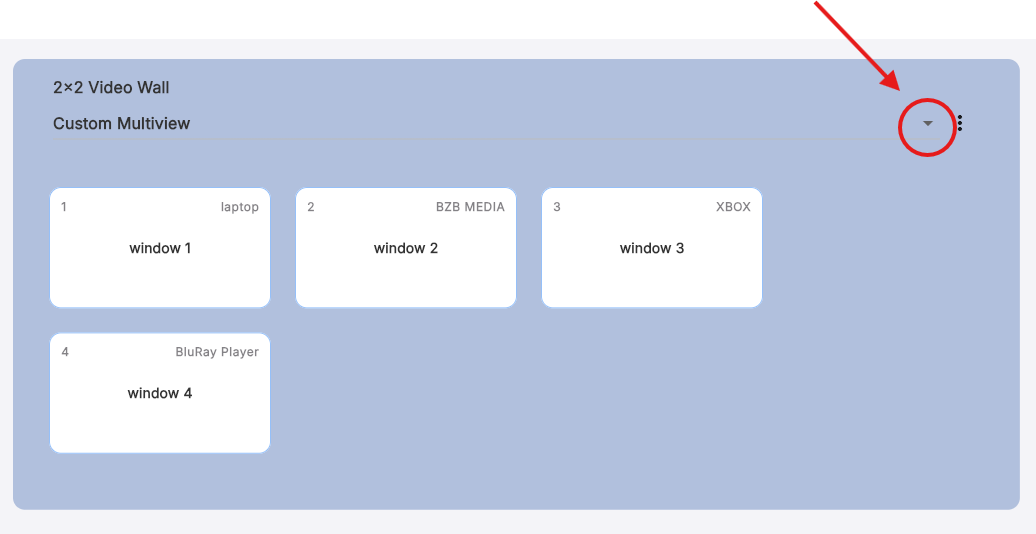
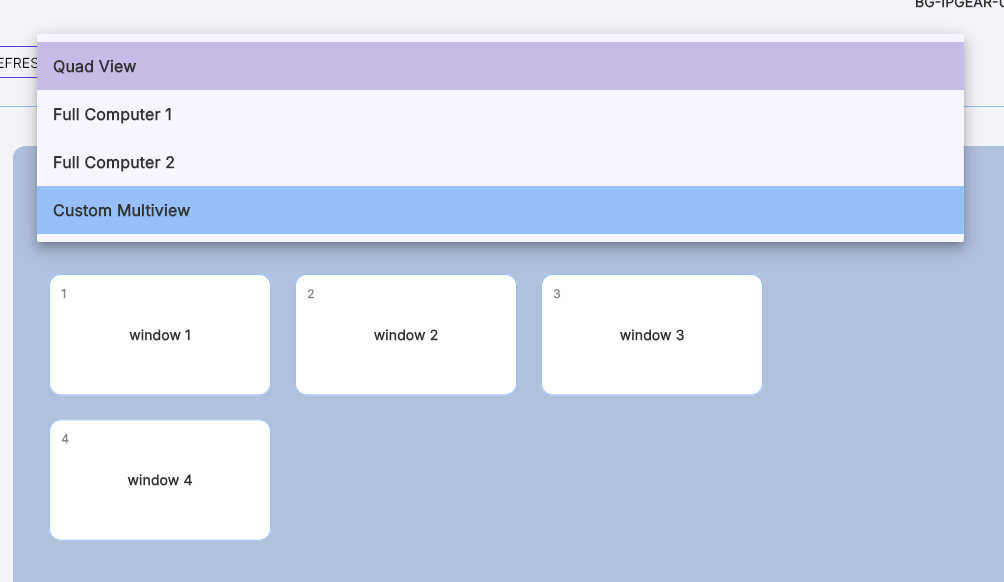
Step 2: Select your preset
Choose the preset you want, and it instantly applies to the wall — making for quick, seamless switching between layouts.
Part 3: Change a Source On the Fly
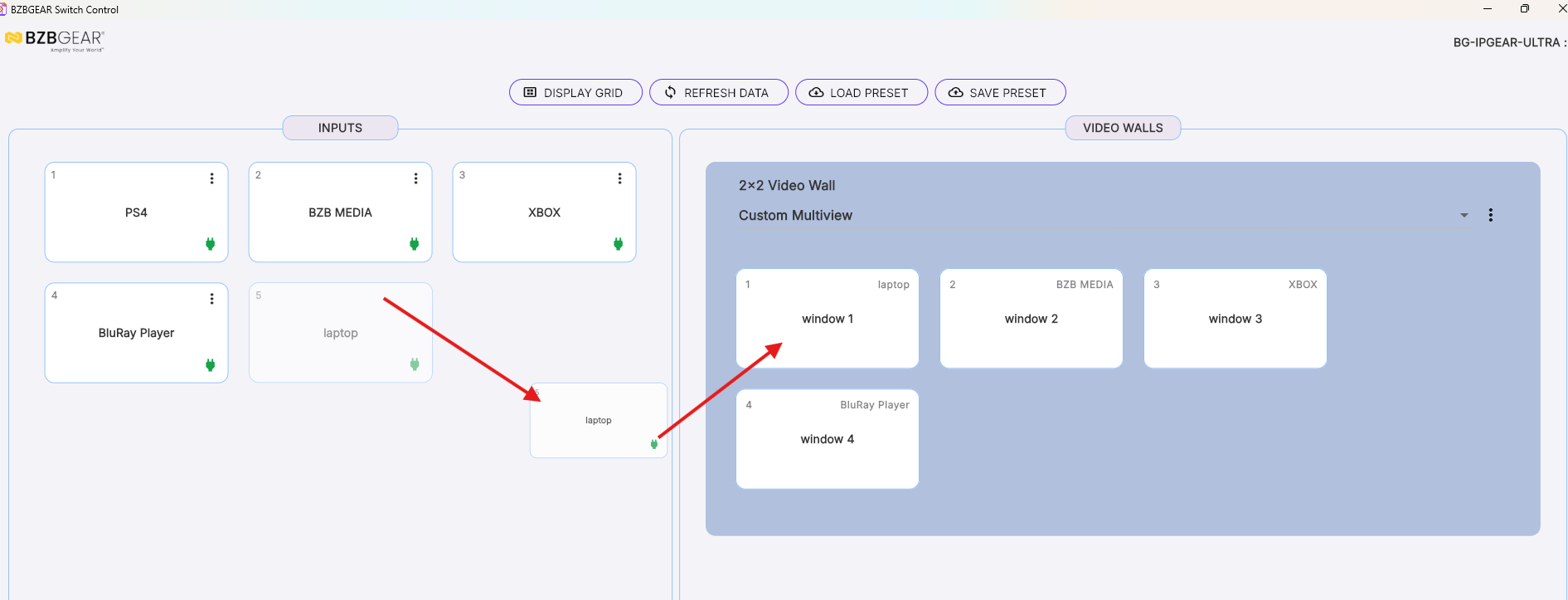
You're not locked into the preset once it's recalled. To swap what's playing in any window, simply drag the desired source to the window box on the right. The change applies right away, so you can fine-tune your videowall or multiview layout live without leaving the app.
That's How Simple It Is
That's all there is to it — a simple, fast way for end users to recall videowall and multiview presets and adjust sources on the fly. Build your layouts once in the web GUI, and switching between them in the Switch Control app is just a click away.


8.00 a.m. - 5.00 p.m. (PST)
10.00 a.m. - 3.00 p.m. (PST)
(by appointment only)
