





BG-IPGEAR-ULTRA Video Wall Setup Guide
Before You Begin
If your system has not been set up yet, refer to this setup guide first.
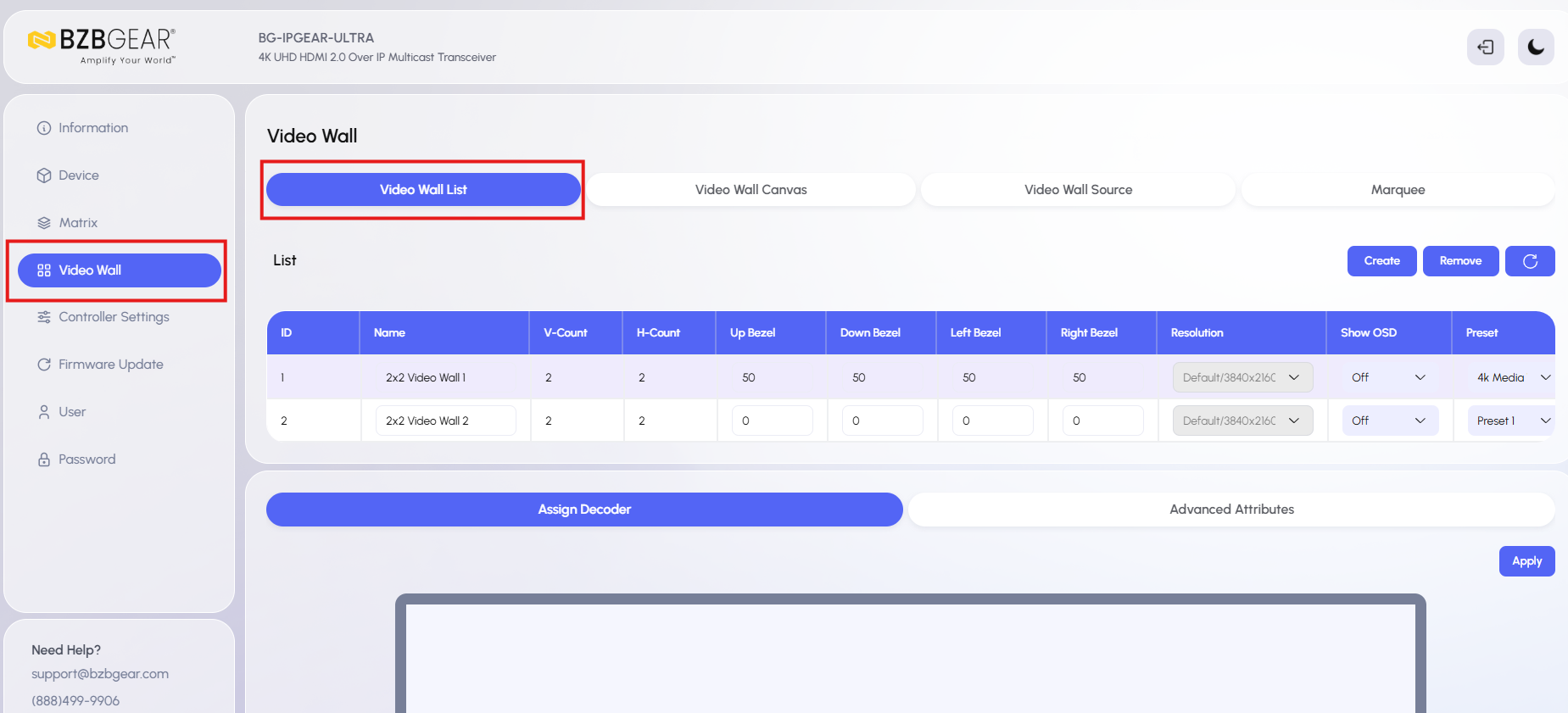
1. Open the Video Wall Section
Navigate to the Video Wall section inside the webGUI.
Use the first tab, Video Wall List, to begin setting up your video wall layout.
2. Create the Video Wall Layout
On the Video Wall List page, create the layout that matches the number of decoders for desired videowall layout.
Common layout options include:
- 2x2
- 2x3
In this example, we are creating a 2x2 video wall, which uses 4 decoders.
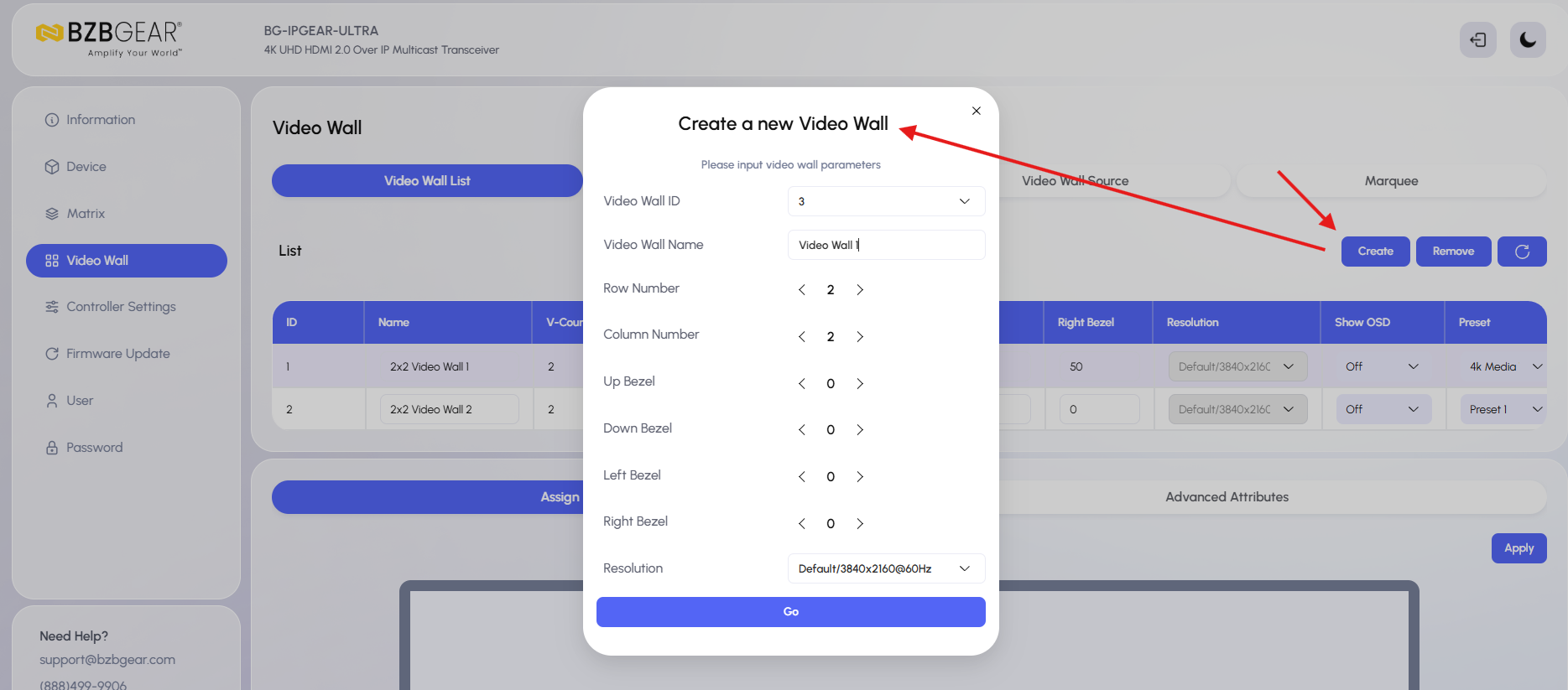
To create the layout:
- Click Create
- Change the Video Wall Name if desired
- Set the layout dimensions:
- Rows: 2
- Columns: 2
- Click Go
This setup only needs to be completed once for each video wall. After it is created, you can build and switch between presets within that wall.
Note:
You can also adjust Bezel Correction and Output Resolution in this section.
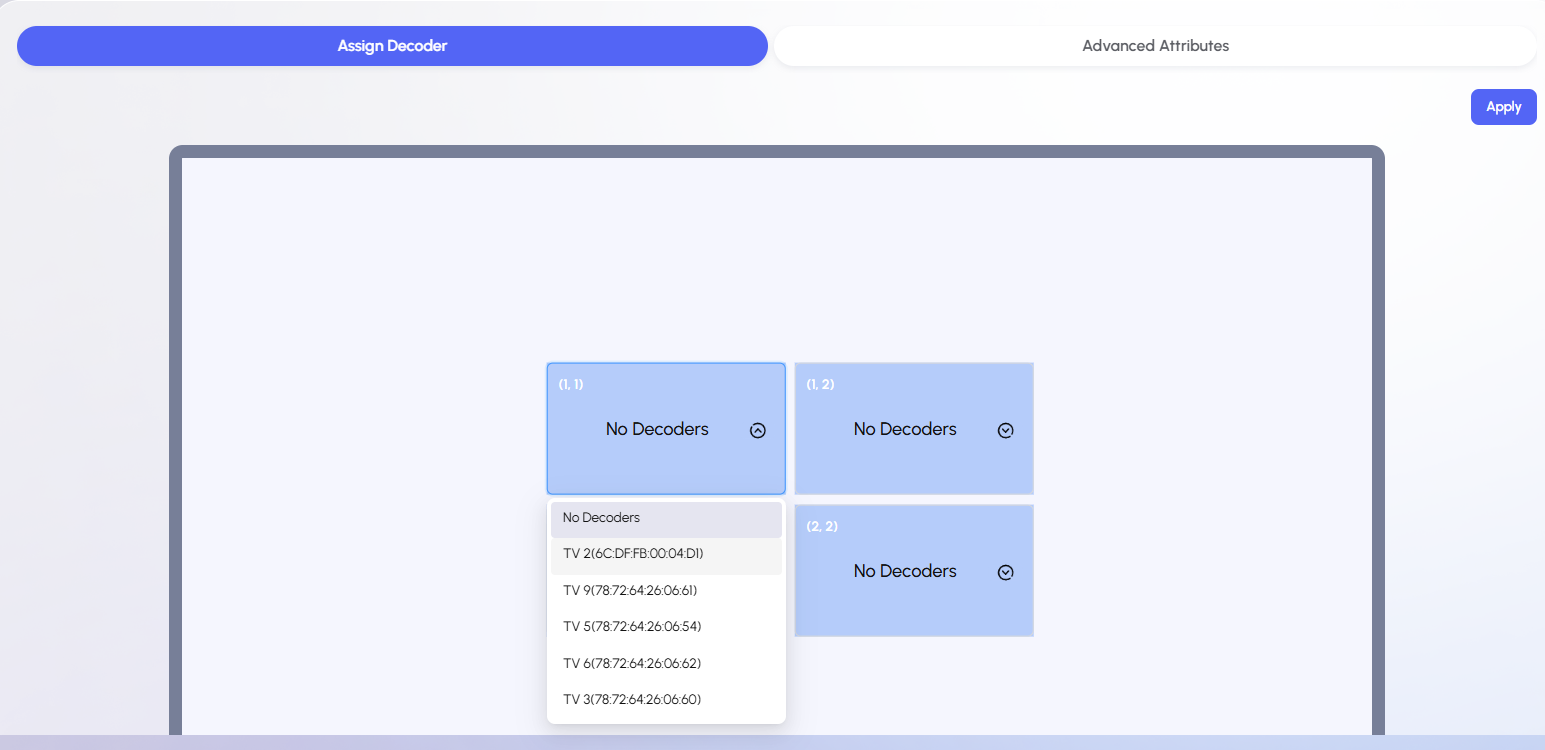
3. Assign Decoders to Each TV
Next, scroll down to assign each decoder to the correct screen position within the video wall. Click on each window to assign decoder from decoder drop-down list:
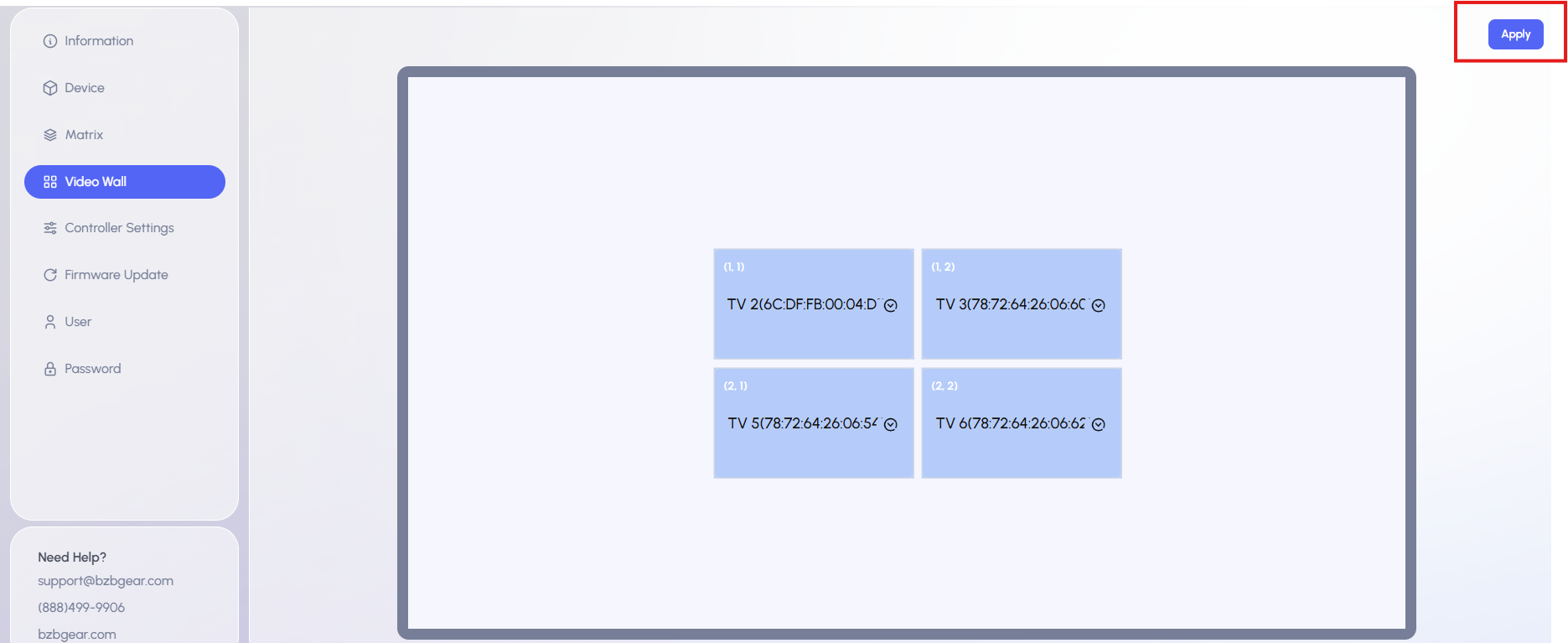
For this example, the decoder layout is:
- Top Left: TV 2
- Top Right: TV 3
- Bottom Left: TV 5
- Bottom Right: TV 6
After assigning the TVs, click Apply.
Once applied, the displays should begin updating automatically. By default, the system will show a standard 2x2 layout with one image stretched across the entire wall, usually using the last selected source.
4. Open the Video Wall Canvas
Go to Video Wall Canvas.
This is where you can:
- Save the current layout as a preset
- Add more layers if needed
- Manage and recall presets
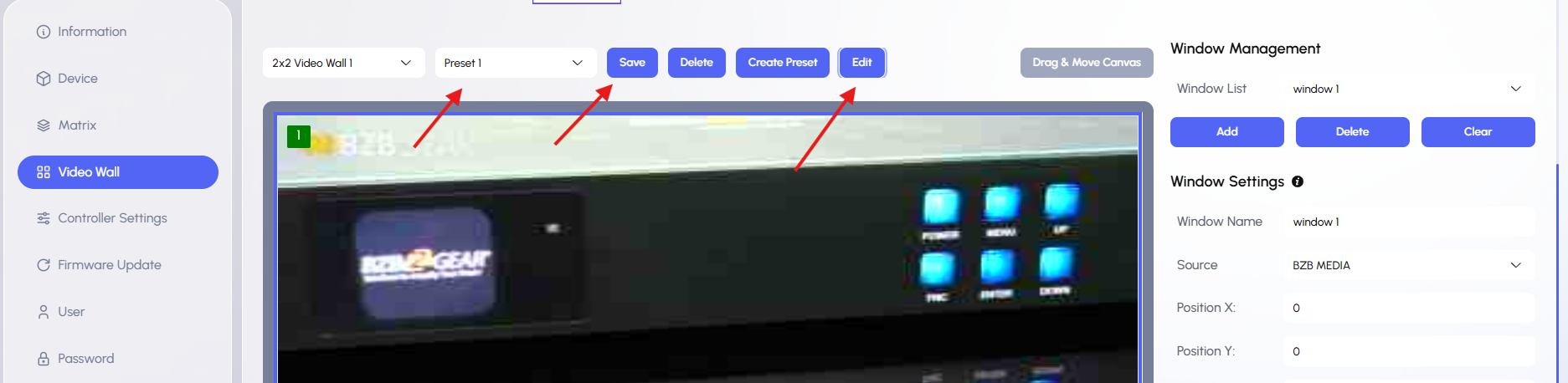
5. Save the Layout as a Preset
To save your current video wall setup:
- Set it as Preset 1
- Click Save
- Select Edit if you want to rename the preset
This preset can now be recalled later without rebuilding the layout.
6. Change the Video Wall Source
To change the encoder source shown on the video wall:
- Under Window Settings, click the Source dropdown menu
- Select the desired source from the list
- Select Apply
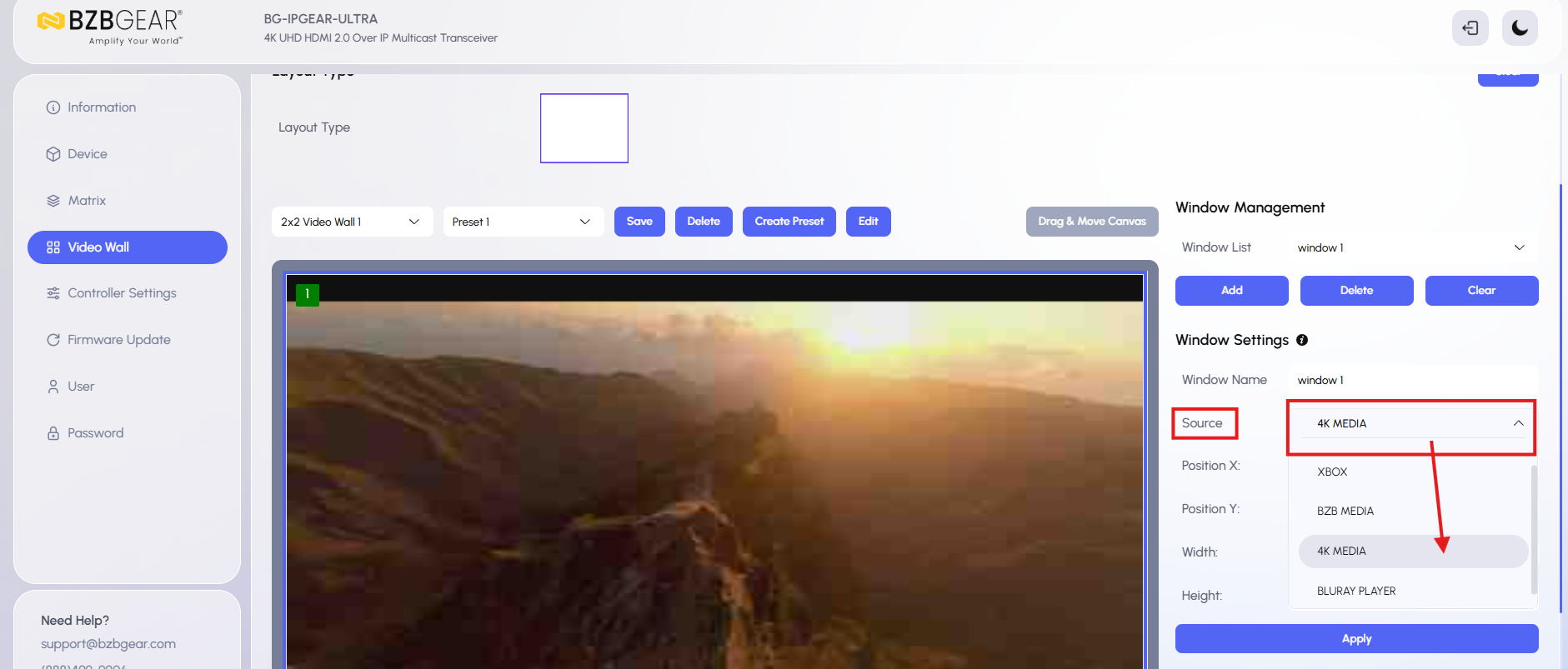
To update the current preset with this new source, click Save.
7. Create Additional Presets on the Current Video Wall Layout
You can create multiple presets within the same video wall layout.
To create a new preset:
- Click Create Preset
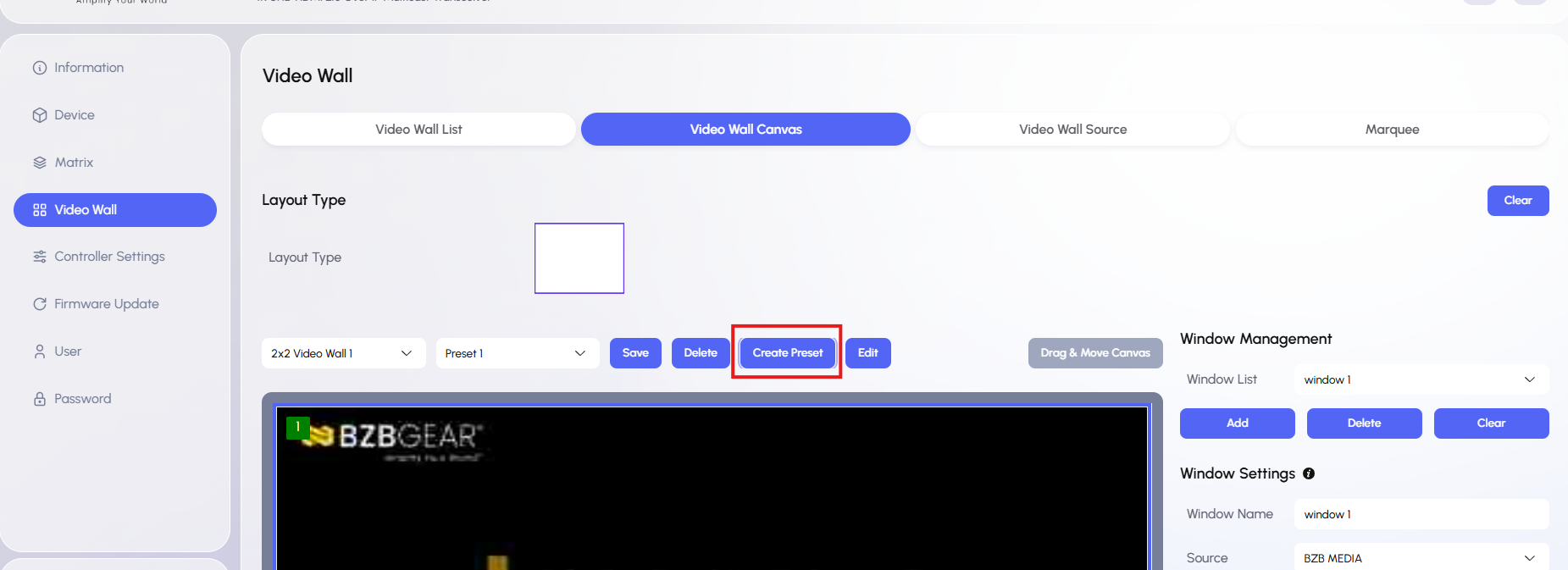
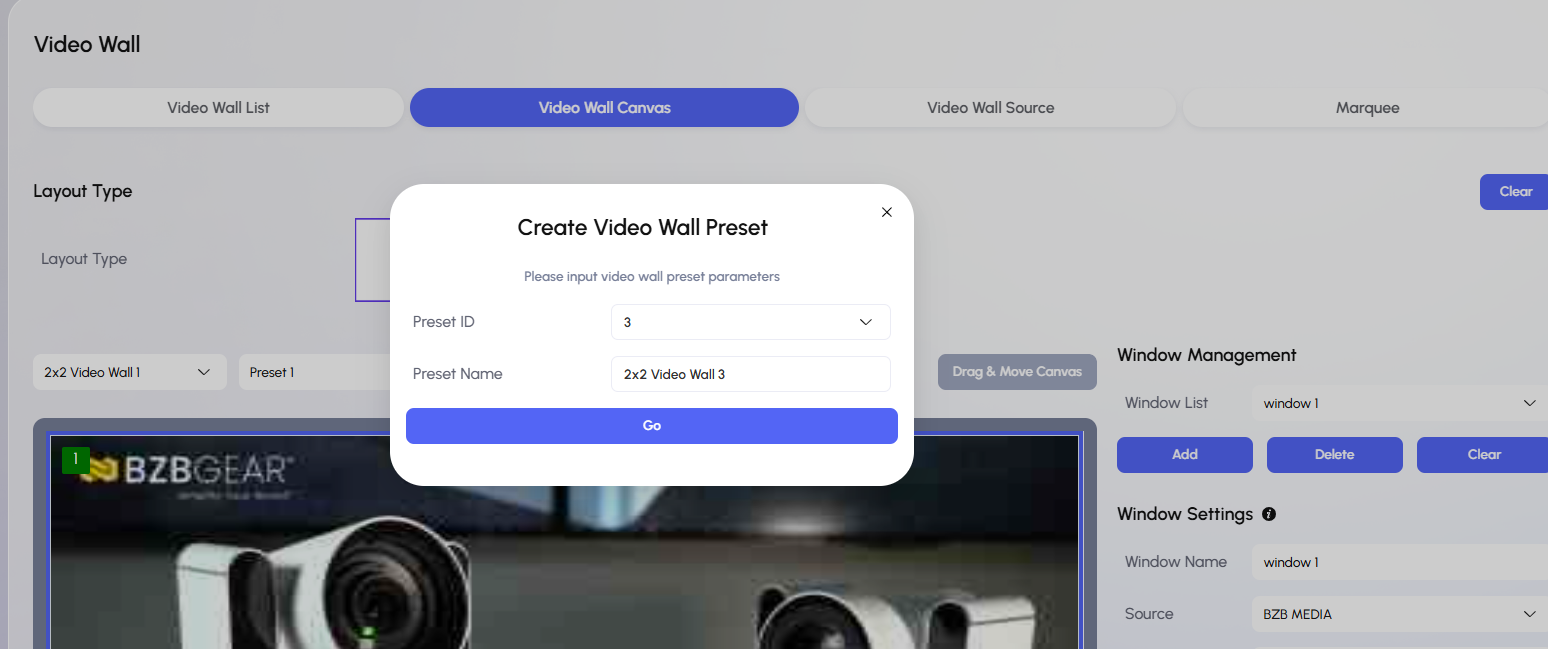
2. The Preset ID number will update automatically
3. Change the Preset Name for the new layout
4. Click Go
5. Select the Layout Type
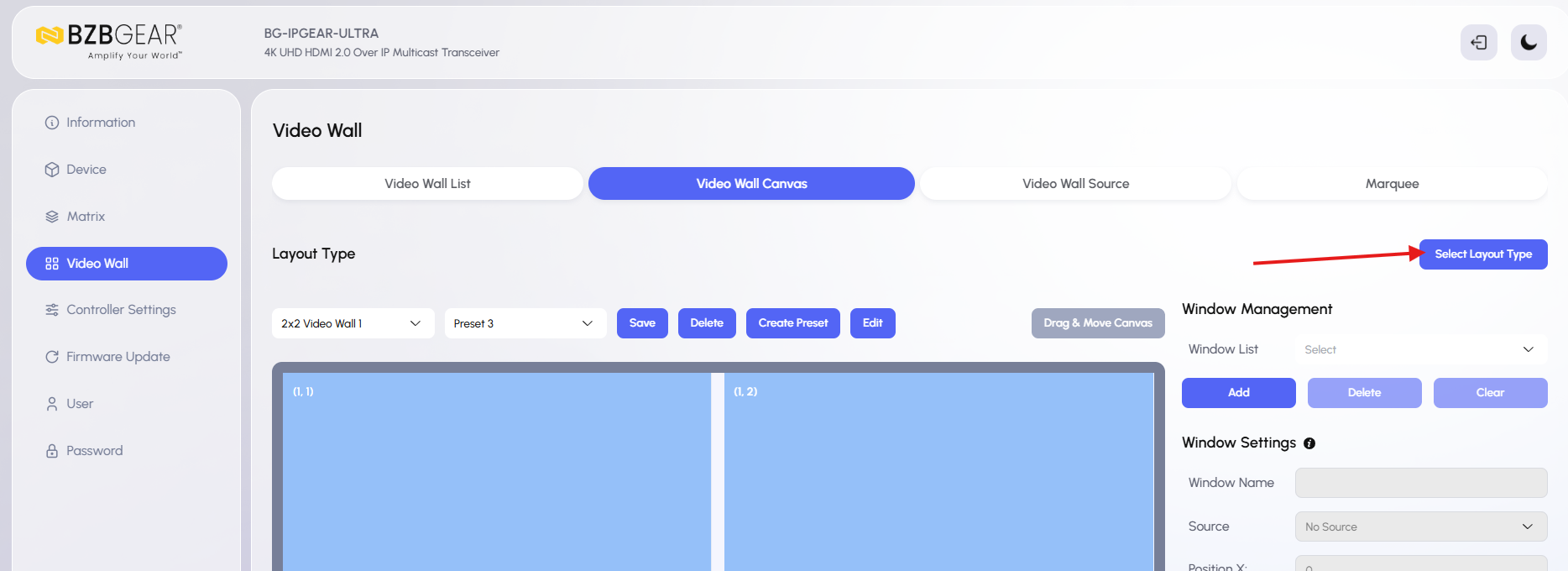
If you want to create another standard 2x2 wall, choose Single Image from the layout list to build across the wall.
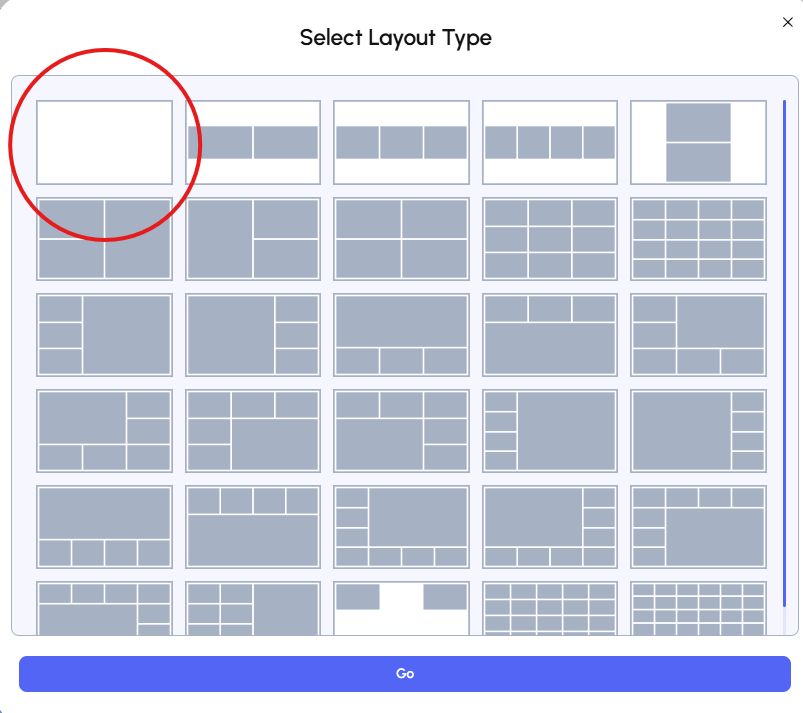
- Click Go
- Select the desired source from the Source List
- Click Save
Repeat this process for as many presets as needed.
8. Switch Between Presets
Once multiple video wall presets have been created, you can easily switch between them.
To recall a preset:
- In the Video Wall Canvas window, locate the preset dropdown menu
- Select the desired preset from the list
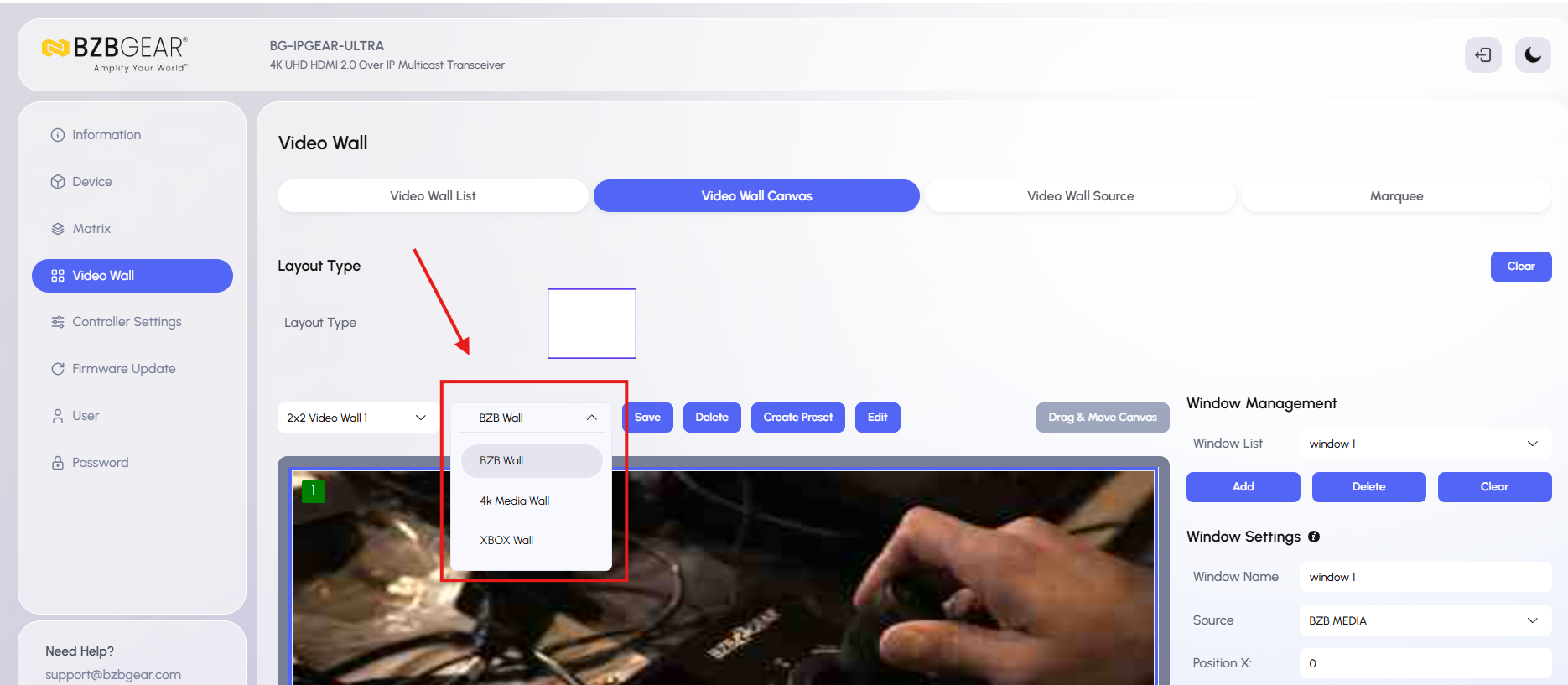
The selected preset will be recalled for the current video wall.
9. Create Additional Video Walls
If you want to create and manage another video wall, such as a second 2x2 wall with 4 separate decoders, repeat the steps above.
After creating it, the second video wall will appear in the Video Wall List.
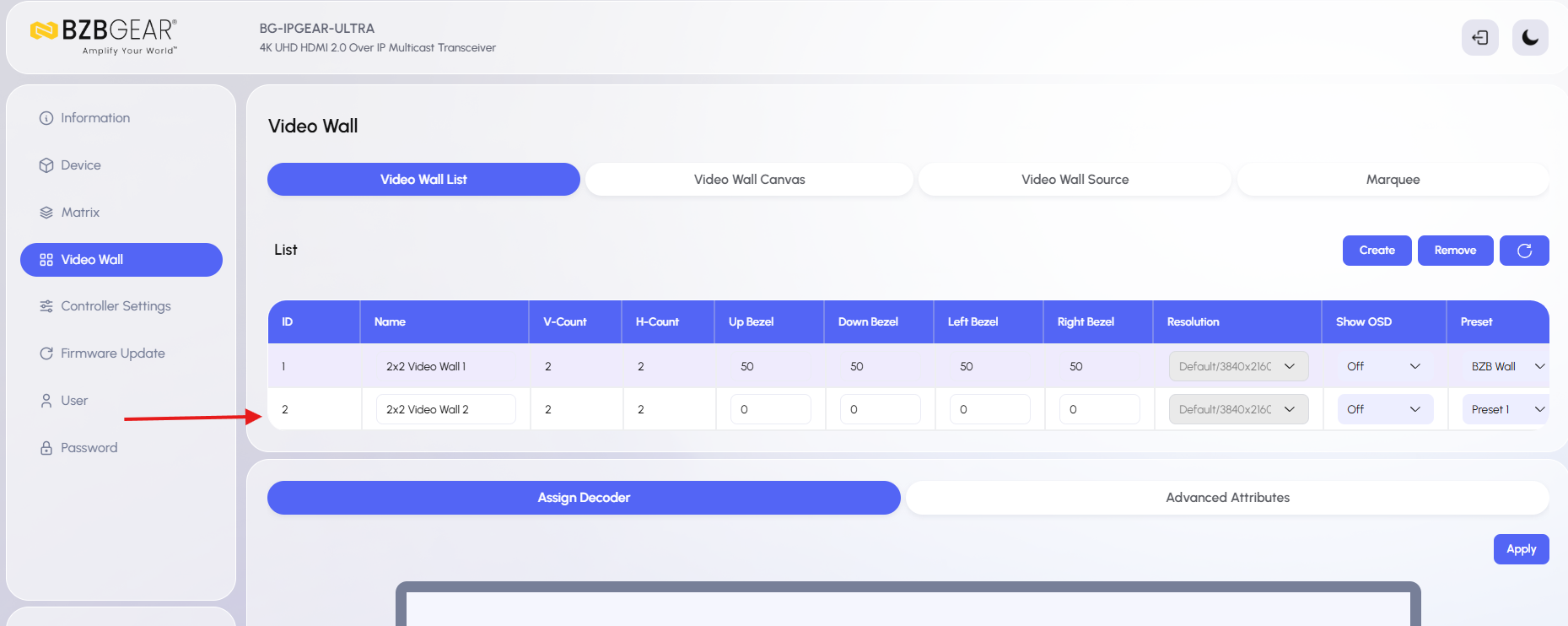
From there:
- Go to the Video Wall Canvas page
- Select the second video wall from the dropdown menu
- Its corresponding presets will appear in the preset dropdown to the right
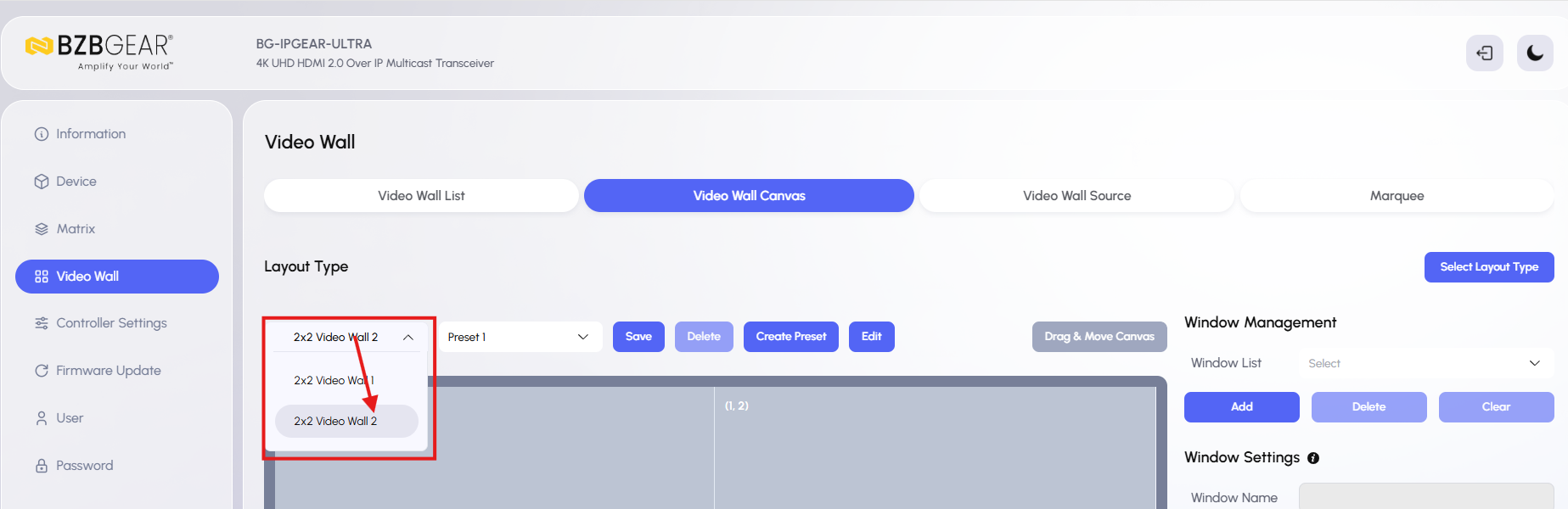
You can repeat this process as many times as needed to create additional video wall sections.


8.00 a.m. - 5.00 p.m. (PST)
10.00 a.m. - 3.00 p.m. (PST)
(by appointment only)