







Three Ways to Call Video Walls with the BG-UHD-VWP19
There are three simple ways to build and call video walls with the BG-UHD-VWP19— the push buttons on the front, the IR remote, or the PC control software.
Let's break each down.
Option 1: Push Buttons
On the front panel of the unit, there are three video wall button options on the right side:
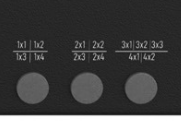
Each time you push a button, it cycles through the multiple video wall options displayed for that button. Keep pushing to cycle through the available layouts.
For example, if you're looking to create a 3x3 video wall, simply press the third button three times.
Option 2: IR Remote
Using the IR remote provided, there are 4 preselected video wall layout options you can call.
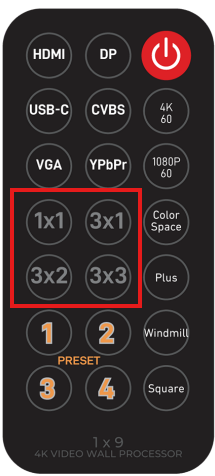
Simply press the button for the layout you want to call it instantly.
Option 3: PC Control Software
Be sure you've first downloaded and connected to the software. If you need help with that, refer to this guide: How to Connect to the BG-UHD-VWP19 Control Software.
Once connected, click the Video Wall tab on the left side of the software, then select your desired video wall layout.
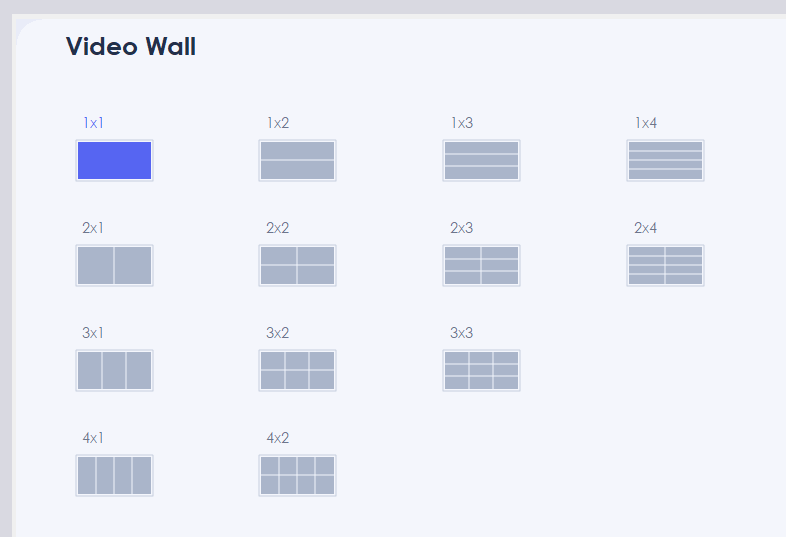
Why Use the Software?
The software gives you a couple of advantages over the buttons and remote.
- Save and recall presets. You can save a preset, give it a name, and recall it anytime right from the software.
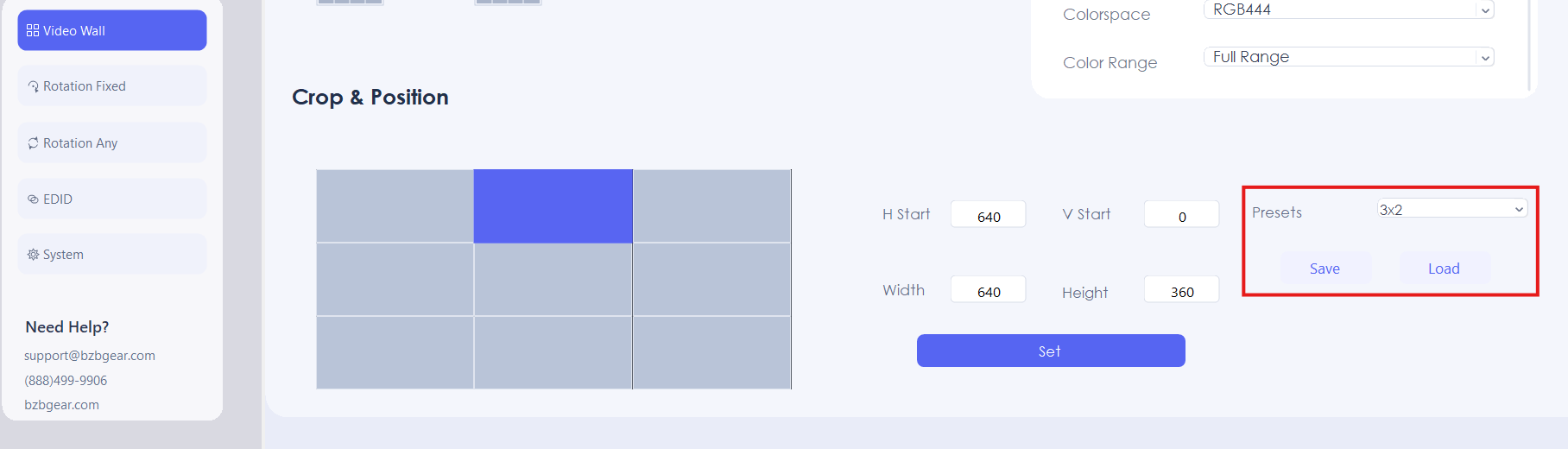
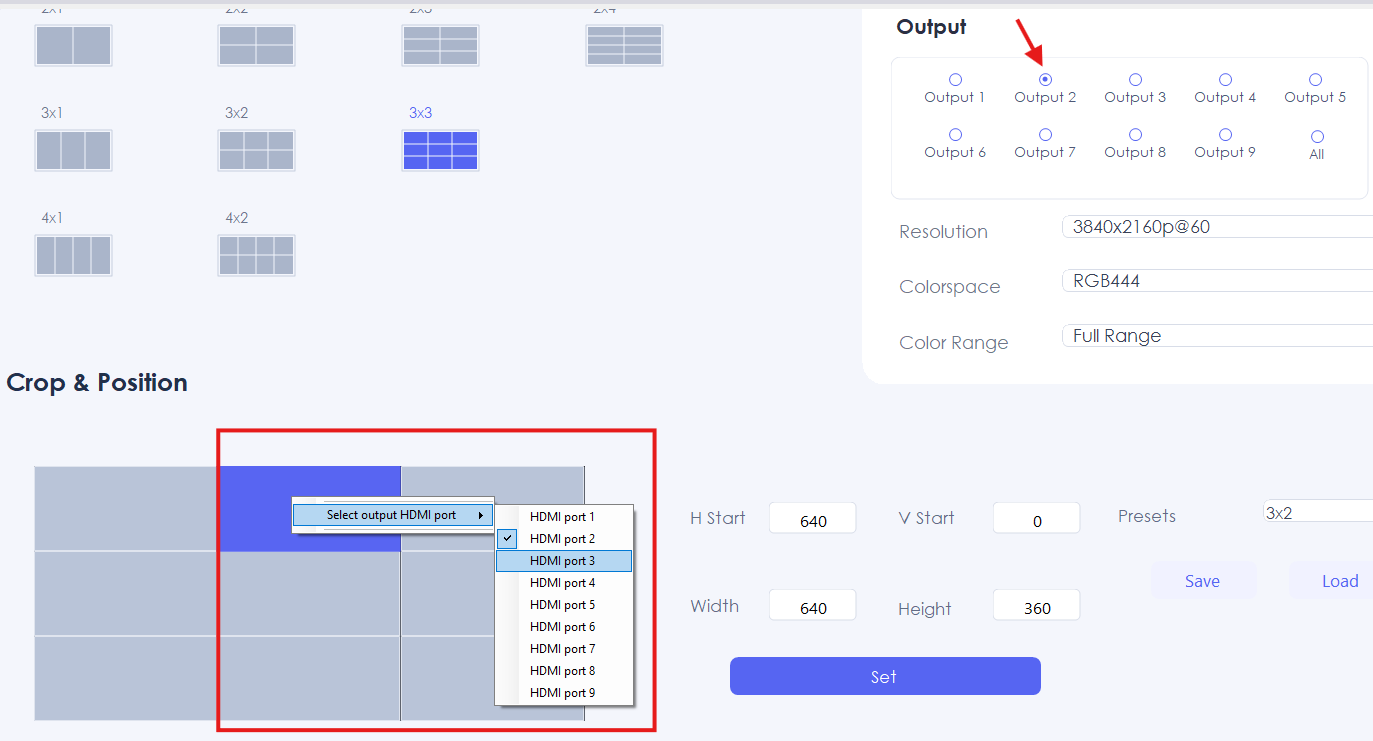
- Reassign outputs to the right displays. If your layout order comes out scrambled, you can move any output of the video wall to a different display. Right-click the layout and select the HDMI output the TV is actually connected to. Just be sure to click the output number at the top right first so your changes apply to that individual display.
That's How Simple It Is
That's it — those are your three options for calling video walls on the BG-UHD-VWP19. Use the push buttons or IR remote for quick on-site switching, and reach for the control software when you want to save presets or fine-tune which output goes to which display.


8.00 a.m. - 5.00 p.m. (PST)
10.00 a.m. - 3.00 p.m. (PST)
(by appointment only)
