







How to Connect to the BG-UHD-VWP19 Control Software
Before you can build video walls or manage inputs on the BG-UHD-VWP19, you'll need to connect to it with the control software. This guide walks you through both ways to connect — over micro USB or over your LAN — so you can get into the software and start configuring your processor.
Let's break it down.
Before You Begin
First, download the control software from the product resources page on our website: BG-UHD-VWP19 — 4K UHD Advanced Multi-Input Video Wall Processor with Seamless Switching/Scaling.
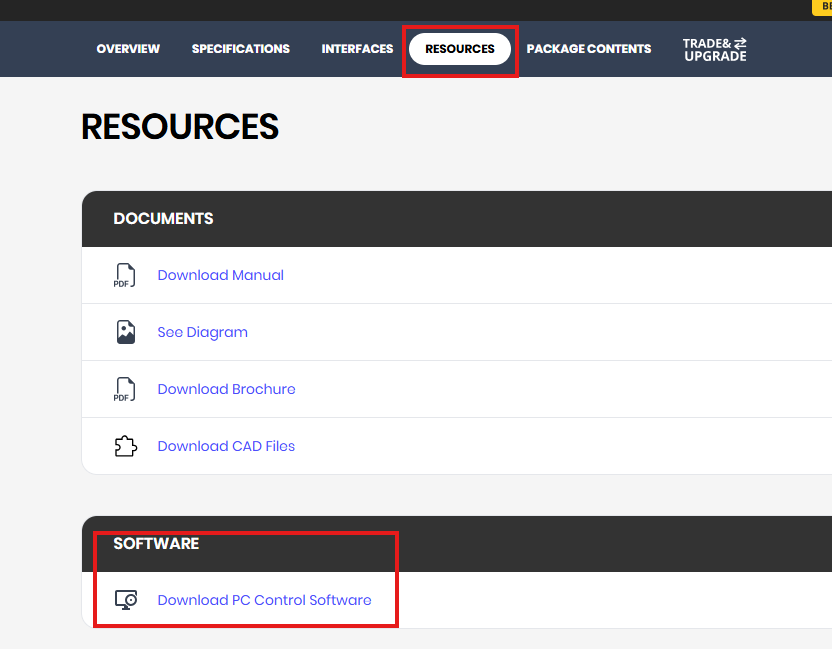
Once the software is installed, you have two options to connect: via micro USB cable or via the LAN port.
Option 1: Connect via Micro USB
Step 1: Connect the micro USB cable
Connect a micro USB cable (found in the box) from your computer to the "Host" port on the back of the unit.
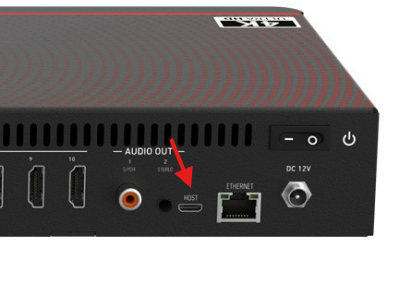
Step 2: Open the software
Once connected, open up the control software.
Step 3: Select the COM port and open
Select the correct COM port from the dropdown list, then click Open.
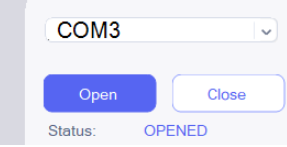
Confirm a successful connection
To confirm you're connected, click on the System tab. You should see all the latest software and firmware versions listed.
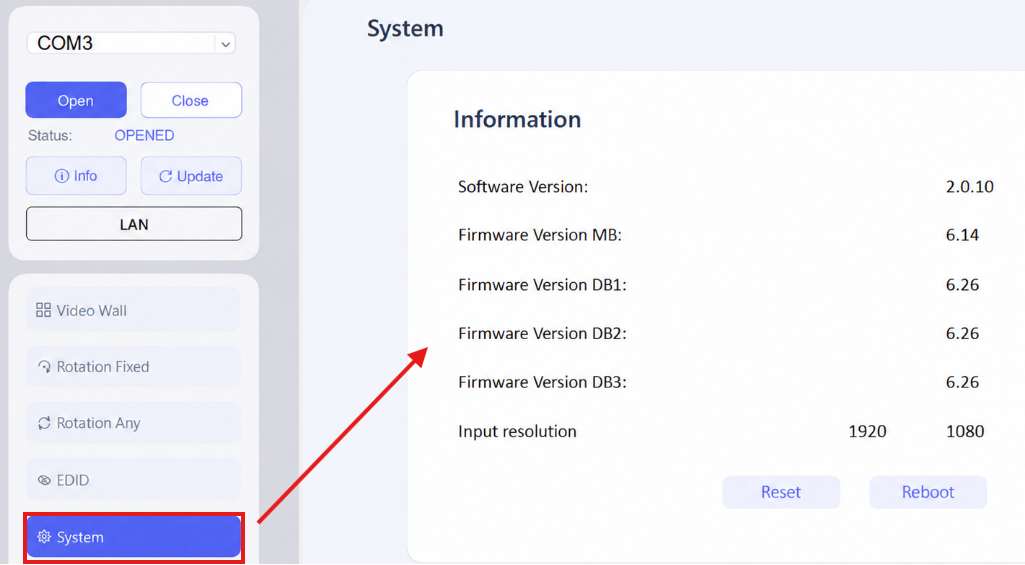
Option 2: Connect via LAN
Step 1: Connect the unit to your network
The unit is DHCP-enabled by default, so we recommend connecting it to a DHCP-active network switch with a Cat cable. It will automatically pull an IP address on your network.
Step 2: Open the app and select LAN
Open the app and select the LAN button.
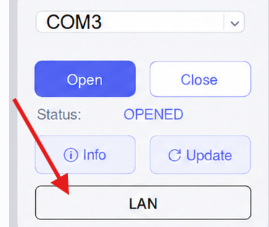
Step 3: Search for the device
Select the Search button in the window.
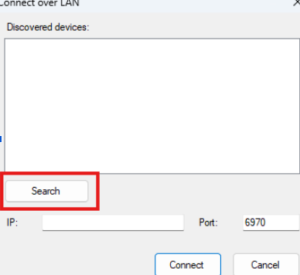
If everything is connected correctly, the search will find the device on the network.
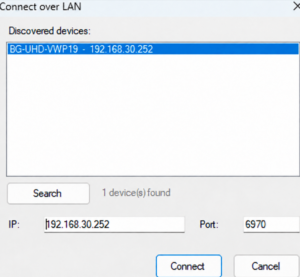
Then hit Connect.
Alternative: Connect Directly by Ethernet
If you don't have a network switch, you can connect your computer directly to the unit with an Ethernet cable. The default IP of the unit is 192.168.1.100. Be sure to set your computer's network settings to a 192.168.1.x address so it can talk to the unit and connect successfully.
That's How Simple It Is
That's it — whether you connect over micro USB or LAN, getting into the BG-UHD-VWP19 control software takes just a few steps. Once you're connected and you can see the System tab, you're ready to start configuring your video wall processor.


8.00 a.m. - 5.00 p.m. (PST)
10.00 a.m. - 3.00 p.m. (PST)
(by appointment only)