







How to Use the Multiview Function on the BG-4K-VP1616
In addition to matrix switching and video wall functionality, the BG-4K-VP1616 allows you to display multiple video sources simultaneously on a single screen using its multiview feature.
This feature is ideal for monitoring multiple inputs side by side, and layouts can be customized directly through the web GUI.
In this guide, we'll walk you through the available multiview layouts, show you how to assign sources, create custom layouts, display all nine sources on a single screen, and save your configurations as presets for easy access.
If you haven't connected to the unit yet, start with our BG-4K-VP1616 Initial Setup Guide to access the web GUI before proceeding.
Let's get started!
Part 1: Understanding the Multiview Layouts
The BG-4K-VP1616 offers five customizable multiview layouts, allowing you to arrange multiple video sources on a single display.
Each layout serves as a starting point that you can customize to suit your needs. Simply select a layout, assign your desired input sources to its windows, and route the completed multiview configuration to the display of your choice.
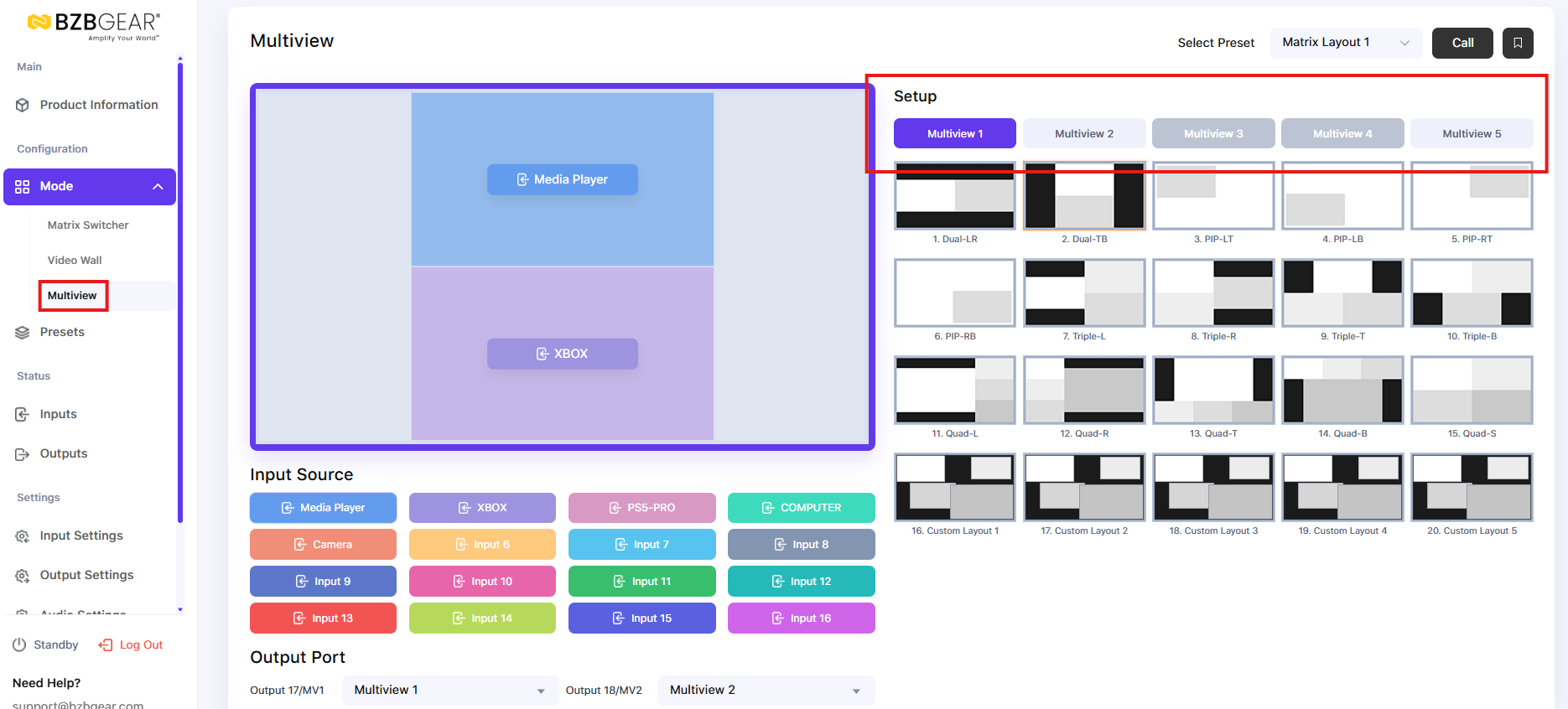
Part 2: Assigning a Multiview Layout to an Output
-
Navigate to the Multiview section of the web GUI.
-
Select your desired layout under one of the five multiview options (Multiview 1, Multiview 2, etc.).
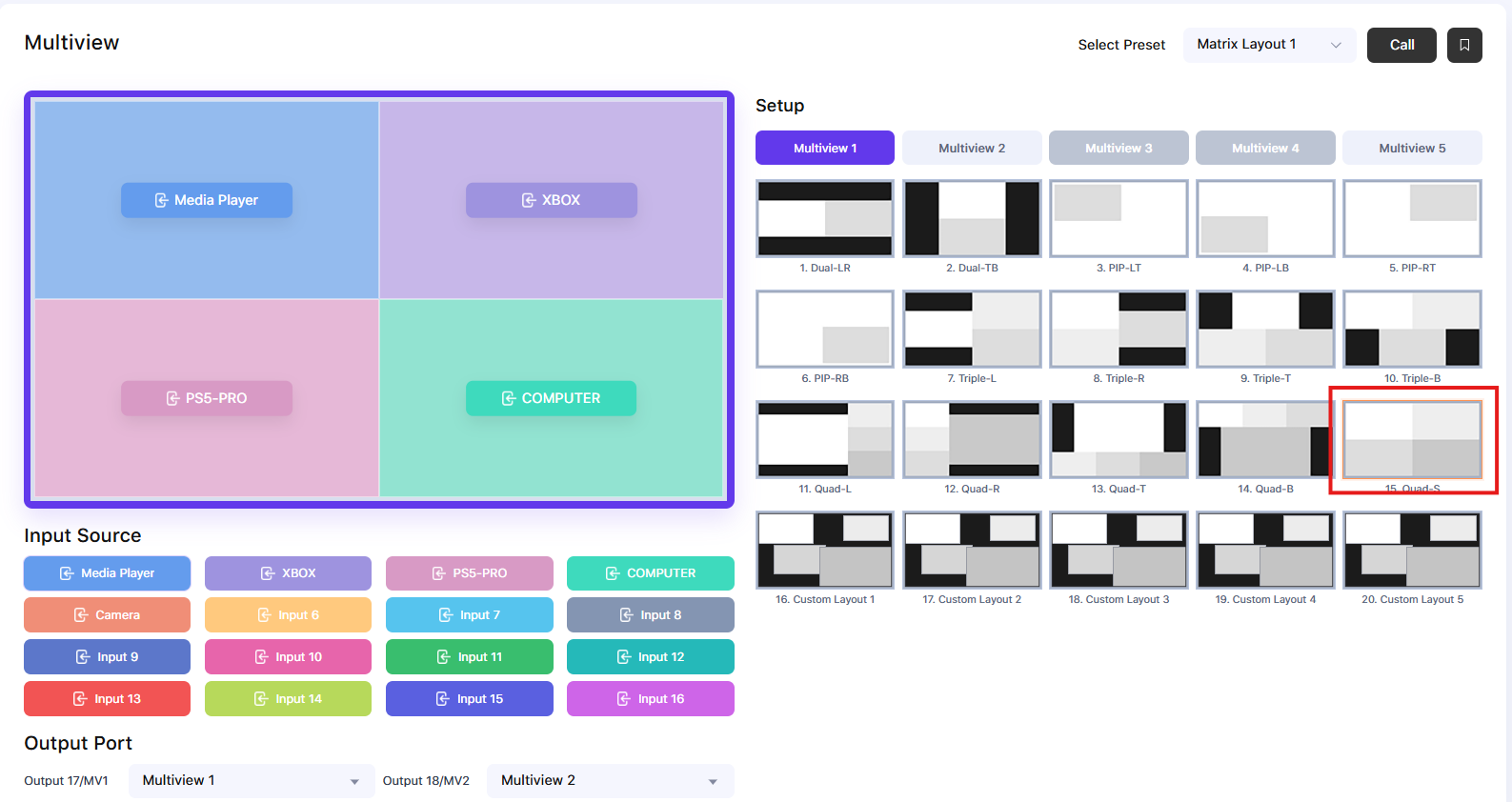
-
Assign your desired input sources to the windows within the selected layout.
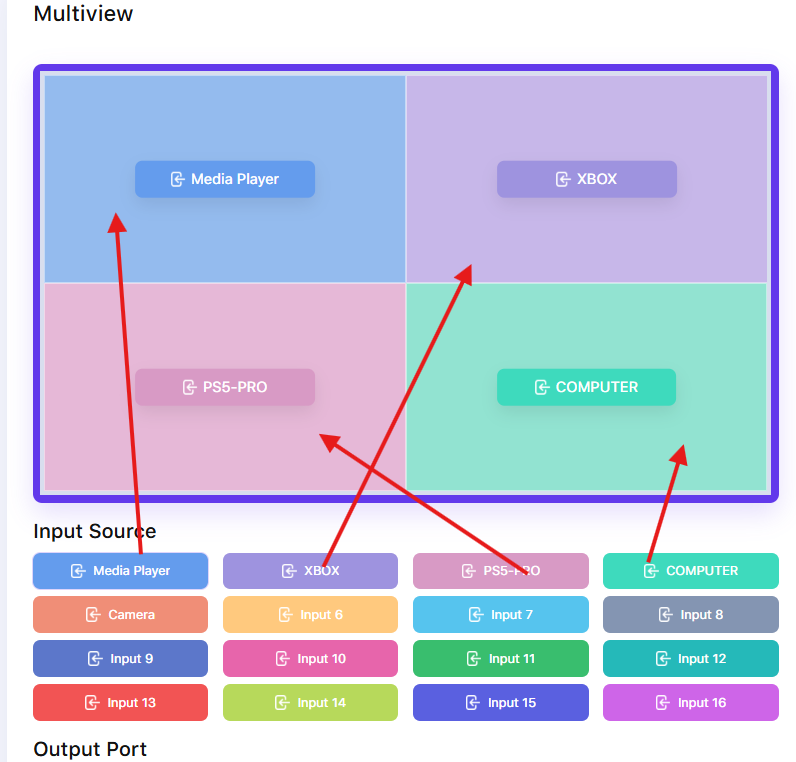
-
Once configured, navigate to the Matrix Routing interface.
-
Route the configured multiview to your desired display—for example, Output 3 (Monitor 3).
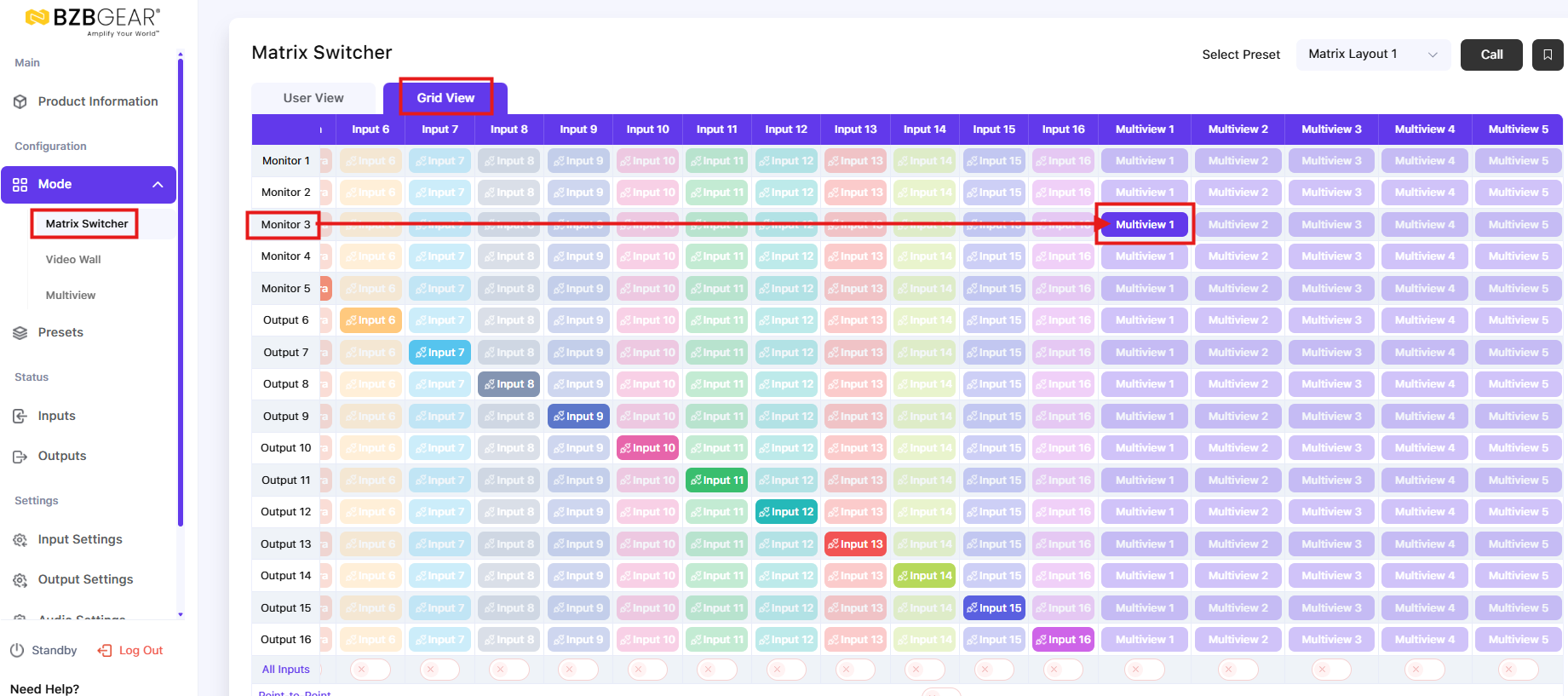
Because multiview configurations can be routed through the matrix interface, you can display your customized layout on whichever connected monitor best suits your setup.
Part 3: Creating Custom Multiview Layouts
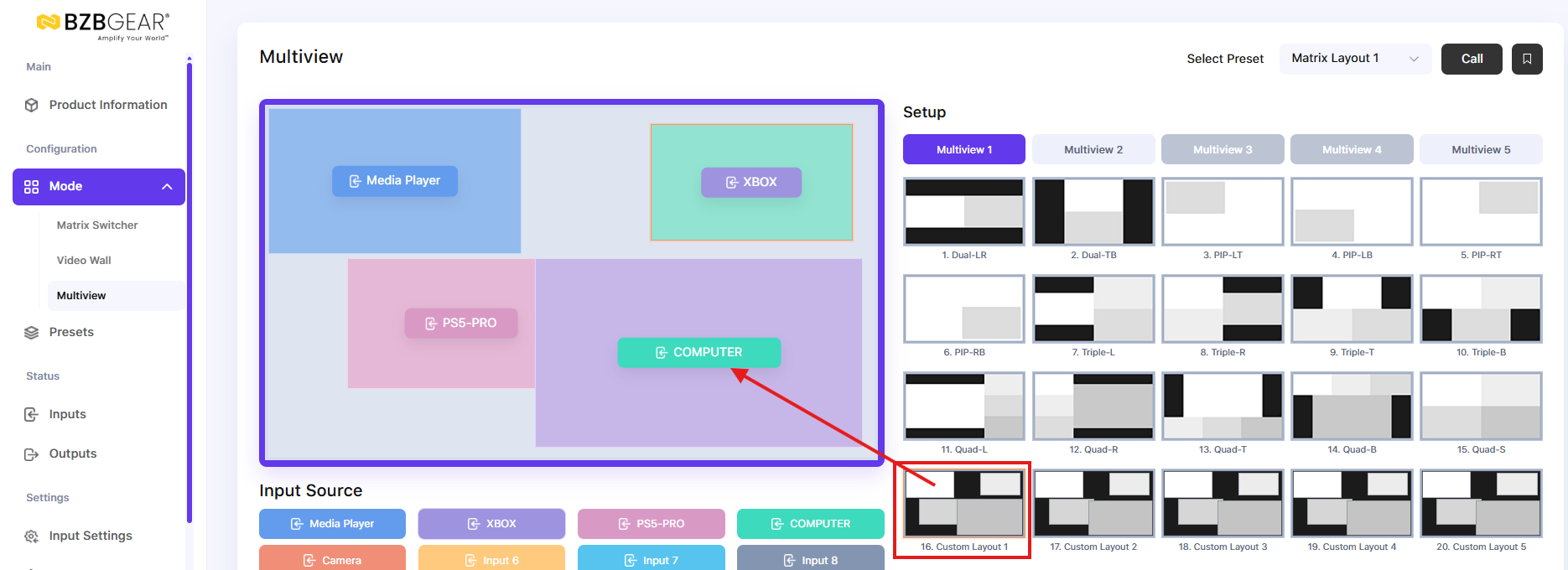
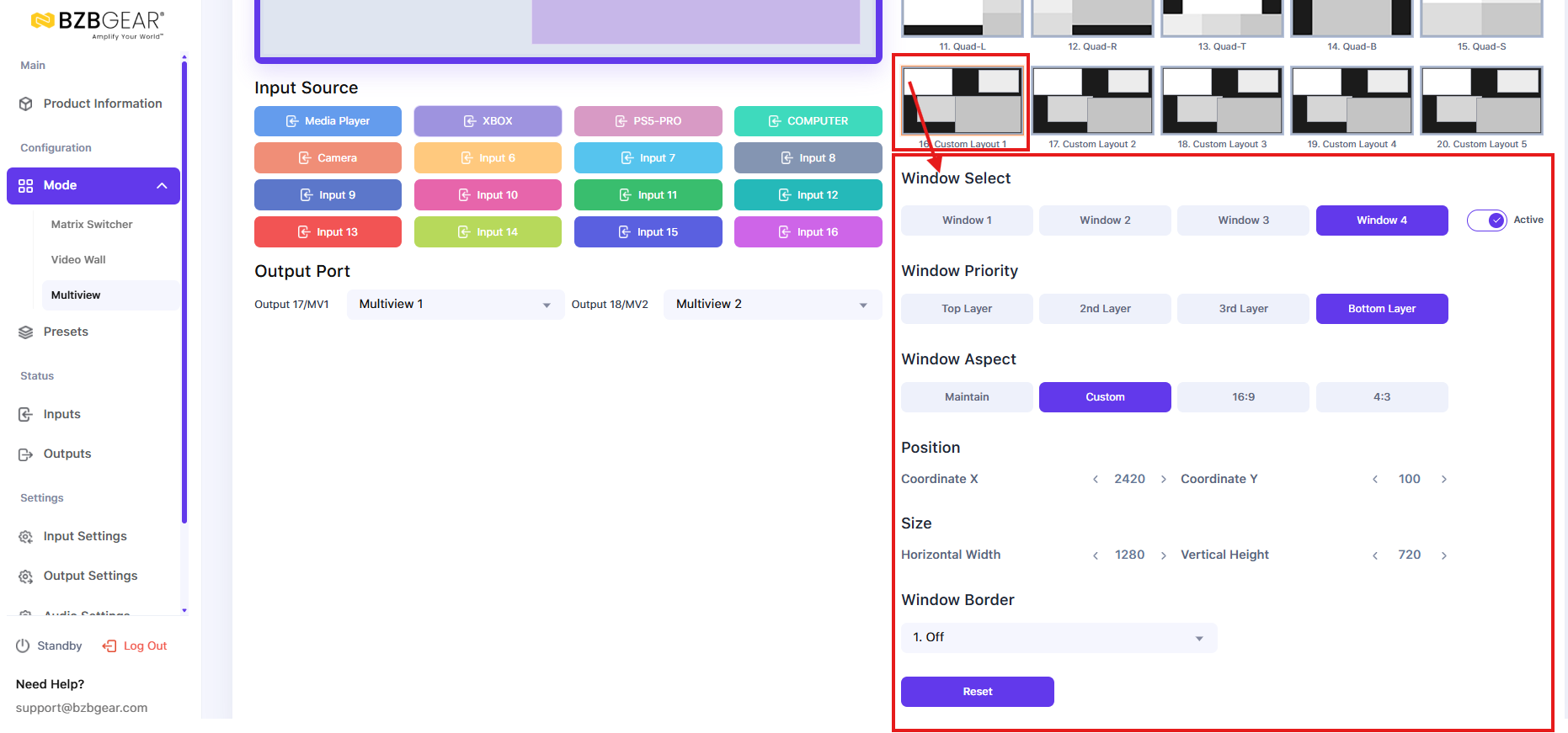
Beyond the standard layouts, the BG-4K-VP1616 allows you to create customized multiview arrangements to match your specific needs.
Using the web GUI, you can:
-
Add or remove video sources from the layout.
-
Reposition windows to customize their arrangement.
-
Assign different input sources to individual windows, such as a Chromecast, gaming console, media player, or any other connected device.
These customization options allow you to arrange multiple video sources exactly how you want them, creating a viewing experience tailored to your application.
Part 4: Displaying All Nine Sources on One Screen
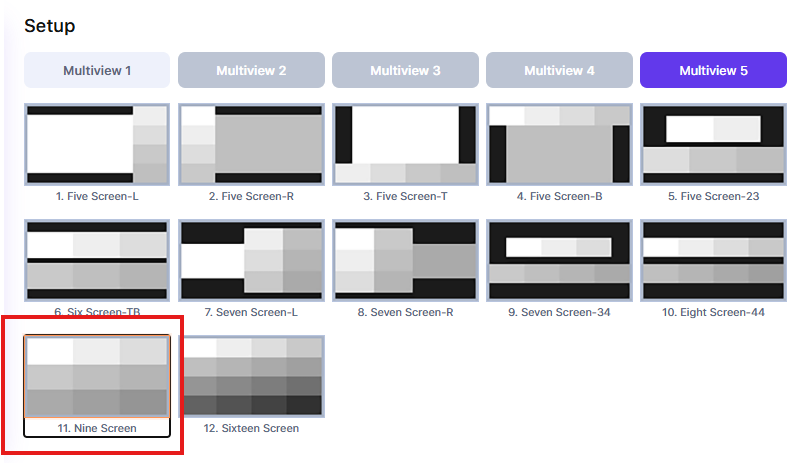
The BG-4K-VP1616 supports displaying up to nine video sources simultaneously on a single screen.
To configure a nine-source multiview:
-
Navigate to the Multiview section of the web GUI.
-
Select Multiview 5.
-
Assign your nine desired input sources to the available windows.
-
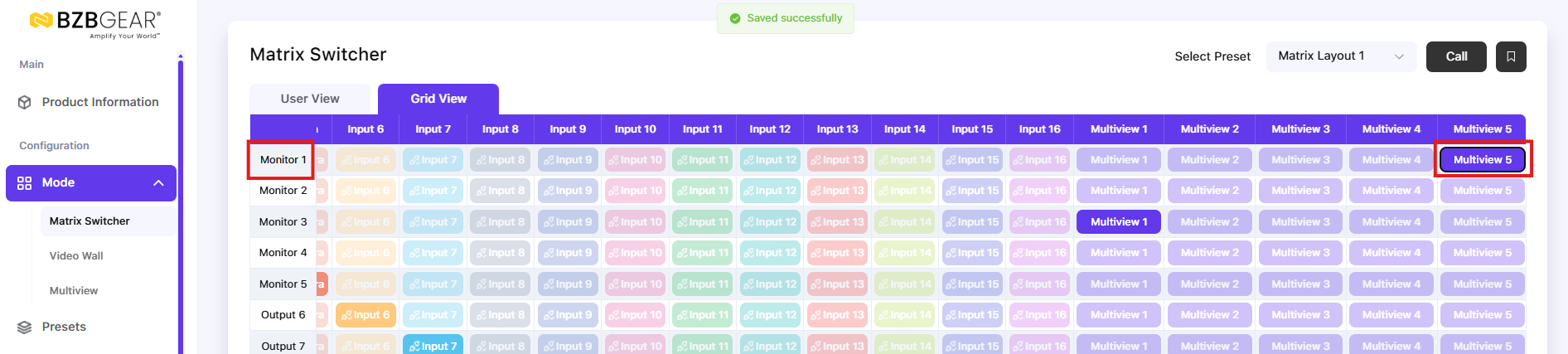
Navigate to the Matrix Routing interface.
-
Route Multiview 5 to your preferred display—for example, Output 1.
One of the key advantages of the BG-4K-VP1616 is its ability to operate in multiple modes simultaneously.
While one display shows all nine sources in a multiview layout, your remaining displays can continue operating in standard matrix mode, displaying independently routed video sources.
This flexibility makes it easy to monitor multiple sources without interrupting your existing AV setup.
Part 5: Saving Your Multiview Configuration as a Preset
Once you've created your preferred multiview layout, you can save the configuration as a preset for quick and convenient access.
-
Configure your desired multiview layout and source assignments.
-
Navigate to the Preset section of the web GUI.
-
Select an available preset slot—for example, Preset 3.
-
Save your current configuration.
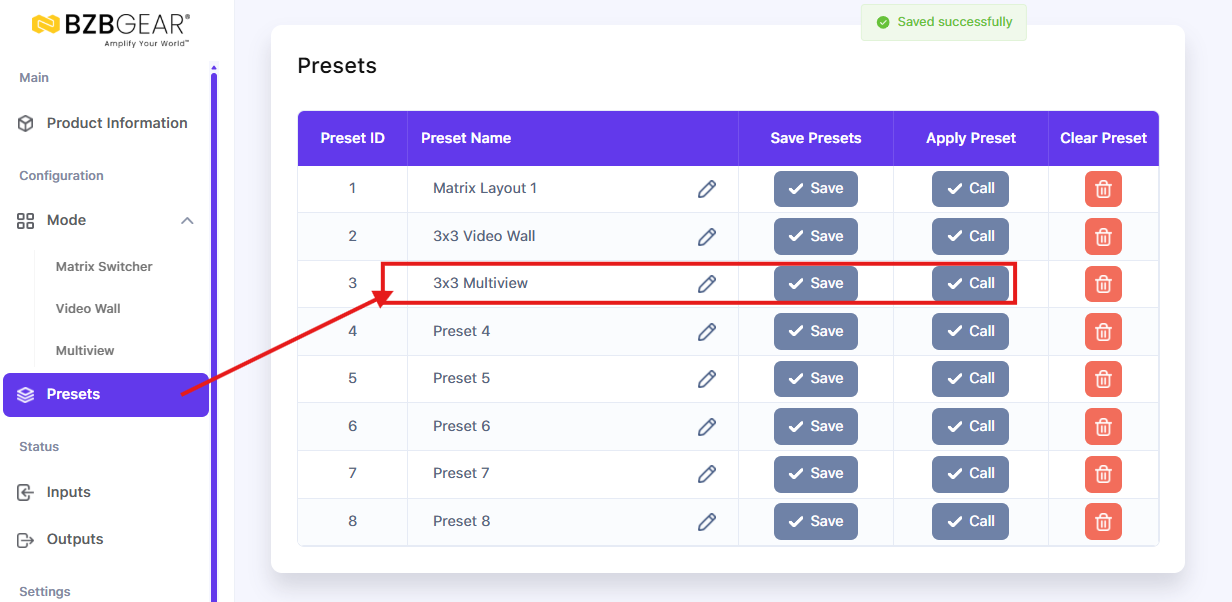
The BG-4K-VP1616 supports presets across its matrix, video wall, and multiview modes, allowing you to save and recall complex configurations without having to set them up again.
When you need to use a saved configuration, simply recall the corresponding preset to restore your preferred arrangement.
That's How Simple It Is!
With the BG-4K-VP1616's multiview functionality, you can choose from five customizable layouts, display multiple sources in a quad view or a full nine-source arrangement, route your configuration to the display of your choice, and save everything as a preset.
Whether you're monitoring multiple devices, managing an AV installation, or building a customized viewing environment, the BG-4K-VP1616 makes it easy to display and manage multiple video sources on a single screen.


8.00 a.m. - 5.00 p.m. (PST)
10.00 a.m. - 3.00 p.m. (PST)
(by appointment only)
