







How to Matrix with the BG-MC-SERIES via the Web GUI
The BG-MC-SERIES makes routing your sources to your displays quick and visual, right from its built-in web interface — no extra software required. This guide explains how to matrix your inputs to your outputs, send one source to every display at once, and save and recall matrix presets for the BG-MC-SERIES.
Let's break it down.
Before You Begin
This guide assumes your BG-MC-SERIES is already set up and online. If you haven't done the initial setup yet, start with the BG-MC-SERIES Setup Guide and come back here once you can log into the web interface.
Once you're logged in, the first page you'll see is the Matrix page — that's where all the routing happens.
Part 1: Label Your Inputs and Outputs
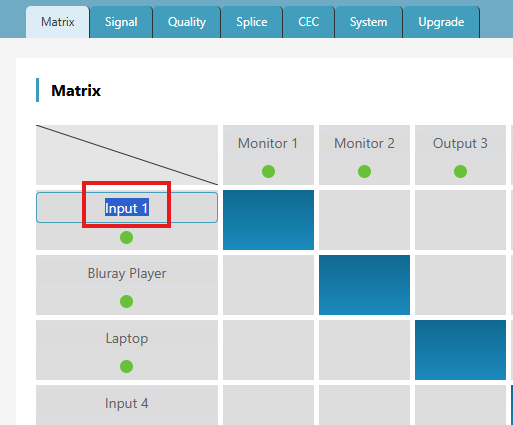
Before you start routing, it helps to name everything so your matrix stays organized and easy to read. To rename a source or display, simply double-click on the input or output name (for example, "Input 1") and type in something more descriptive — like "Blu-ray Player" or "Monitor 3."
Part 2: Matrix a Source to a Display
Routing a source to a display takes just one click.
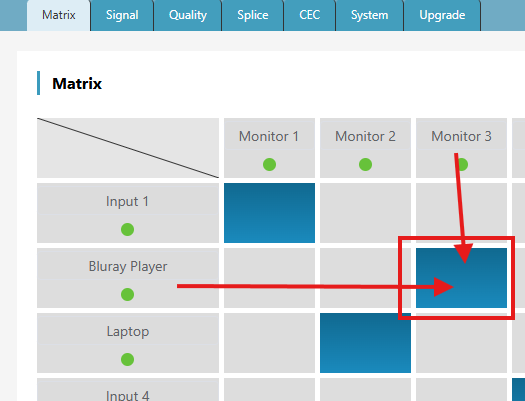
Under the output you want to change, click the source box for the input you'd like to send to that display. That source is now switched to that output. For example, selecting Source 2 (Blu-ray Player) under Output 3 sends the Blu-ray player to Monitor 3.
Send One Source to Every Display
Want the same source on all of your displays at once? Instead of setting each output individually, just select the All box for the desired input. That single source is instantly routed to every output.

Part 3: Save a Matrix Preset
Once you've built a matrix layout you'll want to reuse, save it as a preset.
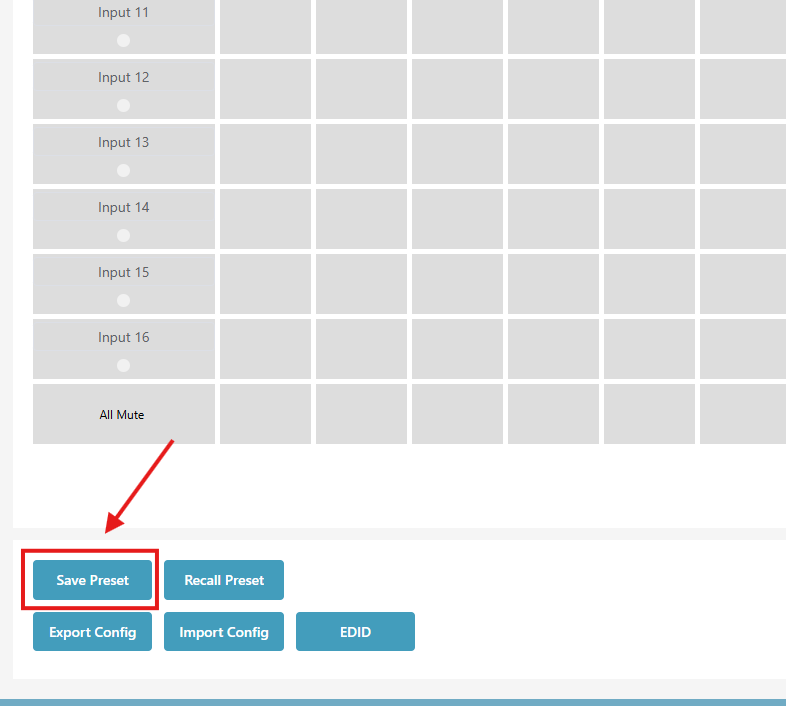
Step 1: Click Save Preset
At the bottom of the page, click the Save Preset button.
Step 2: Choose a Preset ID and name it
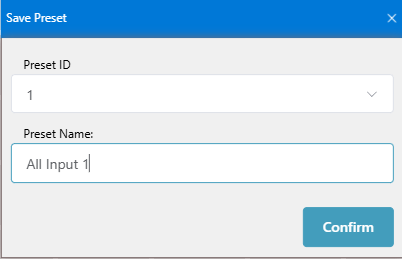
Select a Preset ID, give the preset a name you'll recognize later, and click Confirm.
Part 4: Recall a Matrix Preset
Getting a saved layout back is just as easy.
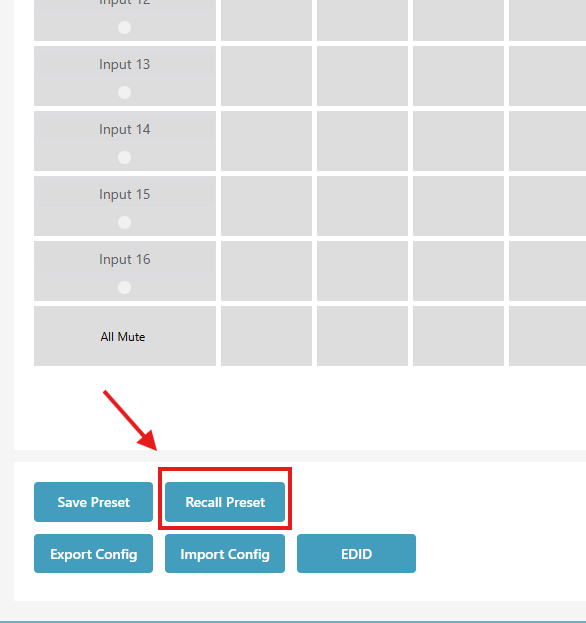
Step 1: Click Recall Preset
At the bottom of the page, click the Recall Preset button.
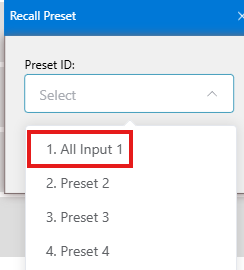
Step 2: Select your preset
Choose the preset you want from the list.
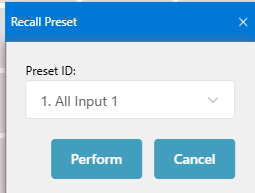
Step 3: Perform the recall
Click Perform, and your saved matrix layout is instantly applied.
That's How Simple It Is
That's all there is to it — with the BG-MC-SERIES web GUI, matrixing your sources to your displays, sending one source everywhere, and saving and recalling presets all take just a few clicks. No extra software, no fuss.


8.00 a.m. - 5.00 p.m. (PST)
10.00 a.m. - 3.00 p.m. (PST)
(by appointment only)
