







How to Matrix and Use Presets with the BG-4K-VP1616PRO
With your BG-4K-VP1616PRO connected and configured, the day-to-day magic is in the matrix feature — seamlessly switching any of your 16 sources to any of your 16 displays, right from the web GUI. This guide covers how to route your sources, send one source to every display, and save and recall presets.
If you haven't connected to the unit yet, start with our BG-4K-VP1616 Initial Setup Guide to get online and into the web GUI, then come back here.
Let's break it down.
Open the Matrix Mode
Once you're logged into the web GUI, you'll see the unit's modes — Matrix, Video Wall, and Multiview. Click on Matrix to get started.
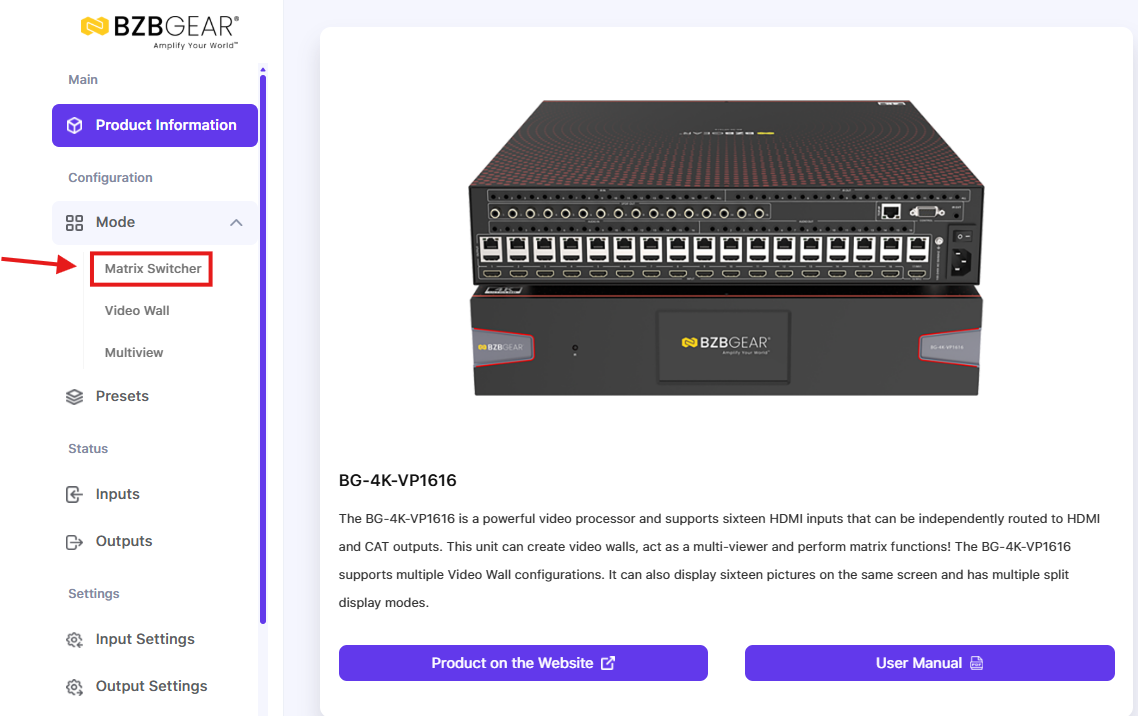
Within Matrix mode, there are two ways to control the unit: drag and drop in User View, or Grid View. Both switch seamlessly — you won't get a black screen between sources.
Part 1: Switch Sources with Drag and Drop
The drag-and-drop view is the most visual way to route. Simply drag an input onto the output you want — for example, dragging Input 4 onto Output 3. The switch happens instantly and seamlessly.
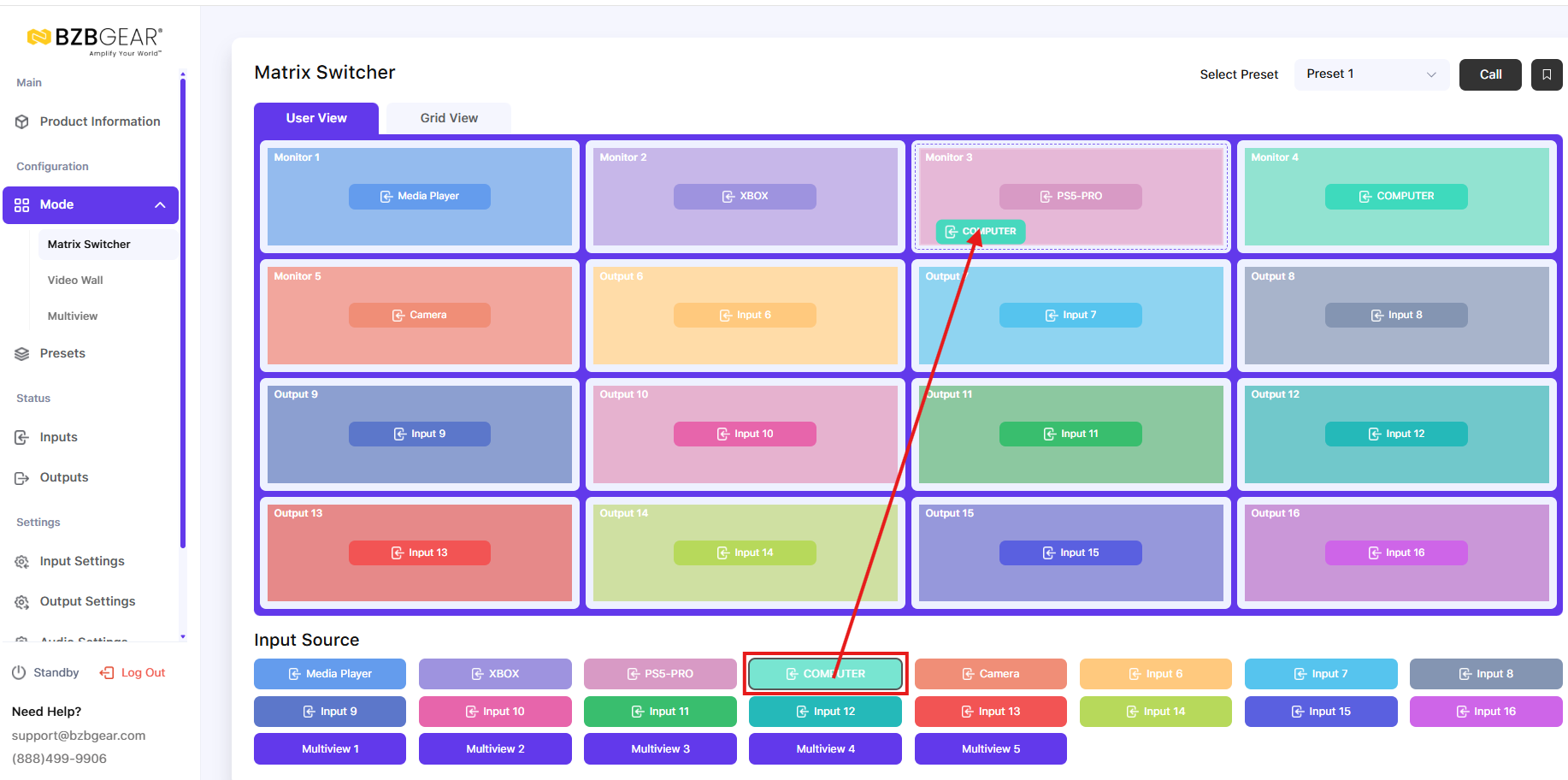
Note: Switching is seamless, but you may occasionally see a brief black screen when sources have different resolutions — that's just the EDID adjusting, and it only takes a moment.
Part 2: Switch Sources with Grid View
Grid view gives you a clean grid of inputs and outputs for fast routing.
Send one source to every display
Want the same image on all your TVs at once — perfect for a sports bar or command center? Toggle on All Inputs at the bottom, and it will apply across all outputs. It switches quickly and seamlessly to every display.
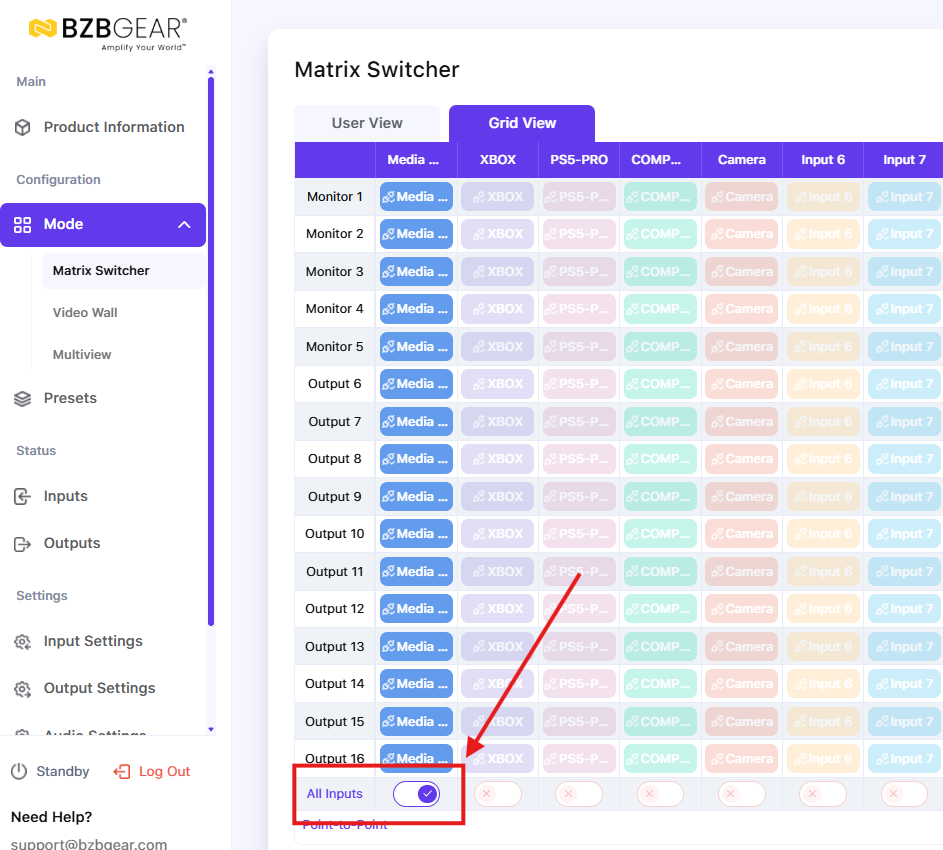
Route individual displays
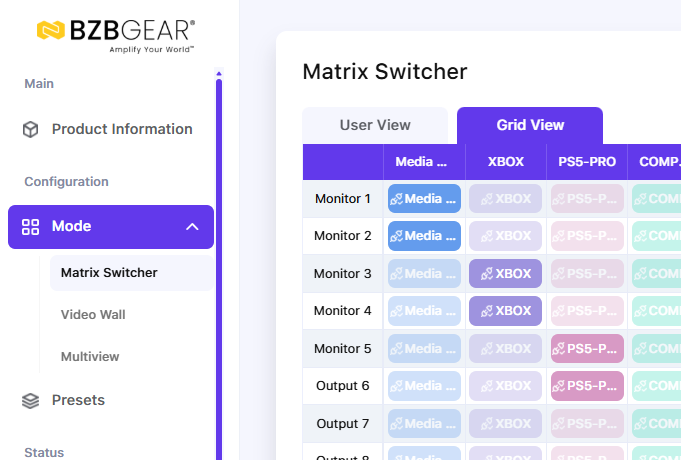
You can also route a source to individual outputs in the grid. Simply match the inputs to the desired outputs in the grid. Here is an example of routing input 1 (media player) to monitors 1 and 2, input 2 (XBOX) to monitors 3 and 4, and input 3 (PS5-PRO) to monitors 5 and 6:
Part 3: Save and Recall Presets
Once you've built a routing layout you want to reuse, save it as a preset so you can recall the whole layout with a single click.
Save a preset
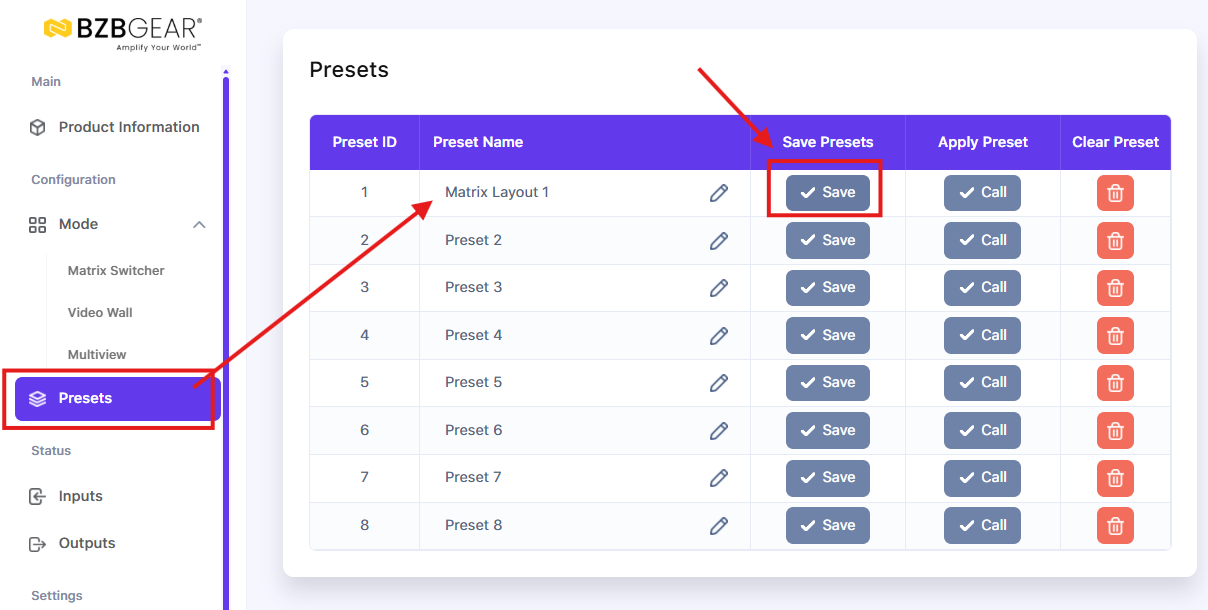
With your desired matrix in place, click on the Presets tab, select a row, and give it a name you'll recognize. Then click Save:
Recall a preset
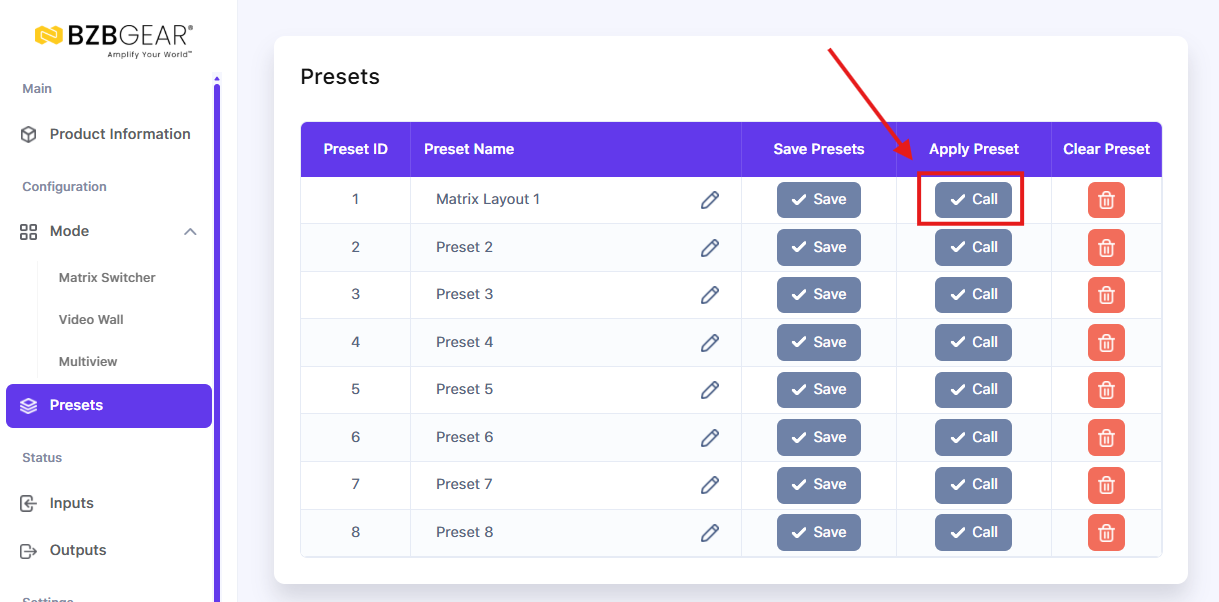
To recall a desired preset, simply click the Call button under Apply Preset:
Reset to Point-to-Point
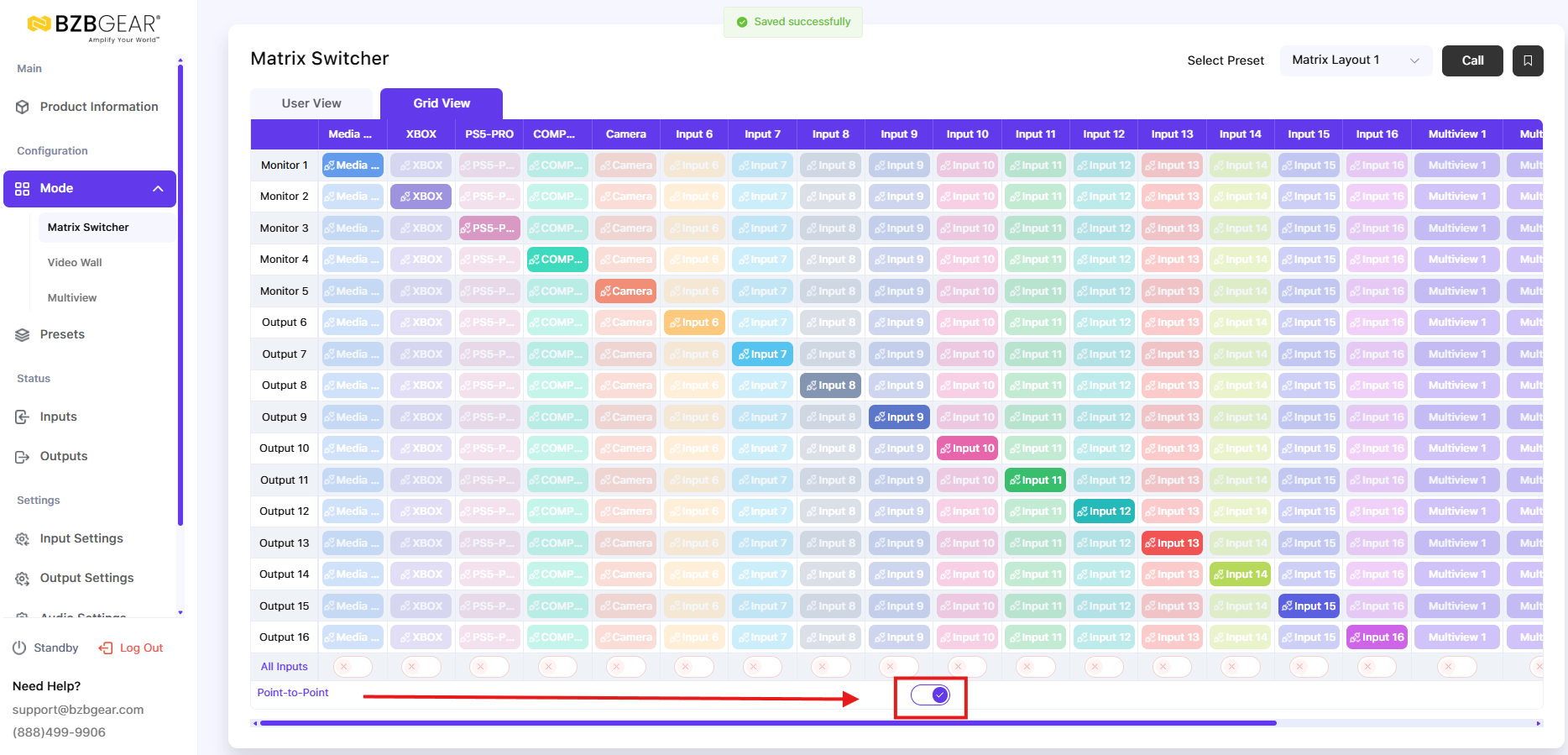
Need a clean slate? The handy point-to-point option puts everything back to a 1-to-1 routing — Input 1 to Output 1, Input 2 to Output 2, and so on — a great way to start fresh before building a new layout.
That's How Simple It Is
That's the matrix feature on the BG-4K-VP1616PRO — drag-and-drop or grid view to route your sources seamlessly, one source to all displays when you need it, and presets to recall entire layouts in a click. Between the web GUI, the front panel buttons, the remote, and the app, you've got plenty of ways to control it.


8.00 a.m. - 5.00 p.m. (PST)
10.00 a.m. - 3.00 p.m. (PST)
(by appointment only)
