







How to Create Video Walls with the BG-MC-SERIES via the Web GUI
The BG-MC-SERIES makes building a video wall quick and visual, right from its built-in web interface — no extra software required. This guide explains how to create a video wall layout, splice your displays together, choose your source, dial in bezel compensation, and save and recall video wall presets for the BG-MC-SERIES.
Let's break it down.
Before You Begin
This guide assumes your BG-MC-SERIES is already set up and online. If you haven't done the initial setup yet, start with the BG-MC-SERIES Setup Guide and come back here once you can log into the web interface.
Part 1: Create the Video Wall Layout
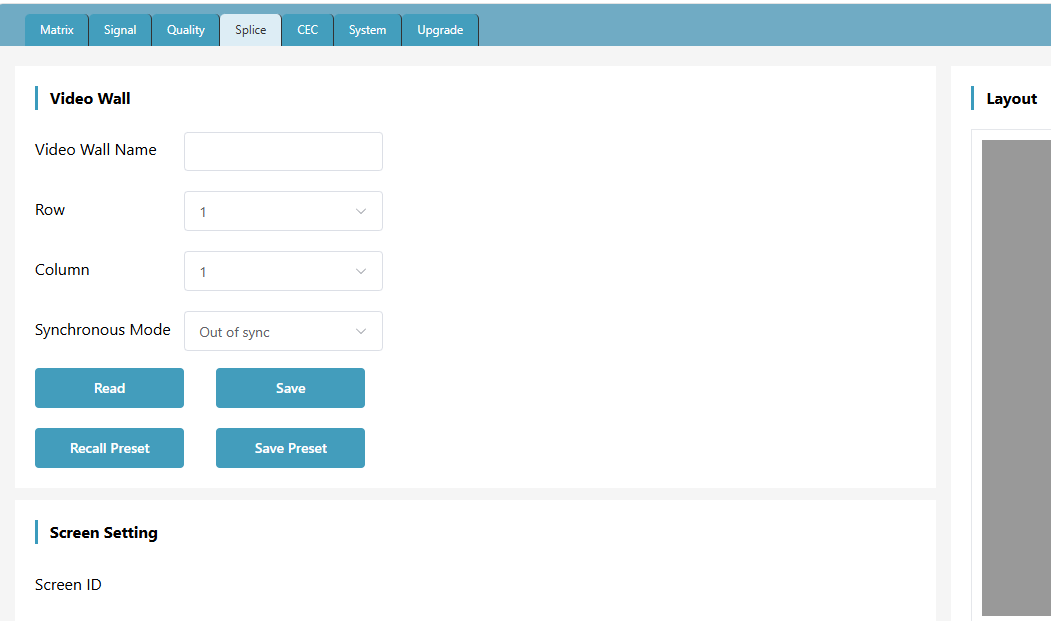
Step 1: Open the Slice tab
Once you're logged in, go to the Slice tab at the top to start creating video walls.
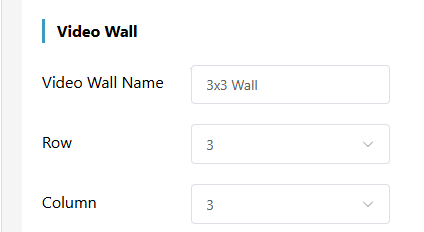
Step 2: Name your wall and set rows and columns
Give your video wall a name, then select the number of rows and columns it needs. For example, a 3x3 wall (9 TVs) would be 3 rows and 3 columns.
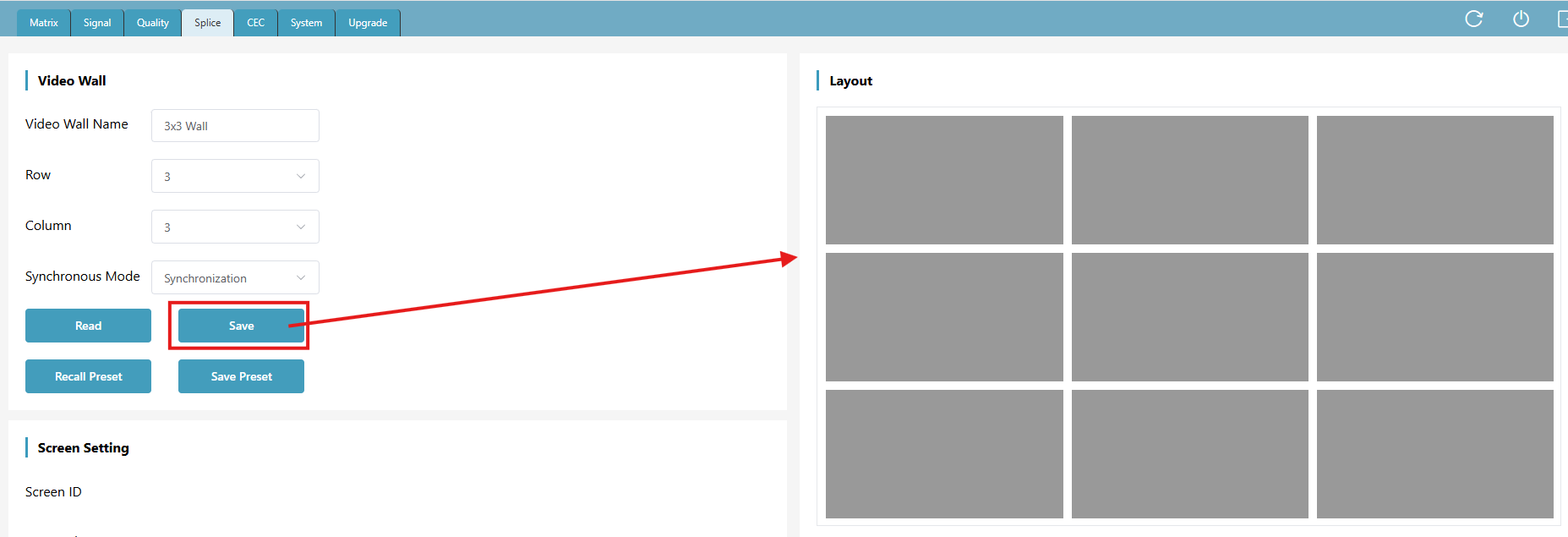
Step 3: Choose Synchronous Mode and save
Select your desired Synchronous Mode. Synchronization is recommended for video wall mode — it uses the unit's internal synchronization / Gen-Lock processing so all the outputs refresh together. Synchronization between outputs is under 0.1 ms, which keeps motion aligned across every display in a spliced video wall.
Then click Save to produce the video wall layout.
Part 2: Splice the Displays into a Wall
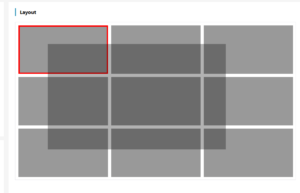
Step 1: Select all the screens
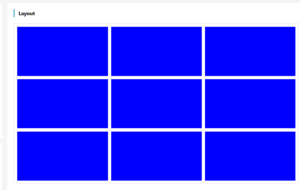
To create the video wall across your displays, click and drag across all the screens in the layout. They should all turn blue to show they're selected.
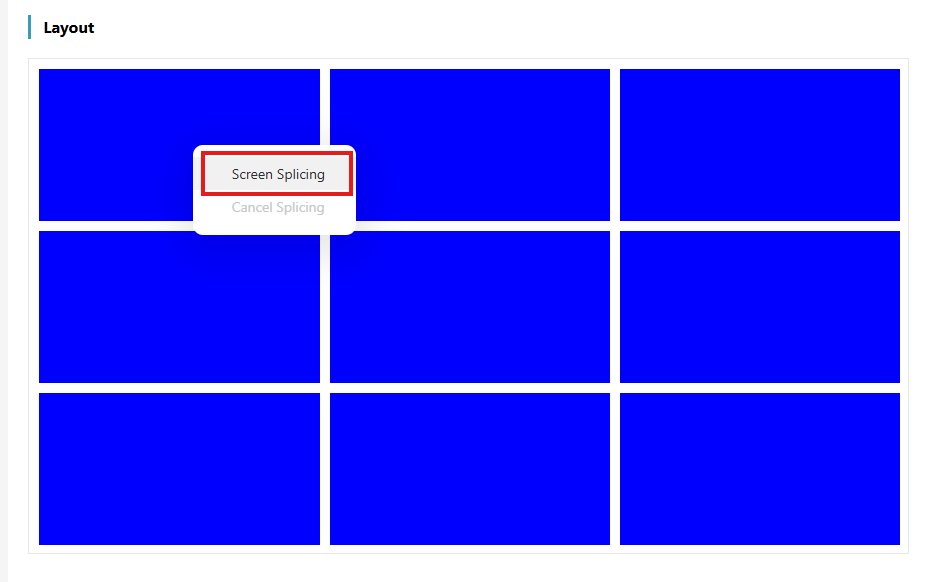
Step 2: Right-click and choose Screen Splicing
With the screens selected, right-click and select Screen Splicing
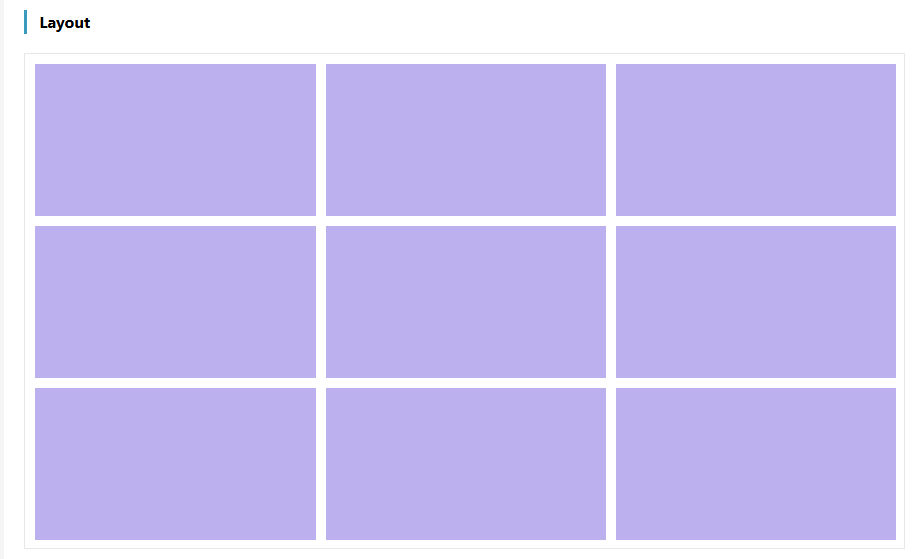
Step 3: Confirm the wall is spliced
The wall now displays across your screens, and the layout in the web GUI turns purple to confirm the video wall has been spliced and produced.
Part 3: Choose Your Source
To pick which input is displayed on the wall, click on any of the boxes in the layout. The Screen Settings will appear at the bottom left.
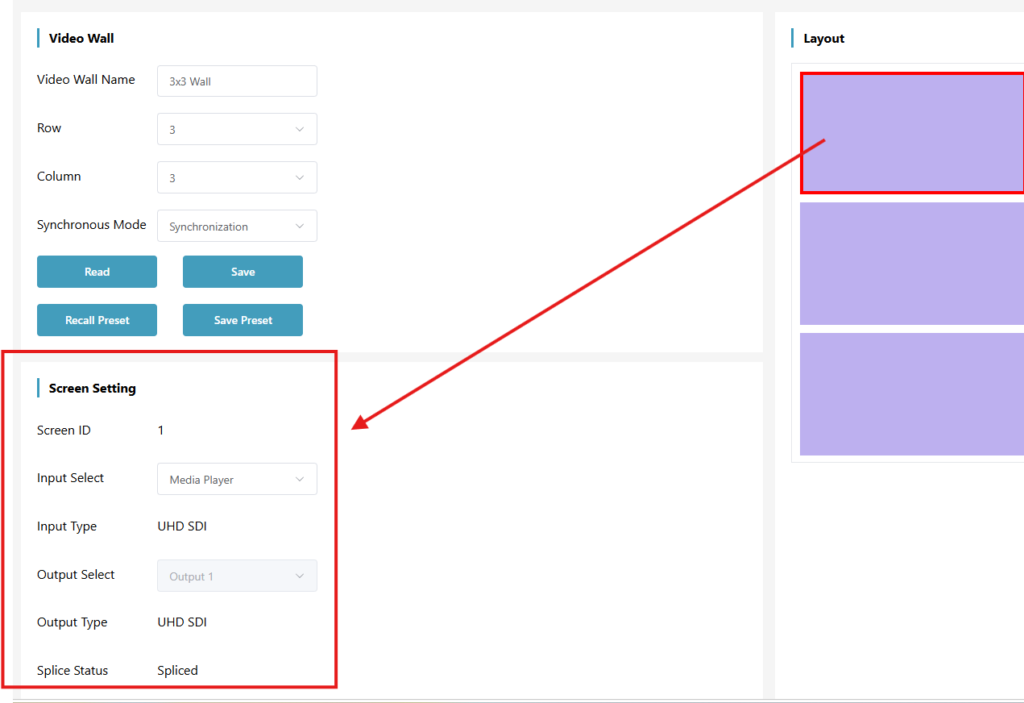
Then select your desired input from the input dropdown menu.
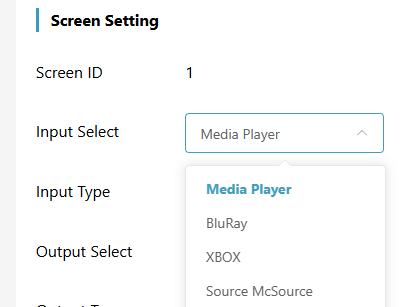
Part 4: Adjust Bezel Compensation
To account for the thickness of your displays' bezels, select any of the layout boxes, then move the H Edge and V Edge sliders until the image lines up cleanly across the seams.
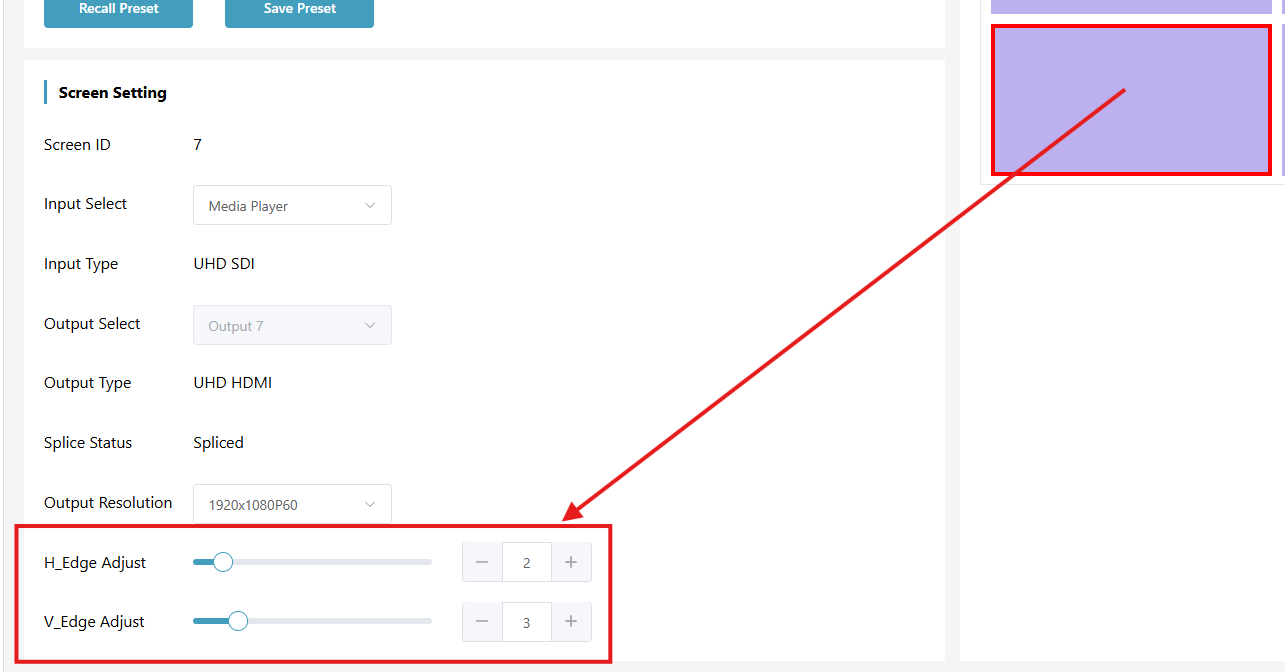
Because you're in video wall mode, the bezel adjustment applies to all of the other screens at the same time — so the whole wall stays consistent.
Part 5: Save and Recall Video Wall Presets
If you're running multiple video walls, you can Save and Recall presets right from the web GUI — so switching between wall configurations is quick and repeatable.
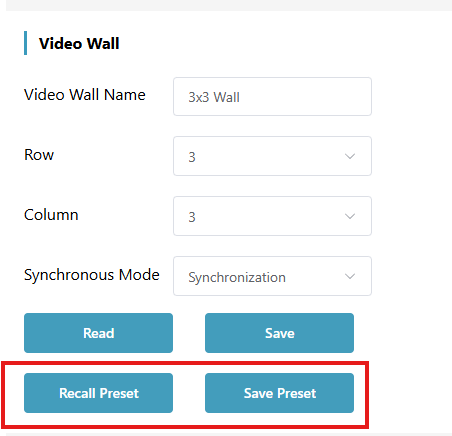
That's How Simple It Is
That's all there is to it — with the BG-MC-SERIES web GUI, building a synchronized video wall comes down to setting your rows and columns, splicing the screens, choosing your source, and fine-tuning the bezels. Save a few presets, and switching between wall layouts is just a click away.


8.00 a.m. - 5.00 p.m. (PST)
10.00 a.m. - 3.00 p.m. (PST)
(by appointment only)