





BG-IPGEAR-ULTRA Matrix Feature Guide
This guide explains how to use the Matrix tab to assign sources to displays, remove sources, and create or manage matrix presets.
Before You Begin
If your system has not been set up yet, refer to this setup guide first.
Open the Matrix Tab
After setup is complete, go to the tab labeled Matrix.
Identify Your Devices
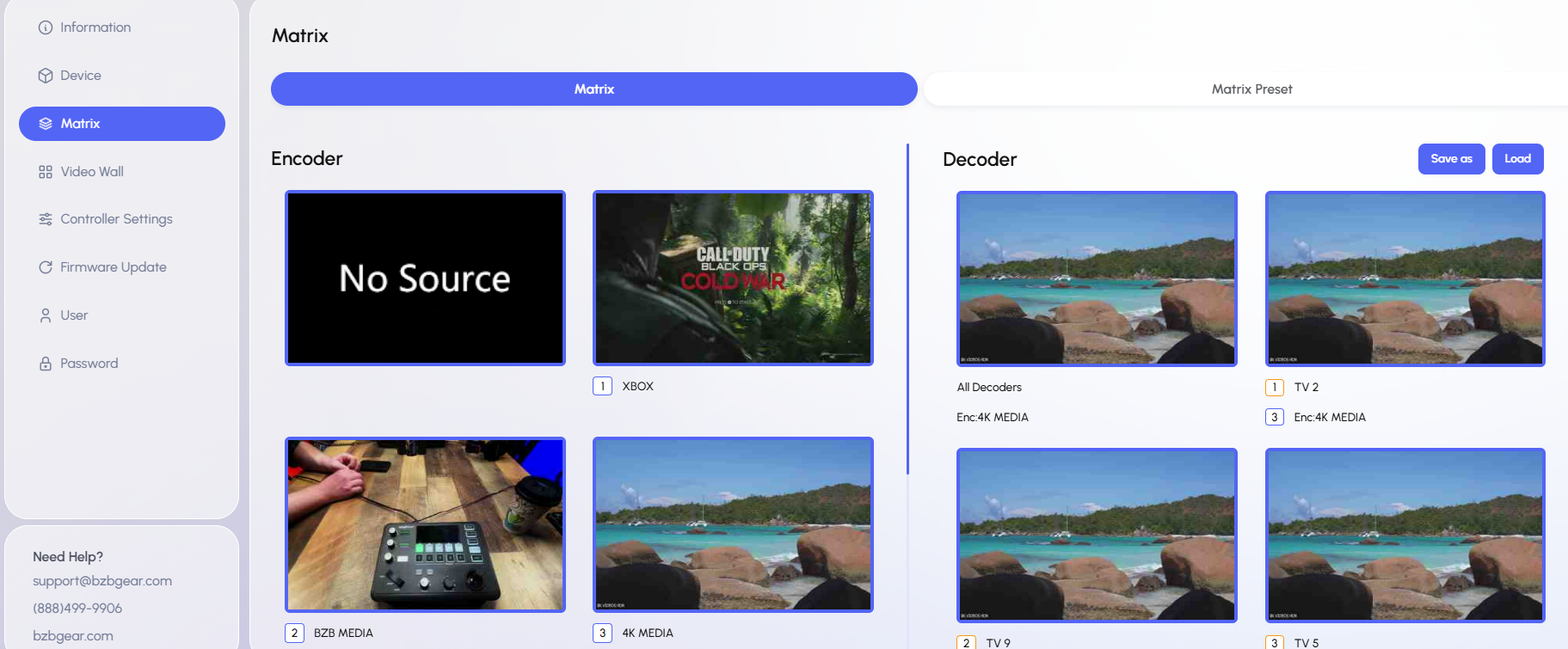
In the Matrix view, you will see:
- Encoders for your input sources
- Decoders for your output displays
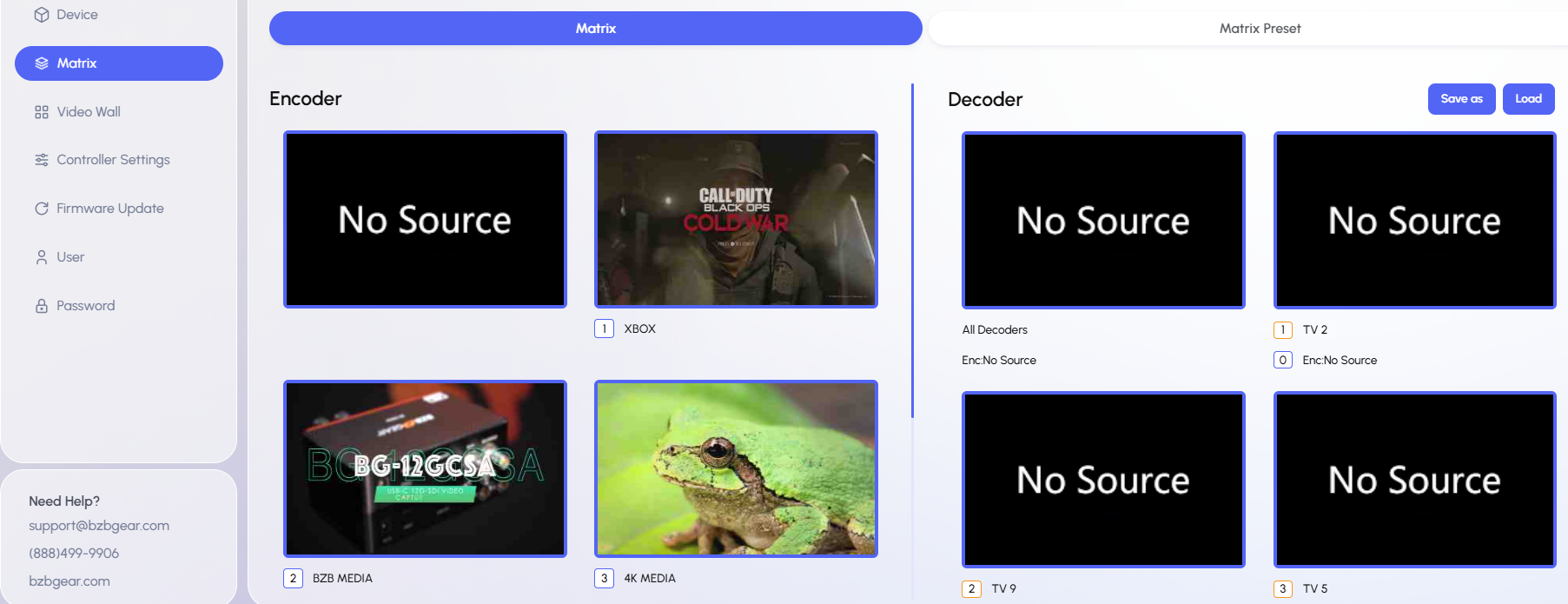
The interface includes images, making it easier to identify each source and display.
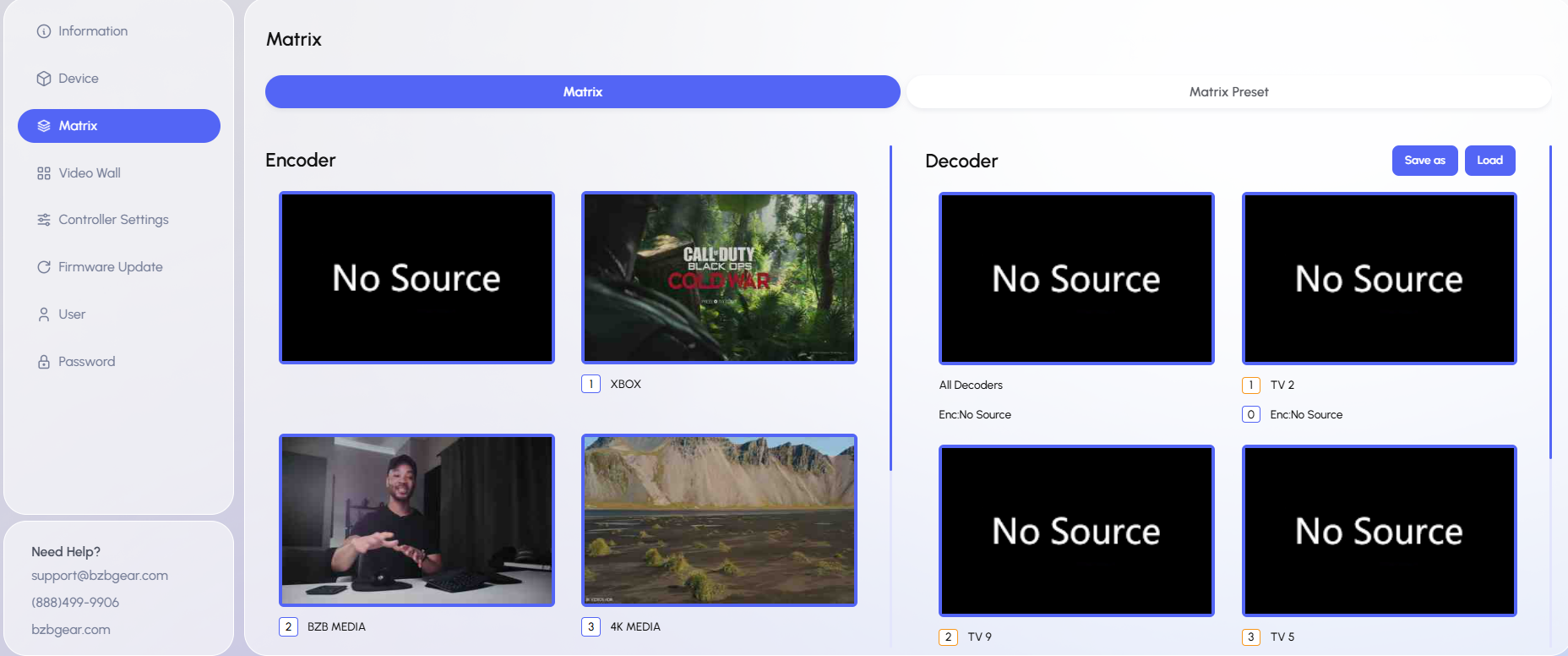
Assign a Source to a Display
To send a source to a specific display:
- Find the source you want to use in the Encoder list.
- Click and drag the source from the encoder area.
- Drop it onto the desired Decoder such as TV 2 or Monitor 3.
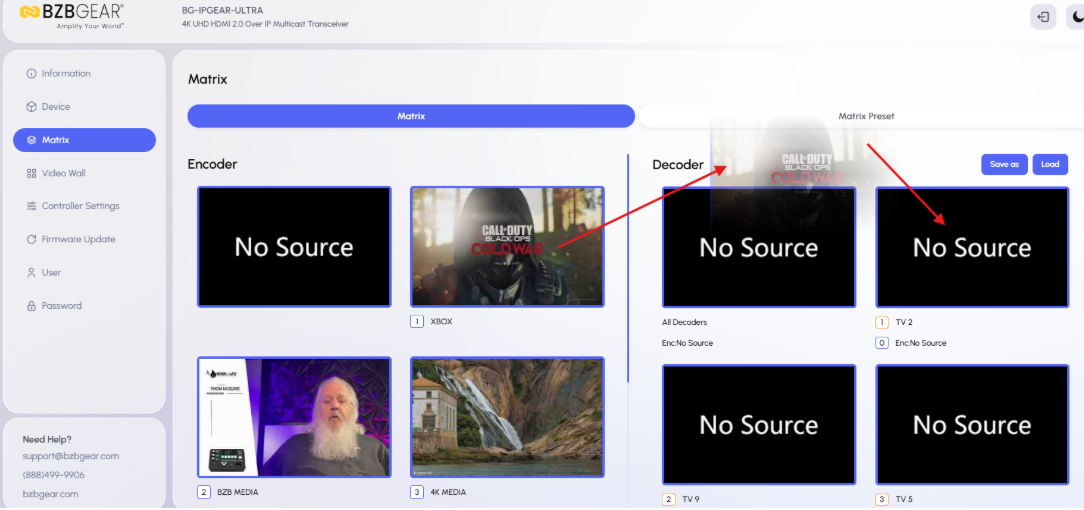
The selected display will switch to that source.
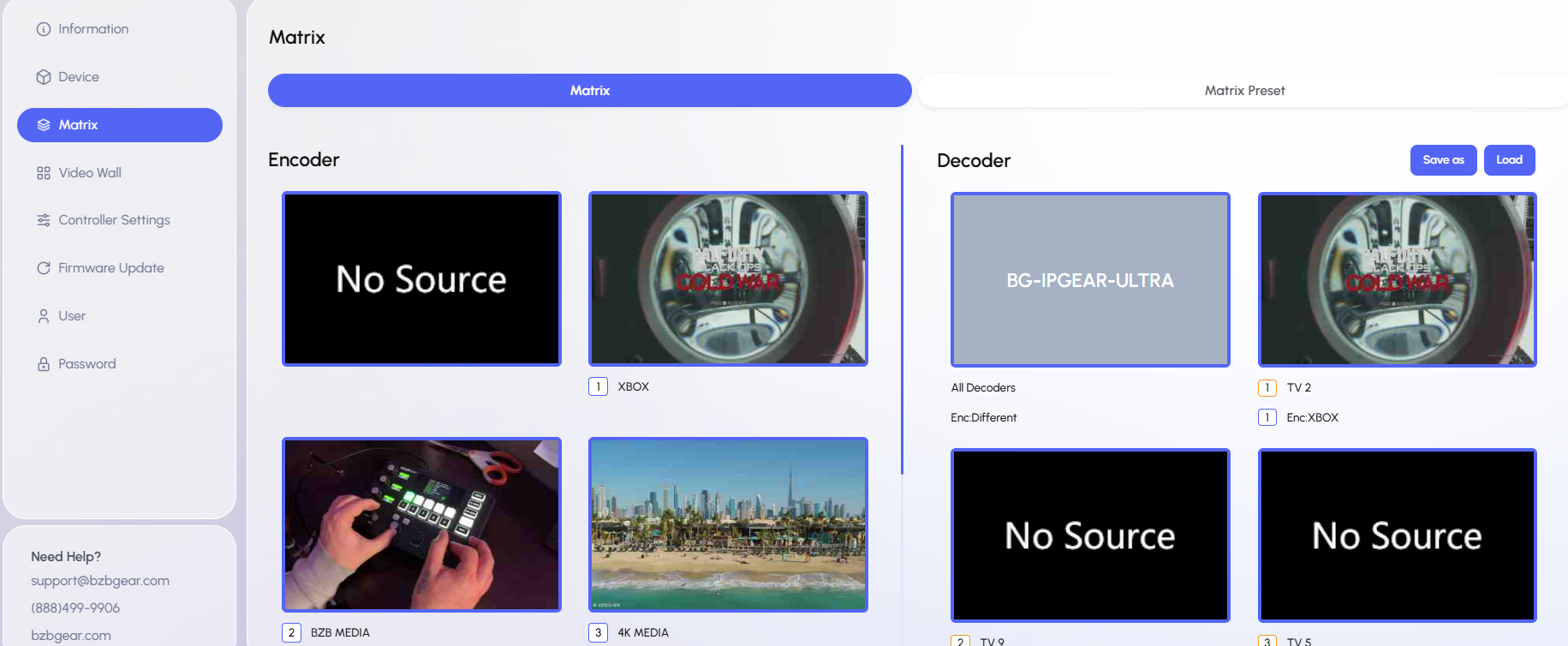
Send One Source to All Displays
To show the same source on every display:
- Find the source you want to use.
- Drag it to the All Decoders area.
- Drop it there.
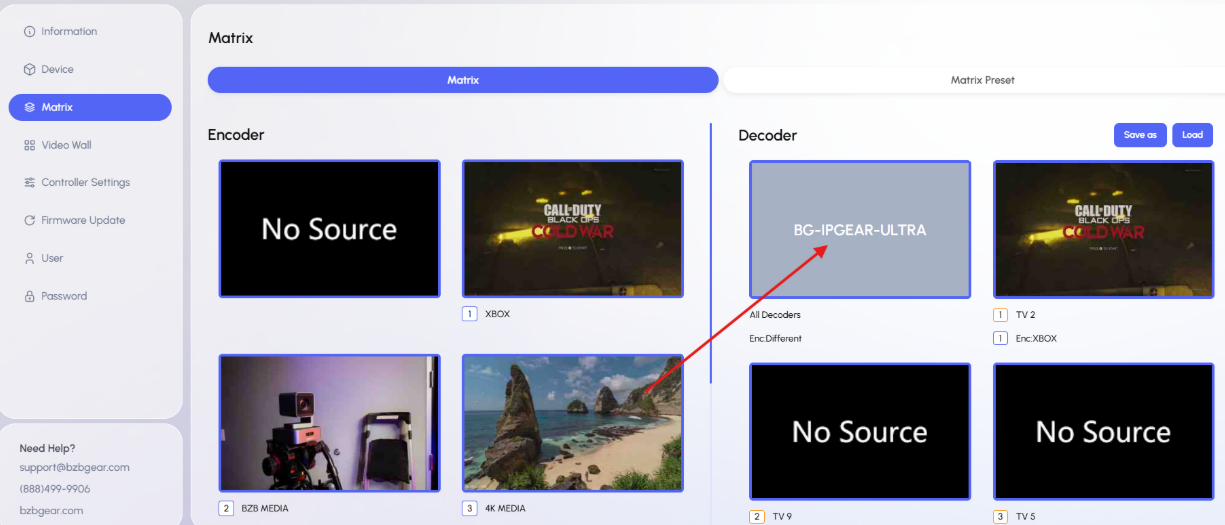
All displays will switch to that source.
Remove a Source from One Display
To remove a source from a single display without replacing it:
- Find the No Source box in the encoder list.
- Drag and drop No Source onto the desired display.
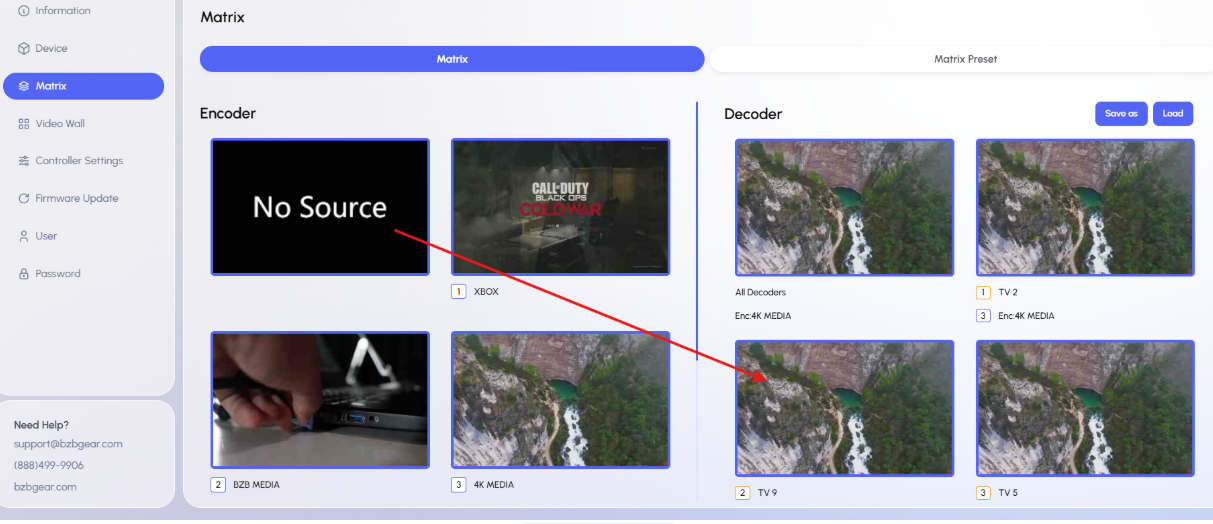
This removes the current source from that display.
Remove Sources from All Displays
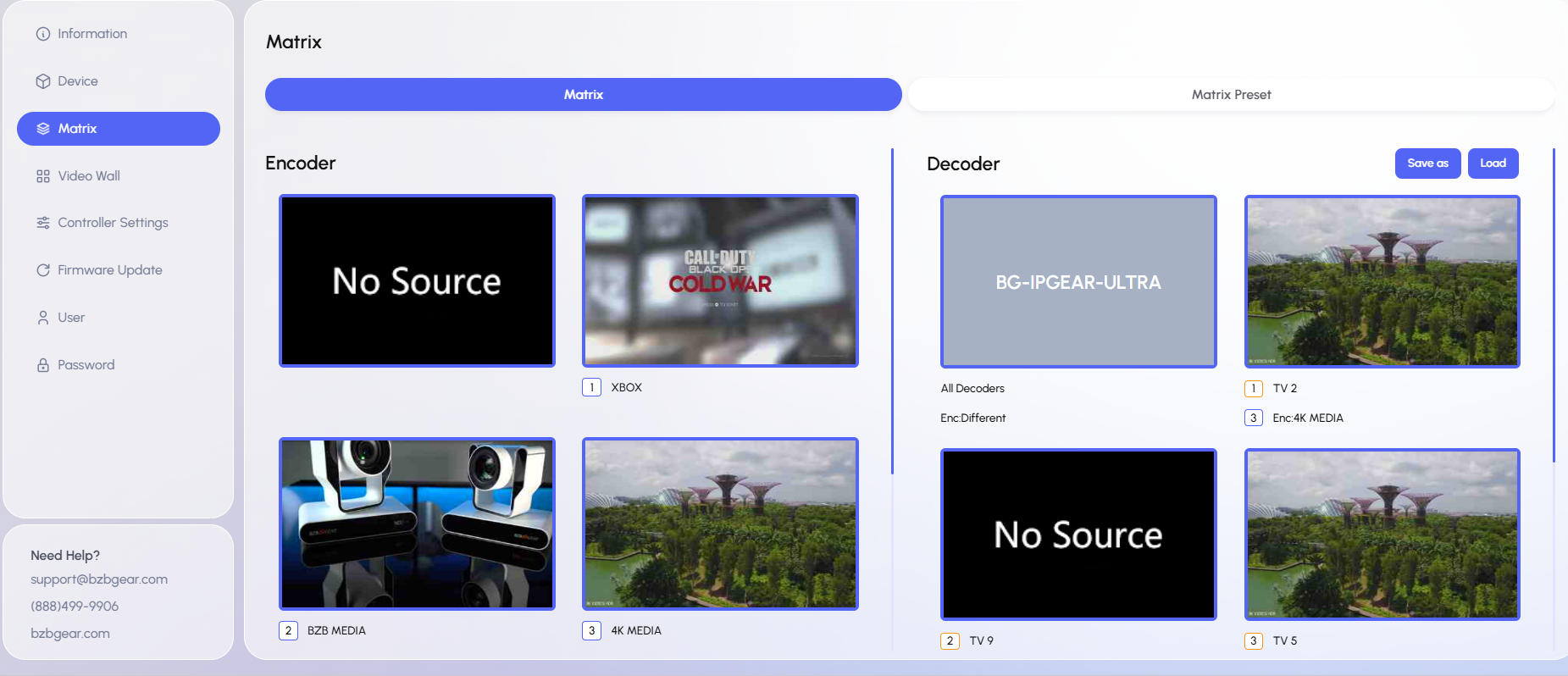
To remove all sources from all displays:
- Drag the No Source encoder box to the All Decoders display box.
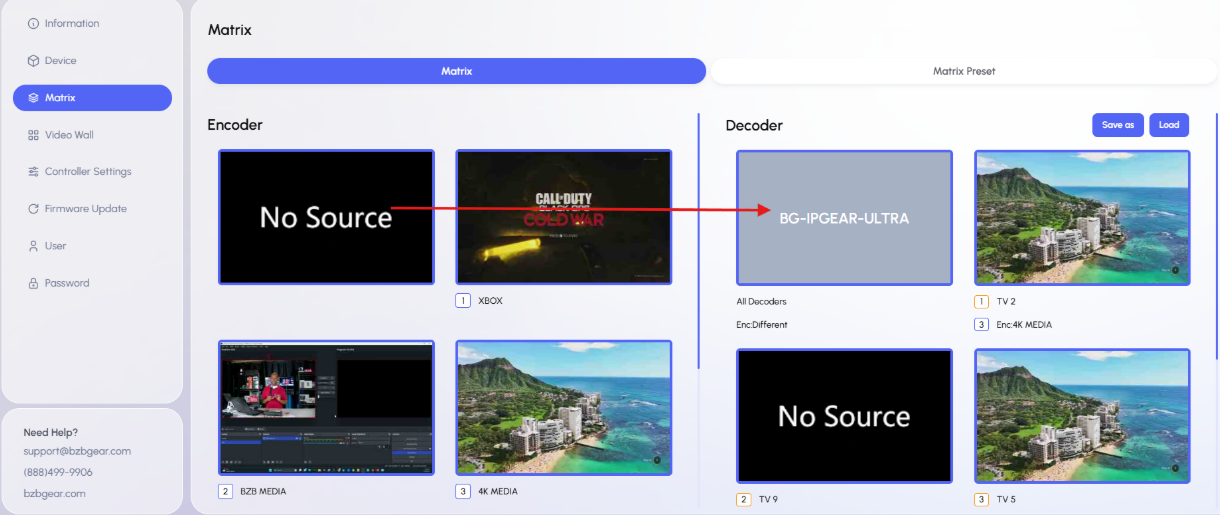
2. A confirmation message will appear.
3. Type YES in the confirmation box.
4. Select the Yes button to confirm.
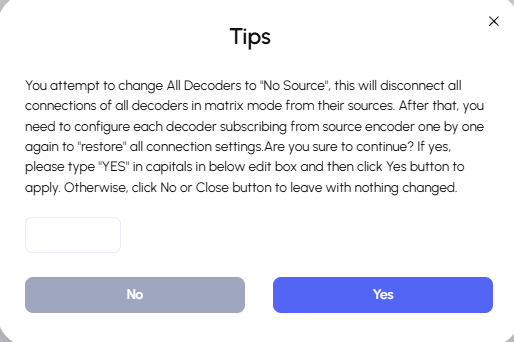
This clears all sources from all displays.
Create a Matrix Preset
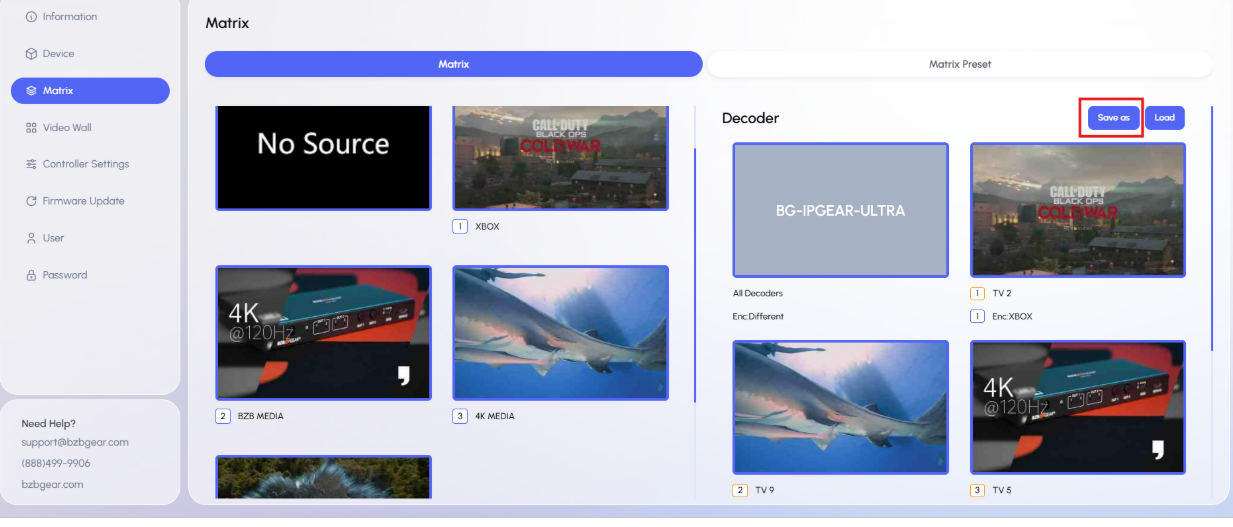
Once you have arranged your desired matrix layout on all decoders:
- Select the Save As button in the top-right corner of the page.
2. Choose a Preset ID.
3. Enter a name for the preset.
4. Select Create.
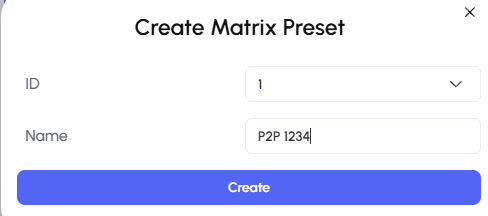
Your matrix preset is now saved.
Load a Matrix Preset
To recall a saved preset:
- Select Load.
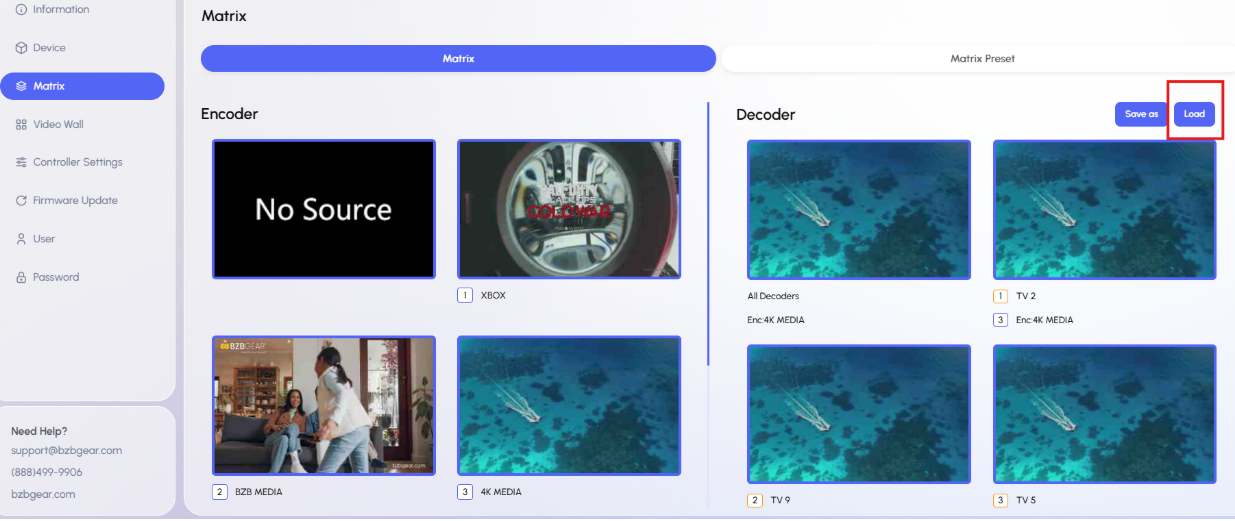
2. A list of saved presets will appear.
3. Select the preset you want.
4. Click Apply.
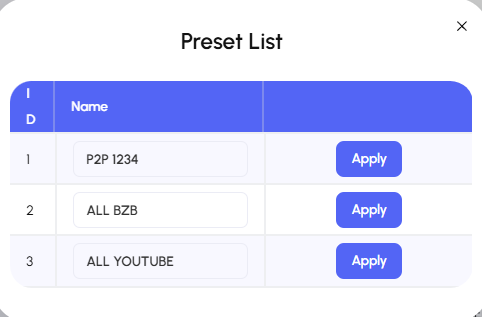
The selected preset will be recalled.
Edit a Matrix Preset
To make changes to an existing preset:
- Select the Matrix Preset tab.
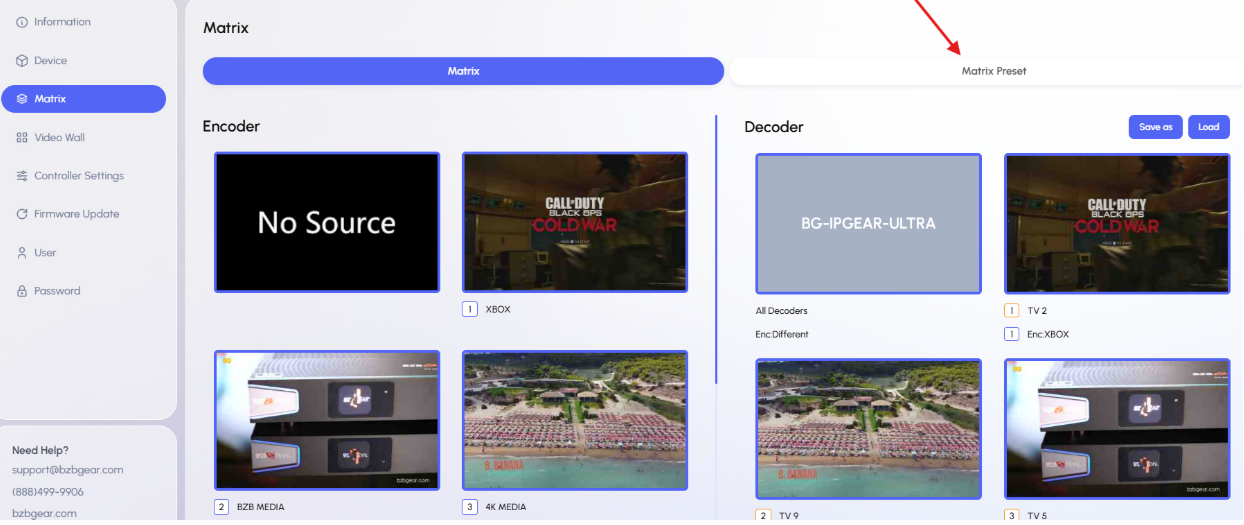
2. Choose the preset you want to edit from the preset list on the left.
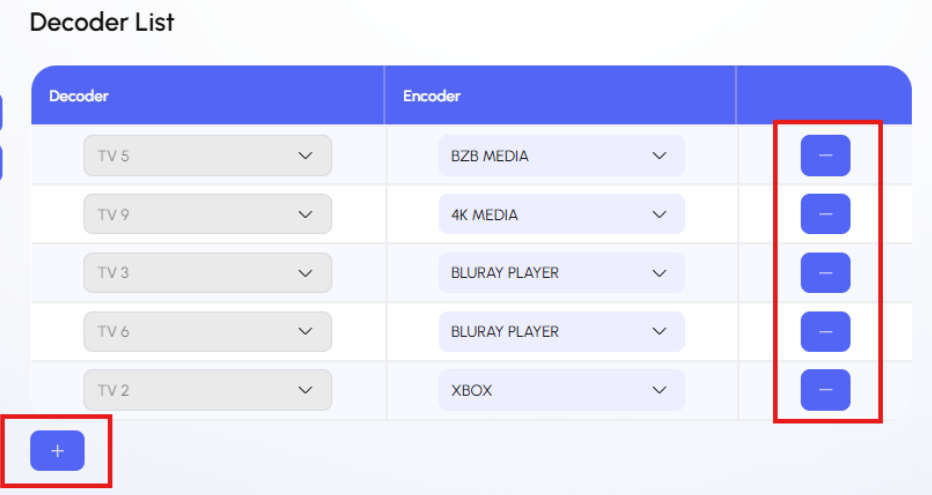
3. The corresponding decoder list for that preset will appear on the right.
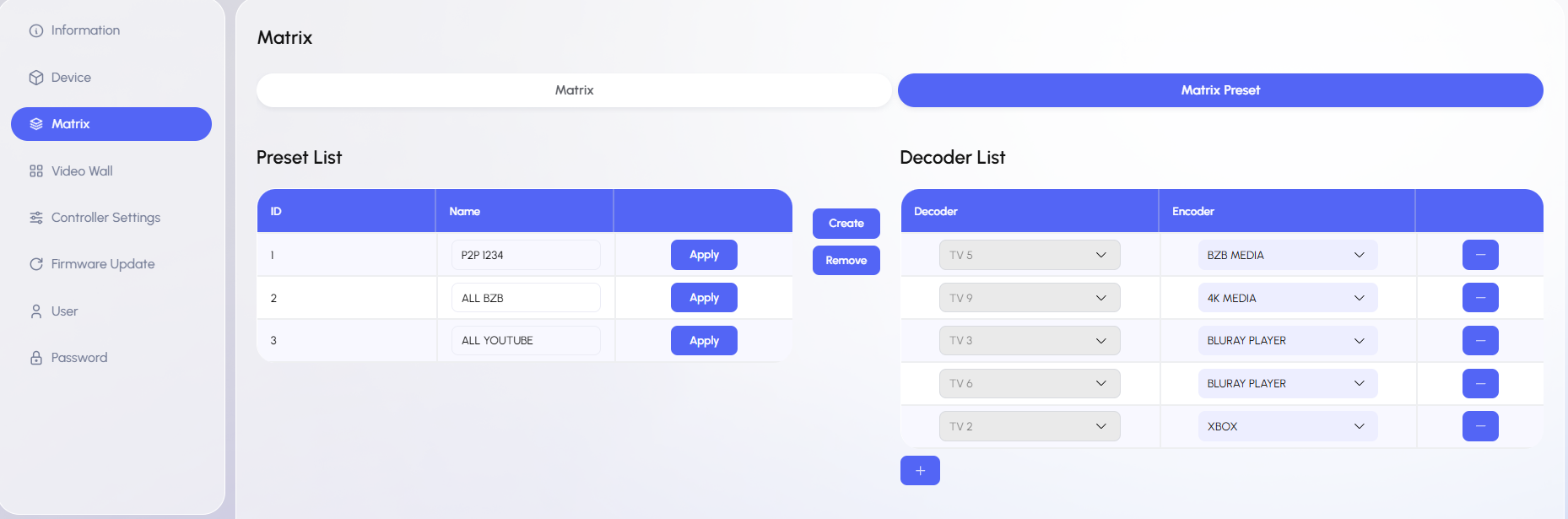
4. Use the + and - buttons to add or remove decoders.
Summary
The Matrix feature allows you to:
- Route a source to one display
- Route one source to all displays
- Remove sources from one or all displays
- Save layouts as presets
- Load saved presets
- Edit existing presets


8.00 a.m. - 5.00 p.m. (PST)
10.00 a.m. - 3.00 p.m. (PST)
(by appointment only)