







BG-COMMANDER-PRO Troubleshooting Guide
This guide covers troubleshooting steps for common issues with the BZBGEAR BG-COMMANDER-PRO camera controller, including camera control problems and missing video.
If the issue persists after following these steps, contact support@bzbgear.com for further assistance.
Unable to Add Cameras
If you are having trouble adding cameras to the BG-COMMANDER-PRO, refer to the camera setup guide for instructions on adding and configuring cameras.
Cameras Are Added but Cannot Be Controlled
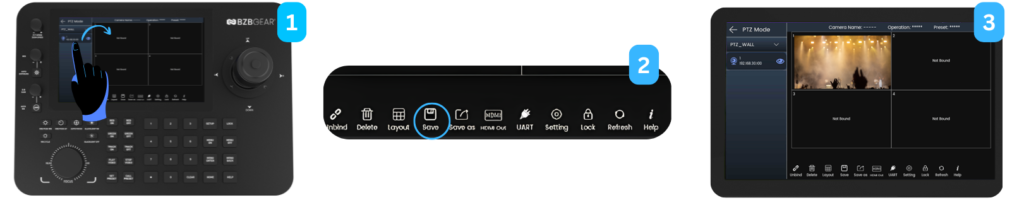
If your cameras have been added successfully but the controller cannot move or control them, check the following settings.
- Verify the control protocol and port. Edit the camera's configuration and confirm that the selected control protocol and port number match the camera's settings. The camera search function may automatically assign a protocol or port that is incompatible with your camera model. Refer to the camera's documentation for the correct settings.
- Select the camera in PTZ mode. Open PTZ mode and drag the camera into an available quadrant. Save the configuration, then tap the quadrant containing the camera to select it for control. A visible outline or border should indicate that the camera is selected.
- Verify network connectivity. Confirm that the controller and camera are connected to the network and that their IP addresses are reachable. If the camera uses a different control protocol or port than expected, verify that the network allows communication over the required port.
- Confirm the camera's control settings. Check that the camera is configured to accept the selected control protocol and that the correct connection details have been entered in the controller.
Cameras Can Be Controlled but No Video Is Displayed
If you can control the camera but cannot see its video feed on the BG-COMMANDER-PRO, follow these steps.
- Verify the camera is assigned to a quadrant. In PTZ mode, confirm that the camera has been dragged into an available quadrant and that the configuration has been saved.
- Check the RTSP URL. Edit the camera's configuration and verify that the RTSP URL is correct. Confirm the URL, port, stream path, and any required authentication details against the camera's documentation or streaming settings.
- Test the RTSP stream independently. Using a computer connected to the same network as the camera, test the RTSP URL with a compatible media player, such as VLC. If the stream does not work, check the camera's streaming configuration, network connectivity, and RTSP credentials before continuing.
- Reduce the camera's video settings. If the RTSP stream works on the computer but does not display on the BG-COMMANDER-PRO, access the camera's video encoding settings and try the following:
- Set the stream resolution to 1920 × 1080 (1080p).
- Set the frame rate to 30 fps.
- Reduce the video bitrate.
- Confirm that the selected stream uses a codec supported by the controller.
- Save the changes and check whether the video feed appears on the controller. If the camera provides multiple streams, try using a lower-resolution stream for testing.
- Restart and retest. After making changes, refresh the camera configuration and restart the affected devices if necessary. Confirm that the RTSP stream remains accessible and that the controller can display it.
Cameras Cannot Be Accessed in General
If you cannot get the camera and controller communicating at all, please confirm the following
- Ensure the camera and controller are on the same network. Not only connected to the same network hub, but also on the same subnet, gateway, and IP range.
- Confirm that your camera supports the correct protocols. The BG-COMMANDER-PRO supports IP VISCA, ONVIF, NDI, VISCA, Pelco-P, Pelco-D.
If the issue persists, contact support@bzbgear.com and provide the following information.


8.00 a.m. - 5.00 p.m. (PST)
10.00 a.m. - 3.00 p.m. (PST)
(by appointment only)
