





Adding Cameras to the BG-COMMANDER-PRO
This guide walks you through adding IP cameras to the BG-COMMANDER-PRO. If you continue to experience issues after following these steps, please contact support@bzbgear.com.
Before You Start (Quick Checklist)
- Ensure the BG-COMMANDER-PRO and all cameras are connected to the same network switch
- Verify all devices are on the same IP subnet & gateway
- Confirm the network connection is stable (no dropouts or link issues)
Adding Cameras
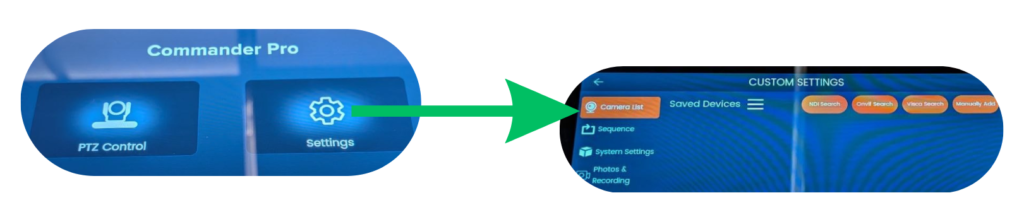
- On the controller, go to Settings > Camera List
- Select a camera search method based on the control protocol you want to use:
- NDI
- ONVIF
- VISCA
- Run the camera scan. Any compatible cameras on the network should appear.
- If not all cameras are found:
- Run the scan again, or
- Use Advanced Search to manually specify a range
Manually Adding a Camera (If Auto Search Fails)
If your camera does not appear during a scan, you can add it manually:
- Enter the camera’s IP address
- Select the correct control protocol
- Specify the correct control port number
- Enter the camera’s RTSP stream URL
⚠️ Make sure you have the correct port and RTSP information for your camera model before proceeding. If you fail to do so, you won’t have control or the camera’s video feed.
FAQs & Troubleshooting
Q: I can scan and add the camera, but I can’t control it. Why?
A: This is usually caused by an incorrect control protocol or port number. Especially when adding third-party cameras, the system may auto-fill default values intended for BZBGEAR cameras if it cannot retrieve the correct information from the device.
Q: I can control the camera, but there’s no video feed.
A: ...
- Make sure you’ve saved the configuration
- Press Play
- If there is still no video:
- Test the camera’s RTSP stream in VLC or OBS
- Check the camera’s video encoding settings
- Verify network bandwidth and stability
Q: I can see and control the camera, but it occasionally moves on its own (drifts).
A: This usually indicates:
- Partial or limited compatibility with the selected control protocol, or
- Network instability causing repeated or delayed control commands
- Also, double-check that the joystick handle itself isn’t sticking or loose; after moving it in any direction and letting go, it should return back to its original centered position quickly.


8.00 a.m. - 5.00 p.m. (PST)
10.00 a.m. - 3.00 p.m. (PST)
(by appointment only)