







Wireless BYOD in the Conference Room: What It Takes to Get It Right
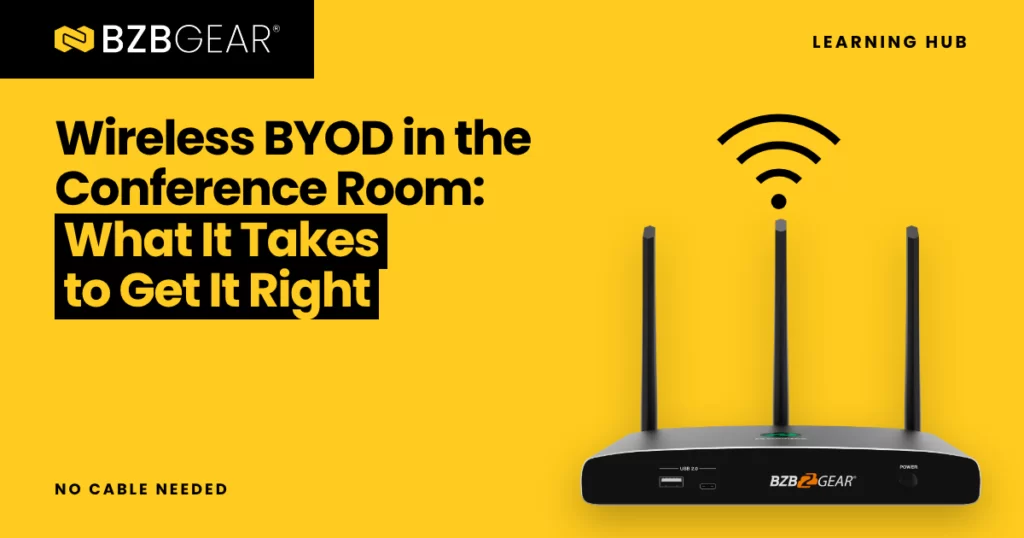
Every office has that one HDMI cable. It's taped to the conference table, it's a little frayed at the end, and it never quite reaches the laptop of whoever is presenting. Then a visitor walks in with a USB-C-only machine and the meeting stalls while everyone searches for an adapter.
Wireless Bring Your Own Device (BYOD) presentation is supposed to fix that. Walk in, connect, share. And it can. But a BYOD room that works on day one and still works six months later takes a little more planning than plugging a box into the display.
Let's break it down.
What "BYOD" Really Means in a Meeting Room
At its simplest, BYOD means people use their own laptops, tablets, and phones in the room instead of a dedicated room PC. Your own device, your own files, your own meeting software.
Sharing a screen is only half the job, though. Most meetings now include someone remote, so the presenter's laptop also needs the room's camera, microphone, and speakers. Otherwise the people on the call only see whoever is hunched over a laptop webcam.
That second half is where a lot of wireless setups fall short.
Screen Mirroring vs. Full Room Connection
There are two different ways a device can connect wirelessly, and it helps to know which one you're getting.
Native screen mirroring uses protocols already built into your device: AirPlay on Apple devices, Miracast on Windows and Android, and Chromecast from Chrome-based browsers. They're great for quick content sharing because there's nothing to install. But mirroring sends your screen and audio to the display. It doesn't give your laptop access to the room's USB camera or speakerphone.
An app or USB dongle connection goes further. A small application (or a plug-in dongle that launches it) creates a deeper link to the presentation system, so your laptop can see the room's USB peripherals as if they were plugged in directly. Your Teams, Zoom, or Webex call picks up the room camera and speakerphone, and the remote participants finally get a real view of the room.
Here's a helpful way to picture it. Mirroring is like holding your laptop screen up to a window so everyone can see it. The app connection is like actually sitting down at the room's desk and using everything on it.
For a room that only needs content sharing, mirroring may be all you need. For hybrid meetings, plan for the app connection.
Letting Guests Connect Without Opening Up Your Network
This is the question IT always asks first, and it's a fair one. If visitors can connect to the presentation system, can they get onto the company network?
A well-designed BYOD system answers that with network segmentation. The presentation box sits on two networks at once: its Wi-Fi side joins a guest network (or creates its own access point), while its wired Ethernet side connects to the corporate network. Guests and employees can both present, but guests never touch internal resources.
Rotating connection passwords keep last week's visitor from reconnecting next week, and adjustable security levels let you lock down sensitive rooms further, for example by requiring a password for AirPlay.
Placement Matters More Than You Think
Wireless presentation lives and dies on radio performance, and most connection complaints trace back to where the box was mounted.
A few rules of thumb:
- Keep it in the room and in the open. Not in a closed cabinet, above a suspended ceiling, under the table, or in the room next door.
- Mind the metal. Keep antennas clear of metal surfaces and away from other radios like Wi-Fi access points and wireless phones.
- Aim for line of sight. The fewer obstructions between the presenters and the receiver, the more stable the connection.
- Use 5 GHz when you can. It's typically less crowded than 2.4 GHz in an office building.
BZBGEAR Highlight: Building the Room
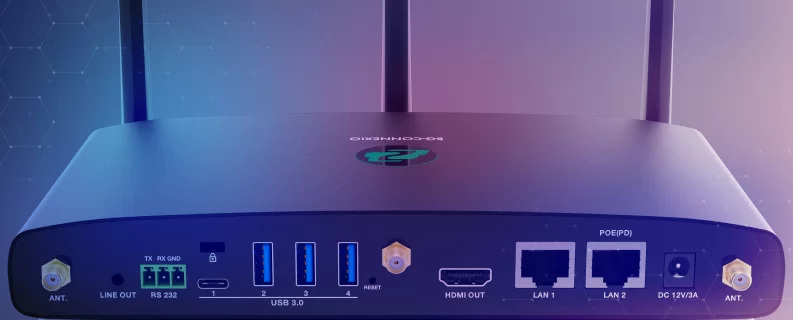
The core of the room. The BG-Connexio is a wireless BYOD presentation system that supports AirPlay, Miracast, and Chromecast, plus Windows and Mac applications that connect a laptop wirelessly to the room's USB camera and speakerphone. Wireless content comes in at up to 1080p, and the HDMI 2.0 output drives displays up to 4K60. Up to four presenters can share at once in a 2x2 split-screen view, and the system supports up to 16 simultaneous connections, with a signal range of up to 100 feet in clear line of sight.
On the install side, it has two Ethernet ports for the segmented guest/corporate setup described above, supports IEEE 802.3af PoE on its Gigabit port, and offers three selectable security levels. It also supports touch back and annotation on interactive displays, and it works with mainstream platforms like Teams, Zoom, and Webex.
One design detail worth knowing up front: for audio, the Connexio works with all-in-one USB speakerphones rather than separate USB microphones and speakers. If your camera has a built-in mic but no speaker, the Connexio will use it for video only.
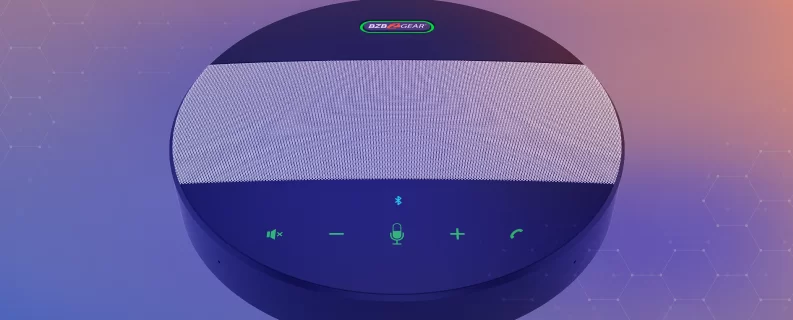
The audio piece. That makes a speakerphone like the BG-OMNITALK-PRO a natural partner. It has a four-mic array with 360-degree pickup up to about 20 feet (6 meters), full-duplex audio, and echo cancellation, and it's rated for rooms of roughly 161 to 323 square feet with up to 15 attendees. It connects by USB-C, Bluetooth, wireless dongle, or 3.5mm.
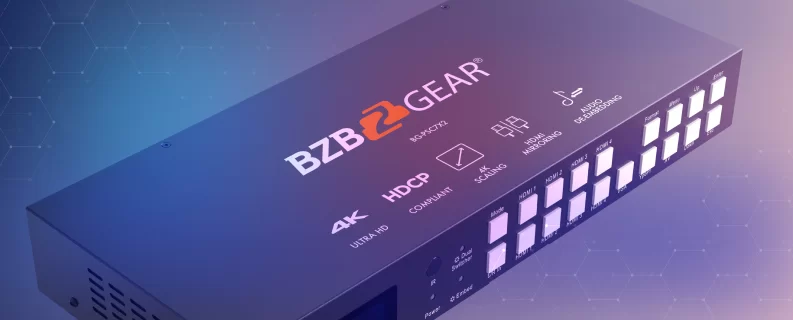
For larger rooms with two displays, feed the Connexio into a presentation switcher like the BG-PSC7X2. It adds three more HDMI inputs plus VGA, component, and composite for legacy sources, and sends the result to two mirrored HDMI outputs. One install tip: the PSC7X2's HDMI inputs accept up to 4K@30Hz, so set the Connexio's HDMI output to 4K30 or 1080p60 instead of leaving it at 4K60.
A Few Things to Tell Your Client Before Handoff
These aren't problems so much as expectations worth setting early:
- Protected streaming content may not appear. HDCP-protected video (think some streaming services) often won't display over a wireless app connection. If the room needs it, plan a wired input.
- First-time Mac users may need admin rights. The Mac app installs an audio component the first time it runs. In a locked-down corporate fleet, get IT to approve it ahead of time.
A Quick Planning Checklist
Before you spec your next BYOD room, run through these:
- Content sharing only, or hybrid video calls too?
- How will guests stay off the corporate network?
- Where will the receiver mount, and does it have clear line of sight?
- One display or two, and will your camera and speakerphone work with the system?
The Bottom Line
At the end of the day, people want to walk in, connect from their own device, and start the meeting. Get the connection method, the network, and the placement right, and wireless BYOD delivers exactly that.
Whether you're outfitting a small huddle room or a two-display boardroom, BZBGEAR offers complimentary design services and engineering support to help you get it right. Explore our conference room solutions or give our team a call at 1.888.499.9906. We'd love to help with your next room!


8.00 a.m. - 5.00 p.m. (PST)
10.00 a.m. - 3.00 p.m. (PST)
(by appointment only)