







How to Build a Low-Latency 4K120 AV-over-IP Network

The design decisions that determine whether your system feels instant — and the one that gets made by accident.
Here's something we've noticed on the support desk: the most common AV-over-IP failure isn't an AV failure.
It's a multicast stream flooding a network that was never told to expect it. It's AV traffic sharing a VLAN with a building's business data. It's an unmanaged switch, bought on price, sitting in the middle of an otherwise clean design. The endpoints are fine. The codec is fine. The decision that broke the system got made three weeks before anyone thought about video, by whoever was cheapest.
So if you're building a 4K120 system on a network, the honest advice is to design the network first and the endpoints second. Here's how we'd sequence it.
Step 1: Pick Your Bandwidth Tier Before Anything Else

4K120 isn't one spec — it's a range, and where you land in that range decides what hardware you can use.
Under HDMI 2.1, bandwidth is delivered in Fixed Rate Link (FRL) tiers. 4K120 at 4:4:4 with 8-bit color needs roughly 35.6 Gbps, which puts you at FRL5 (40Gbps). Add 10-bit HDR and you're at roughly 44.6 Gbps — that's FRL6 (48Gbps) territory.
That distinction matters because "HDMI 2.1" tells you almost nothing. A device can carry the badge at 9Gbps or at 48Gbps. Ask what FRL tier an endpoint supports, not what HDMI version it claims, and ask it about every device in the path.
Step 2: The Switch Is the Install

Multicast is what makes AV-over-IP scale — one encoder feeding many decoders without duplicating the stream for each one. But multicast only behaves itself on a switch that understands it.
Three requirements, and they aren't exotic:
- A managed switch with IGMP snooping enabled. Without it, the switch treats multicast like broadcast and floods every port. This is the single most common cause of an AV-over-IP system that "worked on the bench."
- 802.1Q VLAN segmentation, so AV traffic lives in its own lane instead of competing with a client's file server.
- Gigabit throughout, with no 100Mbps link hiding in an old patch panel.
The reason to settle this at design time rather than commissioning is political as much as technical. On any commercial job there's a network administrator or an MSP with an opinion, and the integrators who win that conversation show up with a one-page list — ports, VLAN, IGMP, bandwidth — instead of asking for "some network access."
Step 3: Get the Per-Stream Network Number in Writing

This is the step most people skip, and it's the one an IT department will ask about first.
HDMI bandwidth and network bandwidth are two different numbers. An FRL6 endpoint has a 48Gbps HDMI input; what it actually puts on the wire after encoding is something else entirely, and it has to fit inside a gigabit link alongside everything else on that segment. Quoting the FRL figure to a network admin is a fast way to lose credibility, because 48 gigabits obviously doesn't fit down a gigabit port — and that's not what's being claimed.
So ask your vendor, us included, for the per-stream network throughput in Mbps at the resolution and color depth you're actually deploying. Then multiply by your concurrent stream count and compare it to your available headroom. If a vendor can't give you that number, that's useful information too.
Step 4: Know Where Latency Actually Comes From
"Low latency" gets used loosely, so it's worth being specific about the budget.
End-to-end delay in an AV-over-IP system accumulates in four places: the encoder, the network, the decoder, and — very often the biggest contributor — the display's own internal processing. A panel doing motion interpolation and image enhancement can add more delay than the entire transport chain. If a system feels sluggish and the network checks out clean, put the display into its game mode or verify that Auto Low Latency Mode (ALLM) is actually engaging.
For the transport itself, the number to ask about is frames, not milliseconds, because milliseconds only mean something once you know the frame rate. Sub-frame latency is the threshold that matters: below one frame, a KVM session feels like a directly connected machine rather than a remote one. Above it, users start noticing their own mouse.
Step 5: Plan Power and Cable Plant on the Drawing

Two things that cause change orders rather than design failures, but cost real money either way.
Power method. Some endpoints are PoE-capable and some require a local 12V DC supply. That difference has to be on the drawing, because discovering it at install means an electrician's visit at a location where you already ran Cat and no outlet.
Distance. Copper endpoint ratings vary meaningfully across a product family, and the maximum figure for one model in a line is not the figure for all of them. Verify per model, from the manual rather than the marketing page, and design to the number in the manual.
BZBGEAR Highlight: Building It on XLink-ONE
Our XLink-ONE platform is built around exactly this network profile — a standard 1 Gigabit Ethernet network with IGMP snooping and 802.1Q VLAN tagging, rather than the 10-gig switching that used to make AV-over-IP a hard sell. The networked endpoints all deliver less than one frame of end-to-end latency, support point-to-point, point-to-many and multicast distribution, and are routed through the BZBGEAR Switch Control app on Windows, macOS, iOS and Android — so a system can be commissioned without a separate control processor.
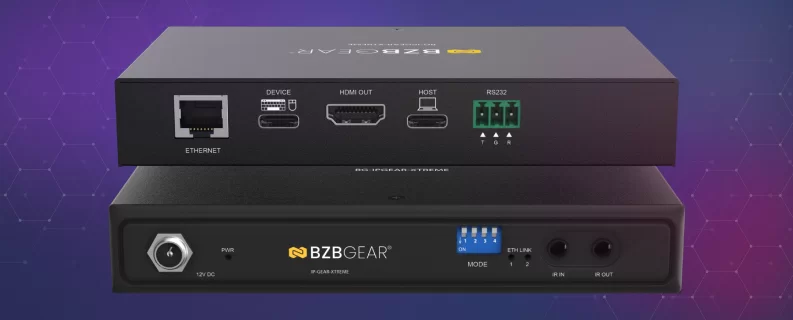
For most rooms, the BG-IPGEAR-XTREME is the starting point: uncompressed 4K@120Hz 4:4:4 at FRL5 (40Gbps), HDCP 2.3, with HDR10, HDR10+, Dolby Vision, VRR and ALLM, in a metal chassis small enough to sit behind a display. It supports PoE, so power, video, audio, USB and control travel over a single Cat.5e/6/6a/7 run — which is exactly the kind of thing that removes an electrician from the schedule. It's also a bi-directional transceiver, so one part number covers every position in the system and your spares kit is a single SKU.
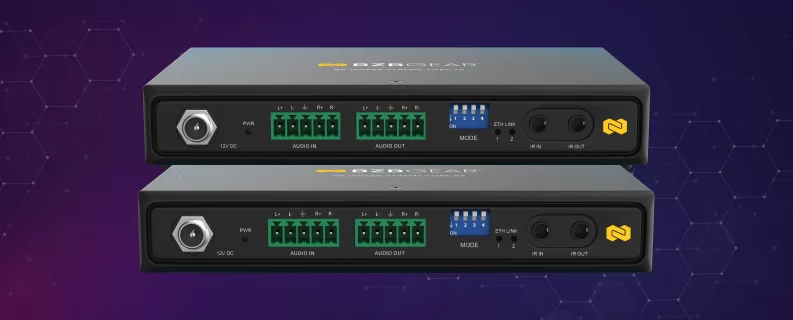
When you need the full 48Gbps pipe, there are two paths. The BG-IPGEAR-XTREME-CORE opens FRL6 (48Gbps) at 4K@120Hz 4:4:4 up to 170m (560ft) over Cat5e/6/6a/7, ships as a transmitter-and-receiver set, and adds Power over Cable so the far end doesn't need an outlet. It also carries balanced audio in and out on both units, on 5-pin terminal blocks at 3.975 Vrms / 12 dBV into 600Ω — which means analog audio drops straight into a DSP-based system with no adapter dangling off the rack. One limitation to note at design time: its Ethernet pass-through runs at 10/100 Mbps and works in point-to-point mode only, so don't plan on it as the network drop for a device that needs gigabit. The BG-IPGEAR-XTREME-PRO is the flagship, handling 4K@144Hz 4:4:4 and 8K modes at FRL6, with video wall and multi-view processing on board, and reaching the same 170m (560ft). It supports PoE as well, with 12V DC available as the alternative, so the power method can follow whatever the site's switching infrastructure already supports.
The Bottom Line
A low-latency 4K120 network is mostly four decisions made in the right order: the FRL tier your content actually needs, a managed switch with IGMP snooping and a VLAN, a per-stream bandwidth figure you can hand to IT, and a power-and-distance plan that matches the manual instead of the product title.
Get those right and the AV part is the easy part.
Working through a design and not sure whether the switch you've been handed is up to it? Reach out — we'll walk the bill of materials and the network requirements with you before it becomes a change order. To see the full XLink-ONE lineup, visit xlink-one.bzbgear.com.


8.00 a.m. - 5.00 p.m. (PST)
10.00 a.m. - 3.00 p.m. (PST)
(by appointment only)