







It Looks Sharp on Your Camera. Why Is It Blurry on YouTube?

Where your stream's picture quality really goes, and how to get it back
We get this call more often than you'd think. Someone sets up a new PTZ camera, and the preview monitor in the booth looks fantastic. Then they pull up the YouTube stream on their phone. Faces are soft. The worship team turns to mush every time they move. The confetti at the school assembly becomes a blocky mess. So the camera must be the problem, right?
Usually, it isn't. The picture on your monitor and the picture on YouTube are two very different things, and most of the quality gets lost somewhere in between. Let's break it down.
Your Monitor Sees Everything. Your Viewers Don't.
The HDMI or SDI cable coming out of your camera carries the full picture: every pixel of every frame, with nothing thrown away. A 3G-SDI cable carrying 1080p60 moves close to three gigabits of data every second. That's why your preview monitor looks so good.
No internet connection can send that much data, so before your video leaves the building, an encoder compresses it. By the time it reaches YouTube, your stream may carry less than one percent of the original data. The encoder's job is to decide what to keep and what to throw away, and most of the time it does that remarkably well.
Then YouTube compresses it again. YouTube automatically transcodes every live stream into several versions so viewers on different devices and connections can watch, and uploaded videos get re-encoded too.
In other words, your viewers are watching a copy of a copy.
What Makes Compression Struggle
Think of compression like describing a photo over the phone. "Blue sky, green field, red barn in the middle" is easy to get across in a few words. Describing every leaf on a tree, every face in a crowd, and how each of them moved since the last second is a lot harder. When the encoder runs out of words (bits), it starts approximating. That's the blur and blockiness you see.
A few things use up bits faster than anything else:
- Motion. A locked-off podium shot is cheap. A fast pan, a shaky camera, or a band jumping around costs far more, because every frame is different from the one before it.
- Fine detail. Crowds, confetti, foliage, stage haze, water, and LED walls are some of the hardest content to compress.
- Noise. This one surprises people. In a dark room, a camera turns up its gain to brighten the picture, and that adds grain. To the encoder, grain looks like millions of tiny details changing in every frame. It spends bits trying to preserve that grain instead of spending them on faces.
That's why a stream can look fine during announcements and fall apart when the lights go down for the worship set.
The Five Usual Suspects
When a stream looks soft, here's where to look.
1. YouTube Is Still Processing It

If you're judging a video you just uploaded, give it time. YouTube makes new uploads available in low quality first, and higher qualities like 1080p and 4K take longer to process. According to YouTube, a one-hour 4K video at 30 fps can take up to four hours to finish high-resolution processing. If you want a video to go public in full quality, YouTube suggests uploading it as unlisted first and switching it to public once every quality is ready.
2. The Viewer's Player Picked a Lower Quality
YouTube's player adjusts quality on its own, based on things like the viewer's internet speed and screen size. Someone on weak Wi-Fi in the fellowship hall may be watching a 480p version of a perfectly good 1080p stream. Before you change a single setting, click the gear icon on the player and check which resolution you're actually seeing.
3. Not Enough Bitrate for Your Resolution
Bitrate is how much data per second your encoder sends to YouTube. YouTube publishes recommended bitrates for every resolution and frame rate on its live encoder settings page, and it recommends running a speed test to check your upload speed. Run that test during a real event, not on a quiet afternoon, because a busy network rarely delivers its advertised speed.
Here's the counterintuitive part. If your connection can't sustain the recommended bitrate for 1080p60, dropping to 1080p30 or 720p60 will often look sharper. The same number of bits gets spread across fewer frames or fewer pixels. A clean 720p picture usually beats a starved 1080p picture.
4. The Room Is Too Dark

Remember the noise problem? Lighting is the fix. When you put more light on faces, the camera doesn't need as much gain. That means less grain and more bits left for the picture people actually care about. A pair of front lights on your most-watched position often does more for stream quality than any setting change. Choose fixtures rated flicker-free for video, since some inexpensive LEDs cause rolling bands that look like a camera or encoder problem.
5. Your Encoder Settings Are Fighting YouTube
A few settings matter more than people expect. YouTube recommends constant bitrate (CBR) encoding for live streams, with a keyframe every two seconds and never more than four. Keyframes are complete pictures the stream can rebuild from, so spacing them too far apart can leave the picture smeared longer after a cut or fast movement.
Frame rate matters too. Match your encoder's frame rate to your camera's output. Some gear ships with 25 or 50 fps defaults, which are standard in Europe. In North America, set everything to 30 or 60. A mismatch adds stutter that viewers read as "low quality." And always connect your encoder with an Ethernet cable, never Wi-Fi.
BZBGEAR Highlight: Fix It at the Source
Two of the suspects, noise and encoding, start with your gear, and that's where BZBGEAR can help.
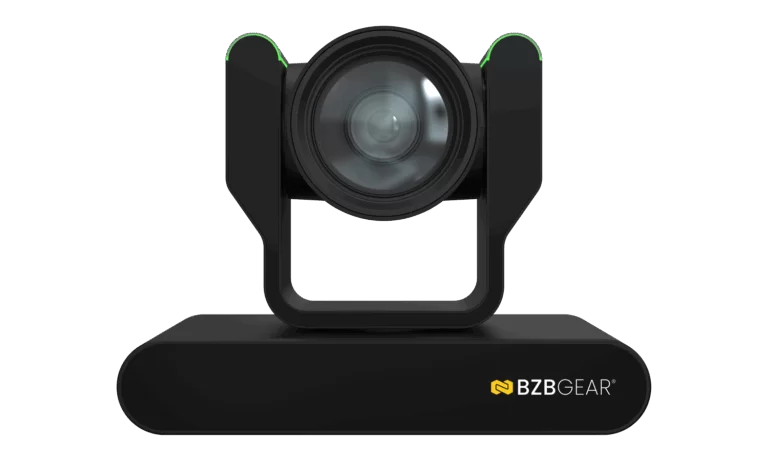
The BZBGEAR BG-ADAMO-JR is a 1080p60 PTZ camera with a Sony CMOS sensor and 3D noise reduction, which cleans up grain before the picture is ever encoded. It can also stream straight to a platform over RTMP or RTMPS, so a small setup can go live without a computer in the chain.
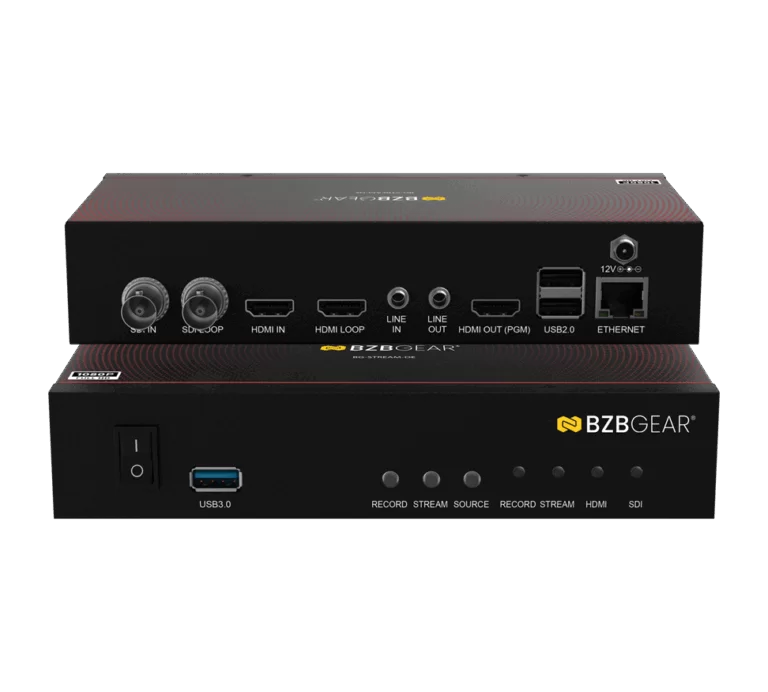
For larger productions that run through a switcher, the BZBGEAR BG-STREAM-DE takes an HDMI or SDI program feed and encodes it in hardware with H.264 or H.265, at up to 1080p60. It's configured through a web interface. Because it's a dedicated encoder, your stream doesn't depend on a laptop that's also running slides and graphics.
The Short Version
When your stream looks worse than your monitor, don't blame the camera first. Check whether YouTube has finished processing, check what quality the viewer's player picked, and make sure your bitrate matches your resolution. Then put more light on the subject and line up your encoder settings with YouTube's recommendations. Most blurry streams get sharper with no new gear at all.
If you've worked through the list and still aren't happy with your picture, reach out to our team. Here at BZBGEAR, we'd rather help you find the real weak link than sell you something you don't need. To see our full lineup of PTZ cameras, encoders, and streaming gear, visit BZBGEAR.com.


8.00 a.m. - 5.00 p.m. (PST)
10.00 a.m. - 3.00 p.m. (PST)
(by appointment only)
