







Can a Substitute Teacher Put Slides on Screen Without Calling IT?
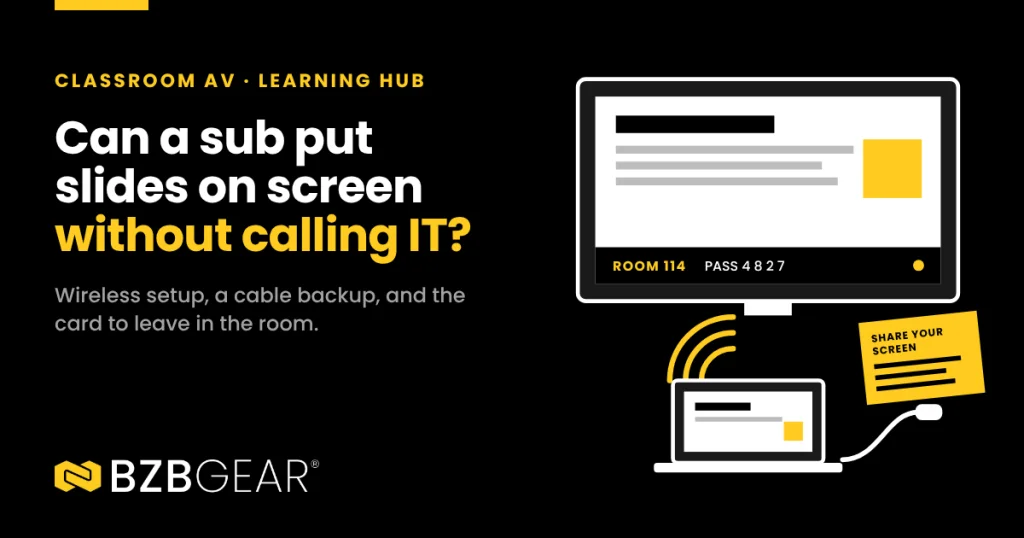
It's 7:52 a.m. A substitute walks into a classroom, opens the lesson plan, and reads "Show slides 1–14." The plan doesn't say how. There's a display on the wall, a remote with no labels, an HDMI cable that ends in the wrong plug, and a help desk that won't pick up until after first period.
If you design or support classroom AV, you've probably gotten that call. And that's okay! It's not a sign the substitute is bad with technology. It's a sign the room was built for the person who teaches in it every day, not for a guest.
So here's a better way to judge a classroom: hand someone a Chromebook or a MacBook they've never used in that room, start a timer, and see how long it takes to get slides on screen. If it's more than a minute or two, the room isn't guest-ready yet.
Let's break it down.
Why Guests Get Stuck
It's rarely about skill. Guests usually hit one of three walls.
The device is unfamiliar with the room. The regular teacher's laptop already remembers the display. A guest's laptop has never seen it.
The device is locked down. School-issued laptops often can't install apps without admin rights. If the room only works with a special app, a guest is out of luck before they start.
The network hides the receiver. Wireless sharing tools like AirPlay and Google Cast find a display by announcing themselves on the local network. School networks often keep devices separated for security, so the laptop and the receiver never hear each other. It's like calling someone's name in a building where every room is soundproofed. You're both there, but nobody answers.
Fix those three things and most "call IT" moments go away.
The Wireless Path: Use What's Already on the Laptop
The golden rule for a guest-ready room is simple: rely on sharing tools that are built into the device. No downloads, no accounts, no admin password.
- MacBook: Screen Mirroring (AirPlay), found in Control Center.
- Chromebook: Cast, found in Quick Settings or the Chrome browser menu.
- Windows laptop: Miracast, through Windows key + K.
Then decide how guests will reach the receiver. There are two common approaches.
The first is to put the receiver on the school network and have IT allow screen-sharing discovery for that room, one time, up front. This is the better choice for district-managed laptops, which are often locked to the district's Wi-Fi and can't join anything else.
The second is to let the receiver broadcast its own Wi-Fi and show the network name and password right on the display. A guest's personal laptop joins that network and shares. No school credentials required.
Many rooms end up using both, which is exactly why you test with more than one kind of device.
The Cable Backup: One USB-C Cord on the Desk
Wireless will have a bad day eventually. A personal laptop with an odd setting, a network change over the summer, a fire drill that leaves 40 seconds to restart class. Every guest-ready room needs a wired fallback that just works.
Today, that fallback is a USB-C cable. USB-C can carry a video signal (through a feature called DisplayPort Alternate Mode), so one cord goes straight from the laptop to the display system with no adapter. Most MacBooks and many Chromebooks support video over USB-C, but not every USB-C port does, so confirm it on the laptops your school actually uses.
One practical tip: loose adapters walk away. A USB-C cable that stays connected to a switcher at the teacher's desk is still there next week.
BZBGEAR Highlight: Building a Guest-Ready Classroom
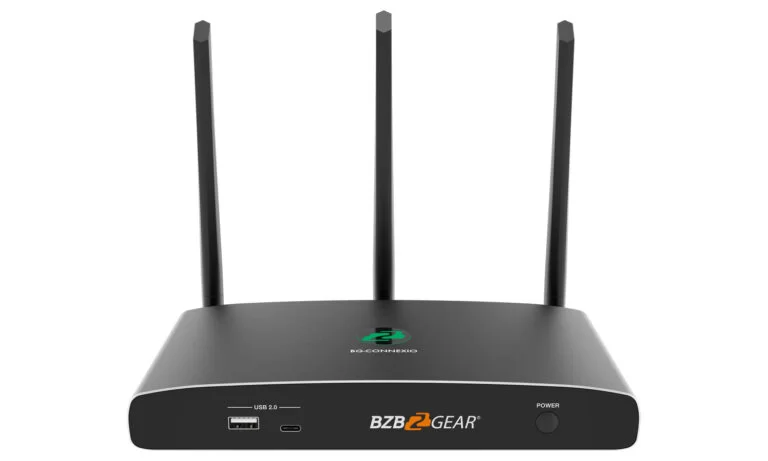
The wireless piece. The BG-Connexio is a wireless presentation system that supports AirPlay, Miracast, and Chromecast, so guests can share with the tools already on their devices. Its home screen shows the room's connection name and password, which means the instructions live on the display itself instead of on a sticky note.
That password can also change automatically once the last person disconnects (after five minutes, by default), so yesterday's visitor can't connect from the hallway tomorrow. The Connexio can run its own Wi-Fi network and still pass internet through its Ethernet connection, or it can join your existing network. Wireless content comes in at up to 1080p, the HDMI output drives displays up to 4K60, and up to four sources can share at once in a 2x2 view, which is handy when students present from their own Chromebooks.
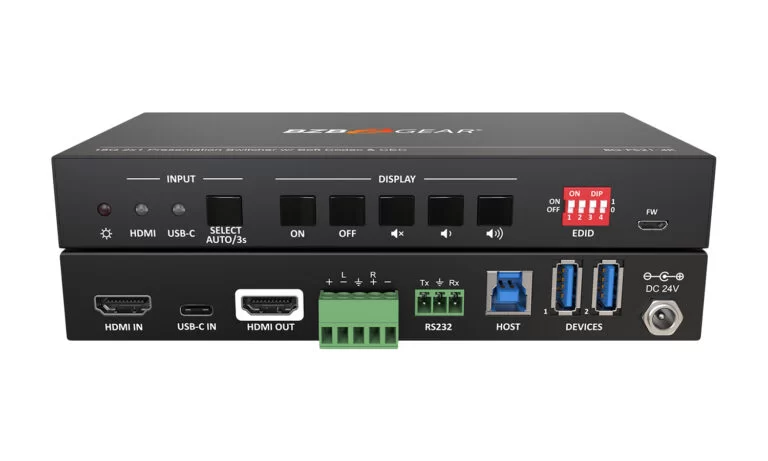
The wired backup. Feed the Connexio into the HDMI input of a BG-PS21-4K and leave a USB-C cable on its USB-C input at the desk. Now the display stays on one input all day. Wireless comes through one side, a plugged-in laptop comes through the other, and nobody has to hunt through a display menu. The USB-C input carries video up to 4K@30Hz and provides up to 40 watts of charging, enough to keep most thin-and-light laptops topped up during class. If the picture doesn't switch on its own, the front-panel Select button does it in one press.
Run the Two-Minute Guest Test
Before the first substitute ever walks in, run this test yourself:
- Grab two devices that have never been in the room: a Chromebook and a MacBook. If you can, use a district-managed laptop, the kind a substitute would actually be handed.
- Start a timer and use only the instruction card in the room. No help, no shortcuts.
- Share wirelessly first, then unplug from Wi-Fi sharing and try the USB-C cable.
- Write down every pause. A confusing step, a missing password, a display on the wrong input.
- Fix the room or the card, then run it again.
If both devices share slides in under two minutes using only the card, the room is ready.
The Card to Leave in the Room
Keep it short enough to read in ten seconds. Laminate it and mount it at the teacher's desk, not in a drawer.
|
SHARE YOUR SCREEN Wireless 1. Look at the screen for the network name and password. 2. MacBook: Control Center → Screen Mirroring → pick this room. Chromebook: Click the clock (bottom right) → Cast → pick this room. Windows: Windows key + K → pick this room. 3. Enter the password shown on the screen if asked. Wired backup Plug the USB-C cable on the desk into your laptop. No picture? Press Select on the switcher. Still stuck? Room ___ · Call ext. ____ |
Notice what's not on the card: the password. It's on the screen, and it changes, so a printed one would just be wrong by Tuesday.
The Bottom Line
A substitute shouldn't need a help desk ticket to show 14 slides. Build the room around the sharing tools already on every laptop, keep a USB-C cable at the desk as a backup, leave a card that matches what's on the screen, and test it with a device the room has never seen. It's really that easy.
Whether you're updating one classroom or an entire district, BZBGEAR offers complimentary design services and engineering support to help you plan it. Explore the lineup at bzbgear.com or give our team a call at 1.888.499.9906. We'd love to help with your next classroom!


8.00 a.m. - 5.00 p.m. (PST)
10.00 a.m. - 3.00 p.m. (PST)
(by appointment only)
