







AV-over-IP KVM Explained: Controlling Computers Across a Network
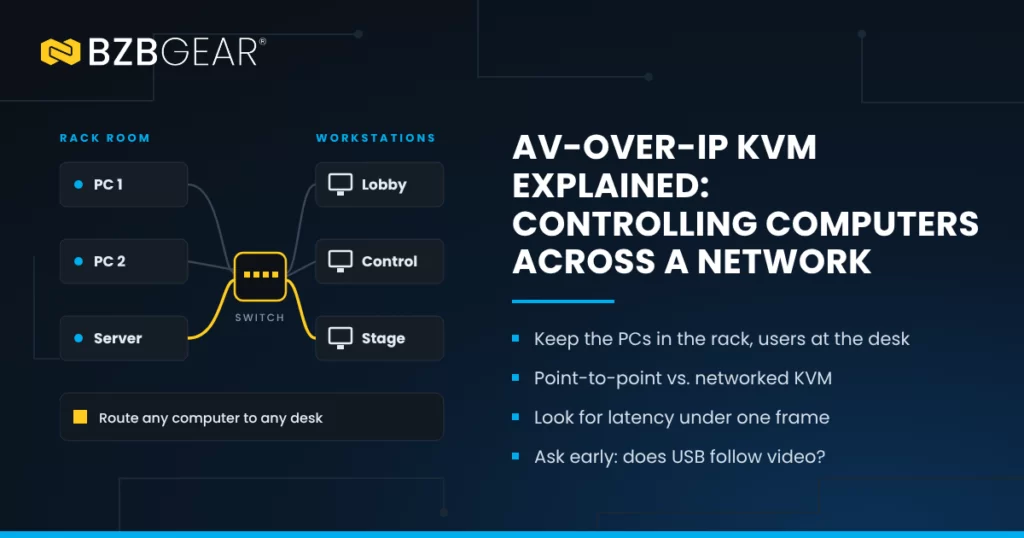
A question I get a lot from integrators goes something like this: "The client wants the PCs out of the room, but they still need to use them. How do we do that?" And that's a great question! Nobody wants a hot, noisy computer under the front desk or a media server parked next to the pulpit. They just want a screen, a keyboard, and a mouse that work like the computer is right there.
That's exactly what KVM does. And when you run it over a network, it gets a whole lot more flexible. Let's break it down.
What KVM Actually Means

KVM stands for keyboard, video, and mouse. A KVM system separates the computer from the person using it. The computer lives somewhere safe — a rack room, a server closet, a control booth — and the user sits at a workstation with just a display and their peripherals.
Here's why that matters. A standard USB cable for a keyboard or mouse only reaches about 5 meters (16 feet) before it gives up. HDMI runs aren't much better once you're pushing high resolutions. KVM gear gets around those limits by carrying the video and the USB signals together, so you can put real distance between the computer and the desk.
Think of it like a really long extension cord for your whole workstation. The computer doesn't know it's been moved, and the user doesn't either.
Point-to-Point KVM vs. AV-over-IP KVM
There are two main ways to do this, and the difference comes down to how many computers and workstations you need to tie together.
Point-to-Point: One Computer, One Desk
A traditional KVM extender is a transmitter and receiver pair. The transmitter connects to the computer, the receiver connects to the monitor, keyboard, and mouse, and a single cable runs between them. Simple, reliable, and perfect when one desk needs one computer.
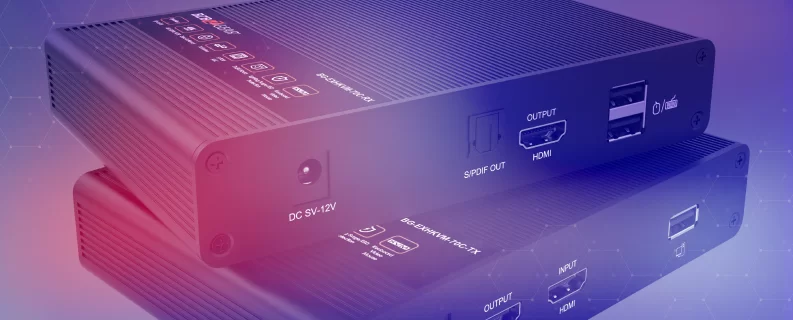
The BG-EXHKVM-70C is a good example. It sends 4K@60Hz video plus keyboard and mouse control up to 230 feet (70 meters) over a single Cat6, Cat6A, or Cat7 cable. If that's your situation, look no further. (We covered these in more detail in KVM Extenders Explained.)
The catch? That cable is a dedicated link. If a second workstation needs to reach the same computer, or that desk needs to reach a different computer, you're adding hardware and pulling new cable.
AV-over-IP: Any Computer, Any Desk on the Network
AV-over-IP (AVoIP) takes the same idea and puts it on a standard Ethernet network. Instead of a dedicated cable between two boxes, every computer gets an encoder and every workstation gets a decoder, and they all plug into a network switch.
Now the network is doing the work a pile of cables used to do. Want the front desk to pull up the security PC? Route it. Need a control room operator to jump between three media servers? Route it. Adding a fourth workstation next year means adding one more endpoint, not rewiring the building.
Here's the simplest way I can put it: point-to-point KVM is a private phone line between two people. AV-over-IP KVM is a phone system — everyone's on it, and you choose who's talking to whom.
How USB Travels Over the Network
Video over IP gets most of the attention, but for KVM, the USB side is what makes it feel real. When you move the mouse at the workstation, the decoder packages that USB data, sends it across the network to the encoder, and the encoder hands it to the computer as if the mouse were plugged in locally.
Better USB support means you can extend more than just a keyboard and mouse. Depending on the system, that can include touchscreens, webcams, and other peripherals. That's worth checking on a spec sheet before you design around it, because USB support varies a lot from product to product.
The other thing to check is latency — the delay between your hand moving and the cursor moving on screen. For watching video, a little delay is no big deal. For KVM, it's everything. If the cursor lags, users notice immediately and the whole "the computer feels local" illusion falls apart. Look for systems that keep latency under one frame.
One Question to Ask Up Front: Does USB Follow Video?
This one trips people up, so it's worth spelling out. In many AV-over-IP systems, the USB connection follows the video route. When a workstation is showing Computer A, the keyboard and mouse at that workstation control Computer A. Switch the video to Computer B, and control switches with it.
For most installs, that's exactly what you want. But some applications — certain control rooms, for example — need USB routed separately from video, like watching one computer while typing on another. Not every system handles that, so ask the question during design, not after the install.
What You Need on the Network
The good news is that AV-over-IP KVM doesn't require exotic infrastructure. Here's the short list:
- A managed network switch. You want IGMP snooping so video traffic only goes where it's requested, instead of flooding every port.
- VLAN support. Keeping AV traffic on its own VLAN separates it from office or guest traffic and makes troubleshooting easier.
- Enough bandwidth for the system you're installing. Some AVoIP systems run on 1 Gigabit networks; others need 10 Gigabit. Match the switch to the system.
- A control method. Whether it's an app, a web interface, or a third-party control system, someone needs an easy way to make routes.
Where AV-over-IP KVM Shines
Once you start looking, you'll see the use case everywhere:
- Control rooms and security desks where operators need to reach several computers from one seat
- Houses of worship where presentation and media PCs stay in the booth while volunteers run them from the stage or sanctuary
- Healthcare and labs where computers need to be out of patient areas or clean spaces
- Digital signage head-ends that nobody should have to walk to just to reboot a player
- Residential and light commercial — the home office, the golf simulator, the media room — where the client wants zero equipment in sight
At the end of the day, the client doesn't want to see the gear, and you don't want to drive back out to reboot a PC in a cabinet. AV-over-IP KVM solves both problems.
BZBGEAR Highlight: BG-IPGEAR-XTREME
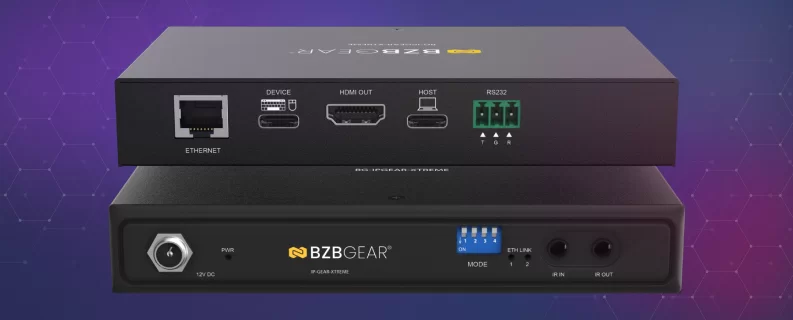
For a networked KVM system, the BG-IPGEAR-XTREME from BZBGEAR's XLink-ONE family is a great place to start. Each unit is a transceiver, so the same box works as a transmitter at the computer or a receiver at the workstation. That keeps inventory simple on bigger projects.
It carries uncompressed 4K@120Hz 4:4:4 video with less than one frame of latency, so cursor movement stays smooth and responsive. On the USB side, it supports USB 3.1 Gen1 and Gen2 for full KVM extension to PCs, media servers, and touchscreens, plus UVC webcams. It runs on a managed 1GbE network and is controlled through the BZBGEAR Switch Control app on Windows, macOS, iOS, and Android.
Ready to Get the Computers Out of the Room?
KVM used to mean a dedicated cable for every computer and every desk. AV-over-IP turns that into a flexible system you can route, expand, and manage from an app — on the same kind of network your clients already understand.
If you're designing a KVM system and want a second set of eyes on it, reach out to our team! Our sales engineers offer complimentary system design support, and we're always happy to help you figure out what fits. You can also learn more about how BZBGEAR AV-over-IP systems come together to find the right fit for your next installation.


8.00 a.m. - 5.00 p.m. (PST)
10.00 a.m. - 3.00 p.m. (PST)
(by appointment only)