







How to Set Up RTMP Streaming on the BG-QuadFusion-Jr
This guide walks you through configuring an RTMP live stream using the BG-QuadFusion-Jr. If you experience any issues after completing these steps, please contact support@bzbgear.com for assistance.
Step 1: Connect to the Network
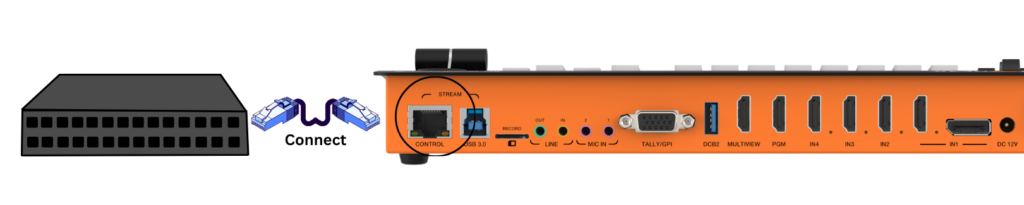
Connect the BG-QuadFusion-Jr to your network using an Ethernet cable.
- If your network has DHCP enabled, the unit will automatically obtain an IP address.
- If DHCP is not enabled, you will need to manually assign an IP address that matches your network’s IP range.
Step 2: Access the Web GUI
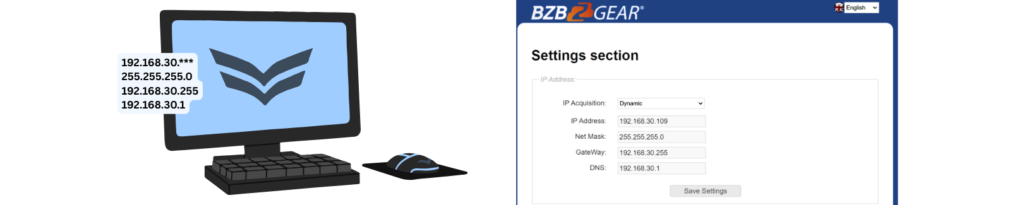
This is example - Your network settings may be different
- On a computer connected to the same network, open a web browser.
- Enter the IP address of the BG-QuadFusion-Jr into the address bar.
- Press Enter to access the Web GUI.
If the Web GUI does not load:
- Verify the PC and QuadFusion-Jr are on the same subnet.
- Confirm the IP address, subnet mask, and gateway settings are correct.
- Ensure no IP address conflicts exist on the network.
Step 3: Configure RTMP Settings

- In the Web GUI, scroll down to the RTMP Settings section.
- From your streaming platform (YouTube, Facebook, or another RTMP-enabled service), locate:
- RTMP URL
- RTMP Stream Key
- In the RTMP URL field on the QuadFusion-Jr:
- Paste the RTMP URL
- Append the stream key to the end of the URL using the following format: rtmp://server-address/app/STREAM_KEY
- Click Save.
- Toggle RTMP ON to begin streaming.
Once enabled, the stream should start automatically.
Notes & Best Practices
- Use a persistent stream key whenever possible to avoid needing to reconfigure settings for each stream.
- For stable performance:
- Ensure all devices on the network have unique IP addresses
- Verify that the subnet mask and gateway are consistent across all devices
- A wired network connection is strongly recommended for live streaming reliability.


Get insider
updates & offers
Learn more
Get insider updates and offers
Join our vibrant community of BZBGEAR insiders today and unlock a world of exclusive updates, irresistible offers, and invaluable education.
Sales Inquiries
Leave your phone number, and one of our specialists will reach out to you shortly.
Call Us
Technical support
Monday - Friday
8.00 a.m. - 5.00 p.m. (PST)
8.00 a.m. - 5.00 p.m. (PST)
Saturday - Sunday
10.00 a.m. - 3.00 p.m. (PST)
(by appointment only)
10.00 a.m. - 3.00 p.m. (PST)
(by appointment only)
Phone & Email Support
