







How to Set Up and Control the BG-4K-44MA 4x4 Matrix via the Web GUI
The BG-4K-44MA is BZBGEAR's brand new 4x4 matrix — four inputs to four outputs, supporting up to 4K at 60Hz with 4:4:4 chroma sampling. It lets you switch all your sources across multiple displays, with easy audio matrixing, embedding, and extraction built in. It's a great fit for anywhere you've got multiple sources and multiple TVs — a sports bar, a home with several gaming systems or cable boxes, or displays spread across different rooms. This guide covers getting the unit connected, logging into the web GUI, and using it to route your video and audio and save presets.
Let's break it down.
A Quick Note on Control Options
There are several ways to control the BG-4K-44MA:
- IR remote
- Front panel push buttons
- Web GUI (TCP/IP)
- RS-232 for serial commands or an external control system
- The BZBGEAR Switch Control app, available on Windows, Mac, iPhone, and iPad
For this guide, we'll connect to the unit and control it through the web GUI.
Part 1: Get the Unit on Your Network
Step 1: Connect to your network
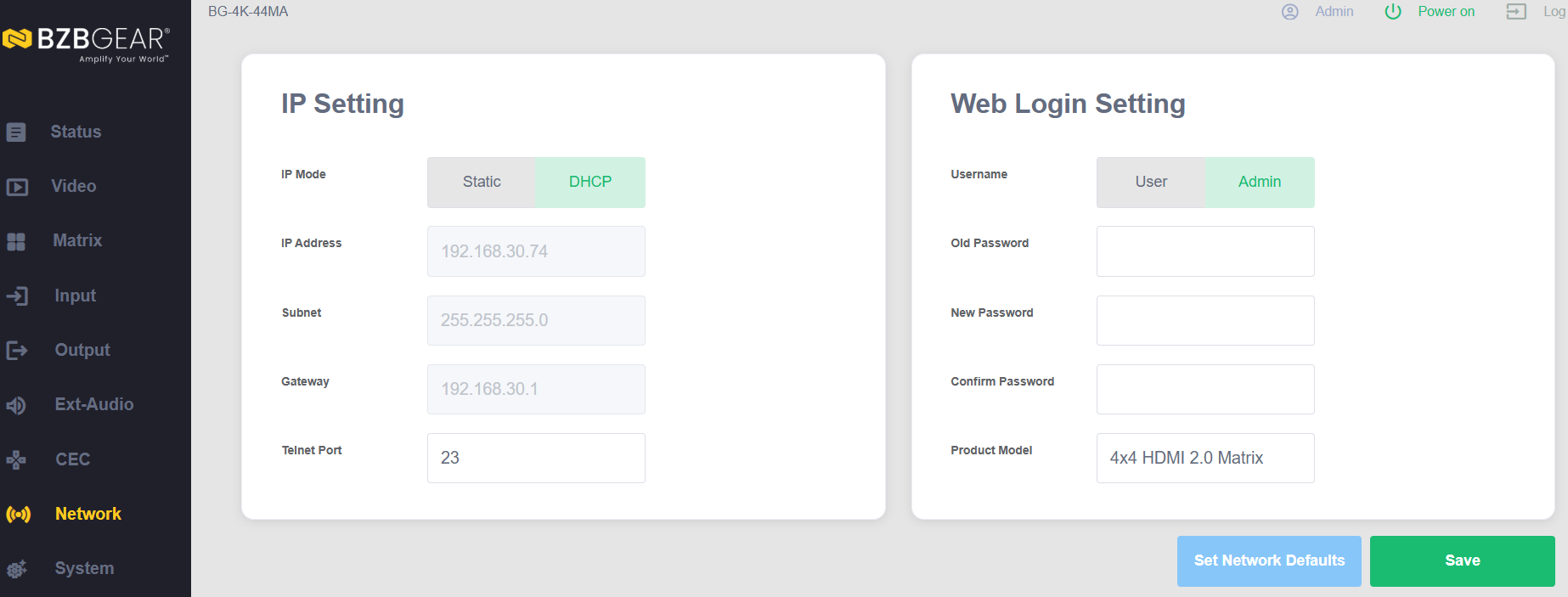
Plug the BG-4K-44MA into your network. If you're on a DHCP server, the unit will pull an IP address automatically — you just need to confirm DHCP is enabled on the unit.
Step 2: Confirm DHCP and find the IP address
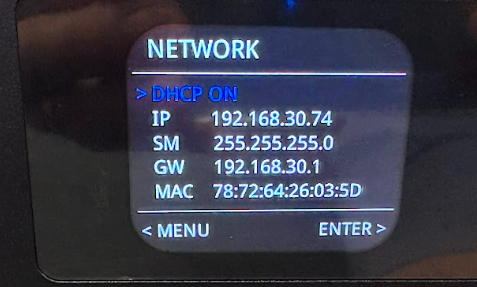
On the unit, press the Menu button, go down to Setup and hit enter, then go to Network and hit enter. Make sure DHCP is on. With DHCP enabled, the unit pulls an available IP address from your network — make a note of it, since that's the address you'll use to reach the web GUI.
Step 3: Log in to the web GUI
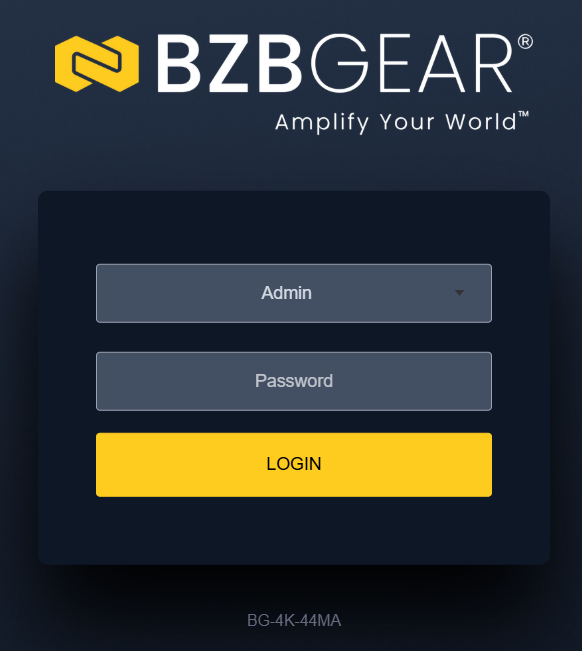
Enter the unit's IP address into your web browser. At the login screen, enter the default credentials — username admin and password admin — and log in.
Part 2: Get Familiar with the Status Page
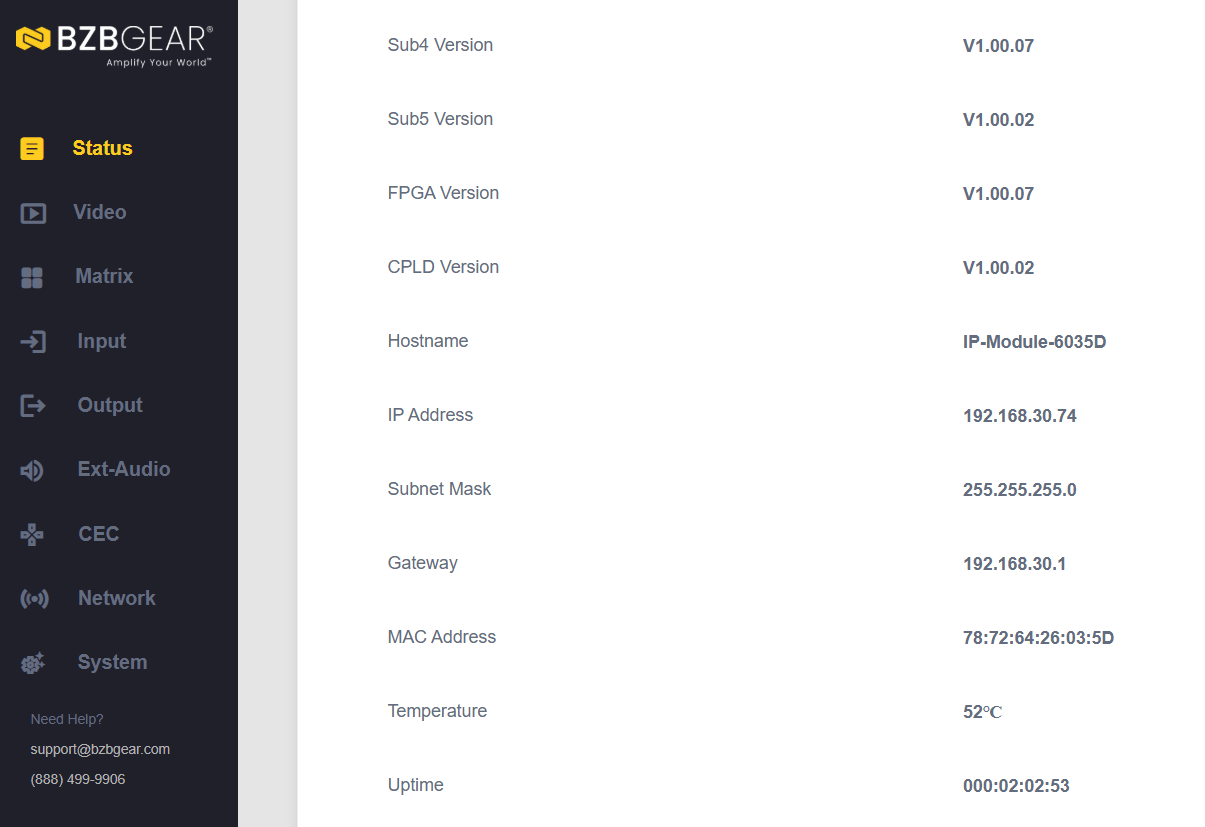
The first tab is the Status page, which shows all the key information about the unit — firmware versions, the current IP address, the MAC address, and more.
Part 3: Switch Your Video in the Matrix
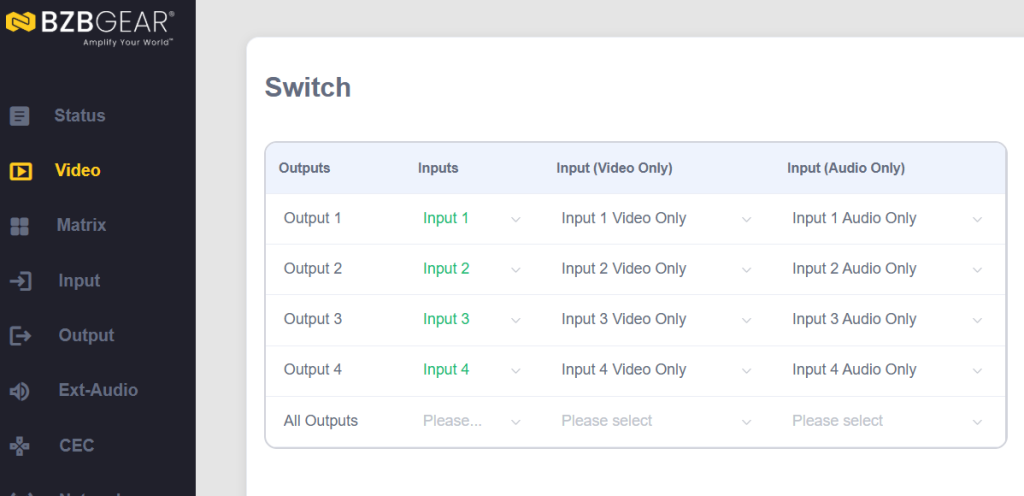
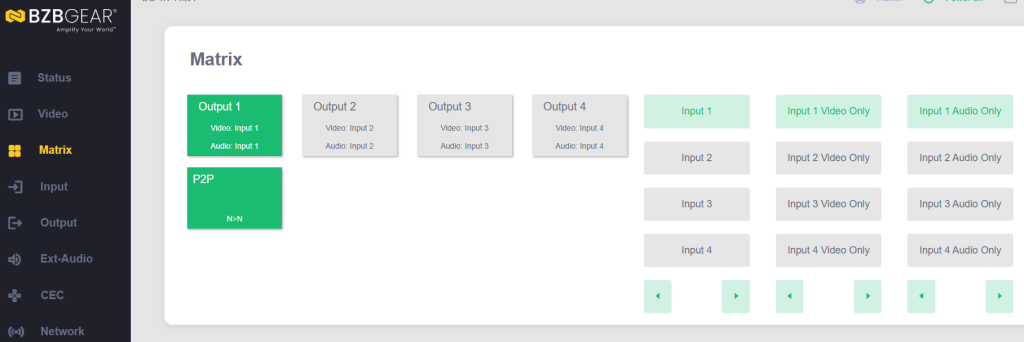
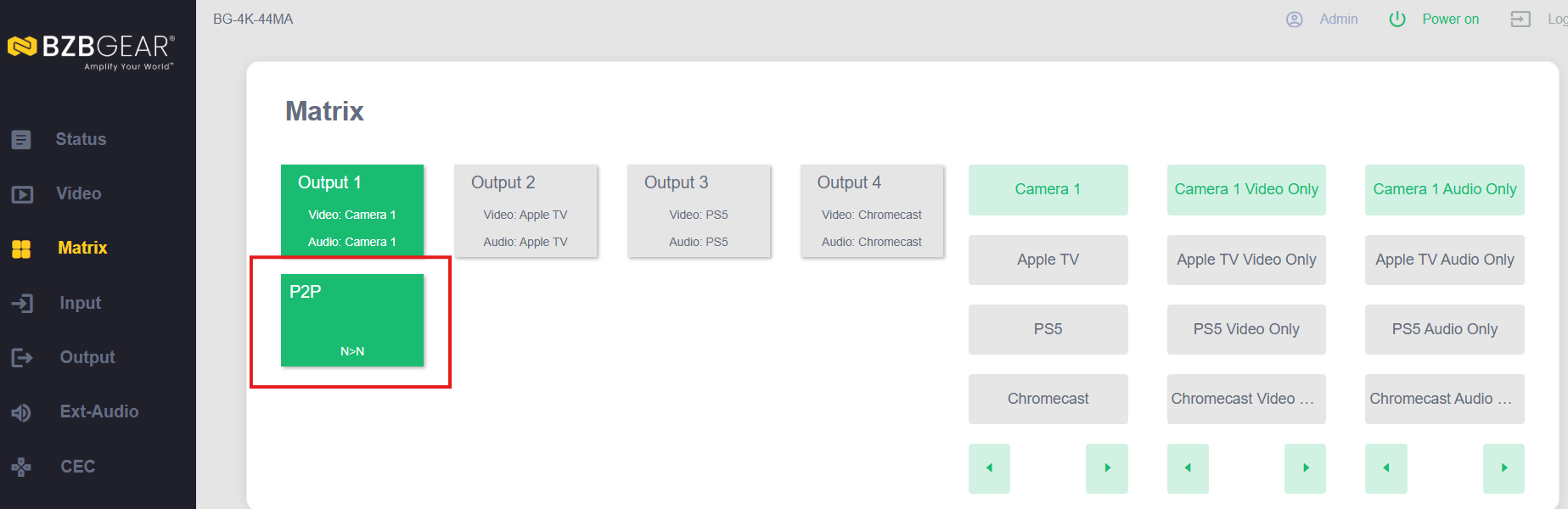
Head to the Video or Matrix tab — this is where you route your sources to your displays. Either via dropdown on the Video tab or by grid on the Matrix tab
Label your inputs first
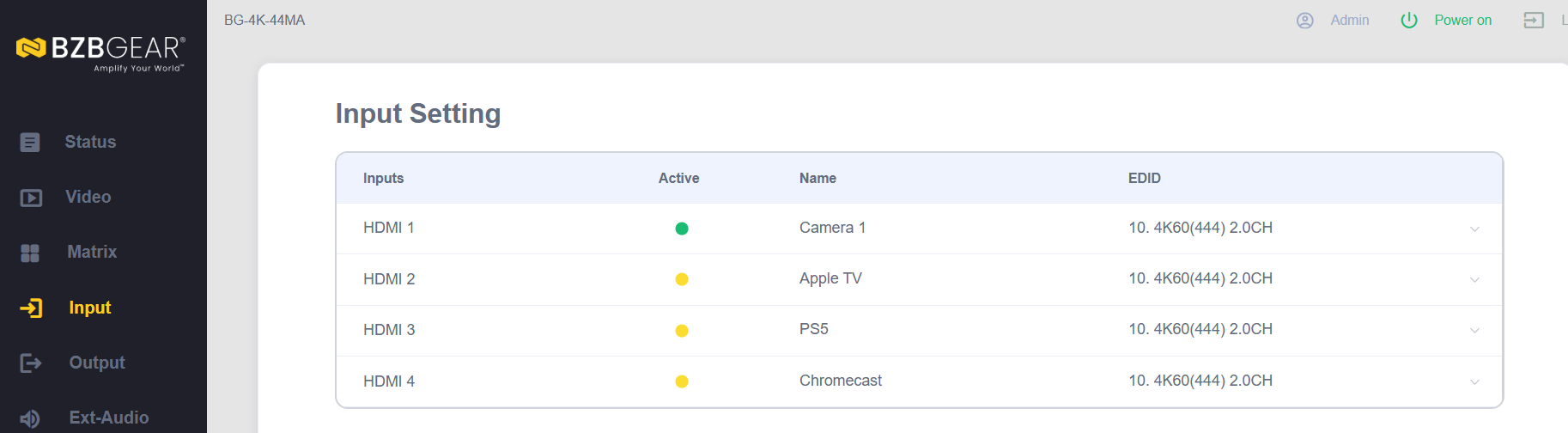
Before you start switching, pop over to the Input tab and label each input so you always know what's what — for example Camera, Apple TV, PS5, and Chromecast. It only takes a moment and makes routing much clearer.
Send one source to every display
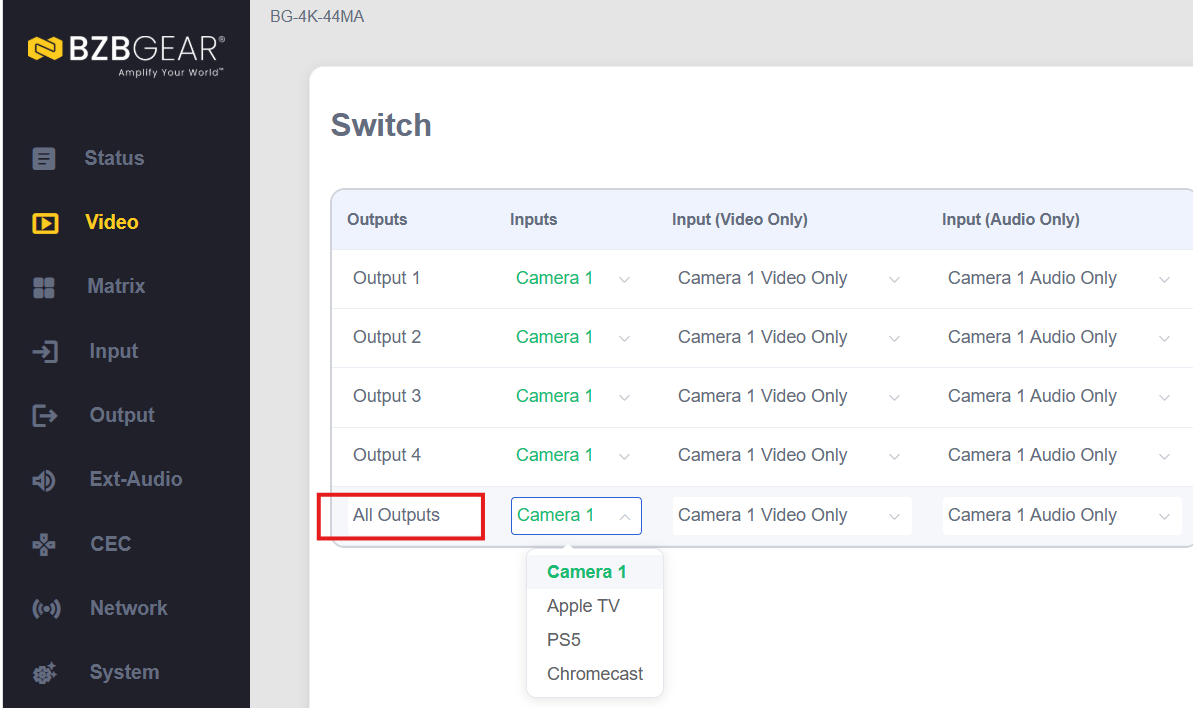
Back on the Video tab, routing is quick. To put a single source on all four displays at once, just select that source for All Outputs — for example, all outputs to Camera — and it switches instantly.
Part 4: Matrix Your Audio
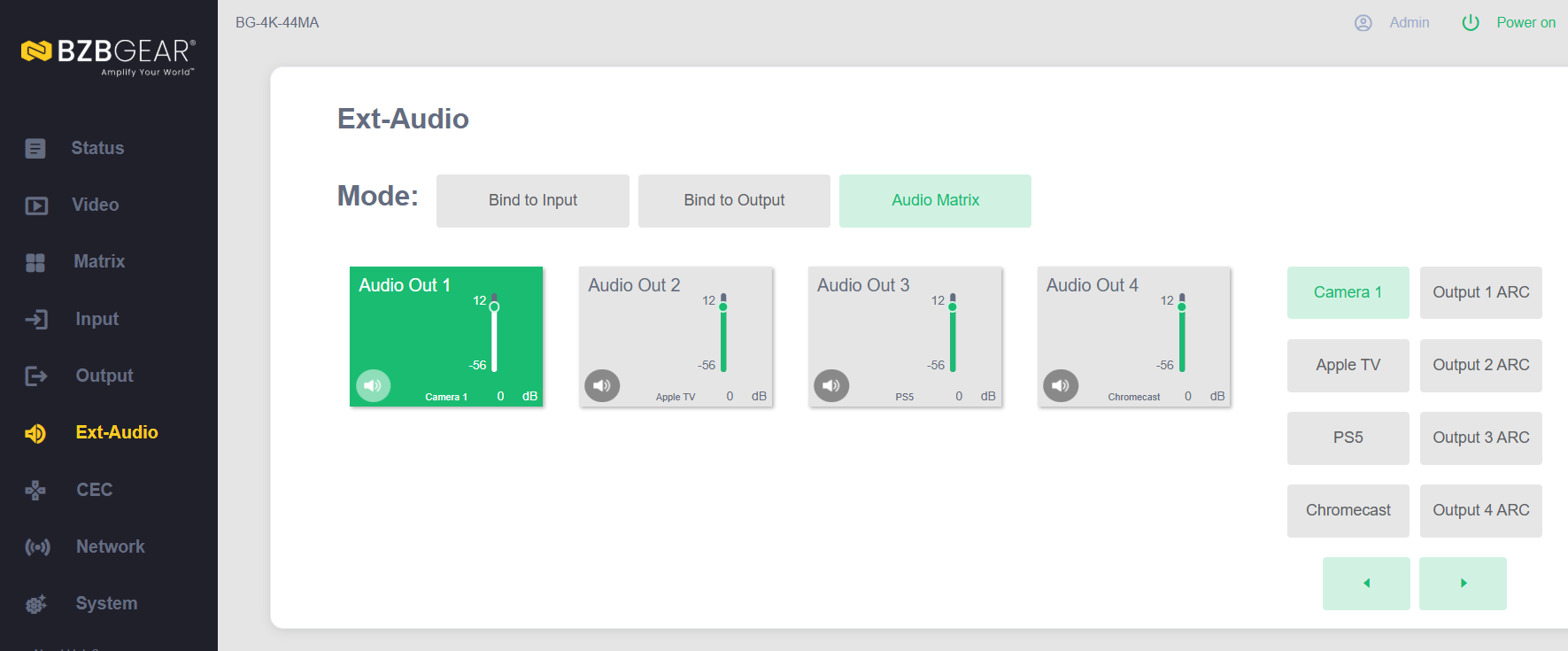
One of the standout features of this unit is how easy audio matrixing is. On the audio tab, you can select the audio independently from the video — so you could show one source's video on an output while playing a different source's audio on it. For example, you can keep BZB video on Output 1 but have the audio from an Apple TV movie play on that same output.
You can bind the audio to the input or to the output, then use audio matrixing to send the audio from any source to any output. The unit also supports audio extraction and ARC — so if you've got a smart TV with everything already on it, you can use that TV's ARC as your audio source.
Part 5: Reset to Point-to-Point
One of the handiest features is the point-to-point reset. When you want to get everything back to the default 1-to-1 routing — Input 1 to Output 1, Input 2 to Output 2, and so on — click the point-to-point button, confirm Yes, and the whole matrix returns to its default setup.
Part 6: Network and System Settings
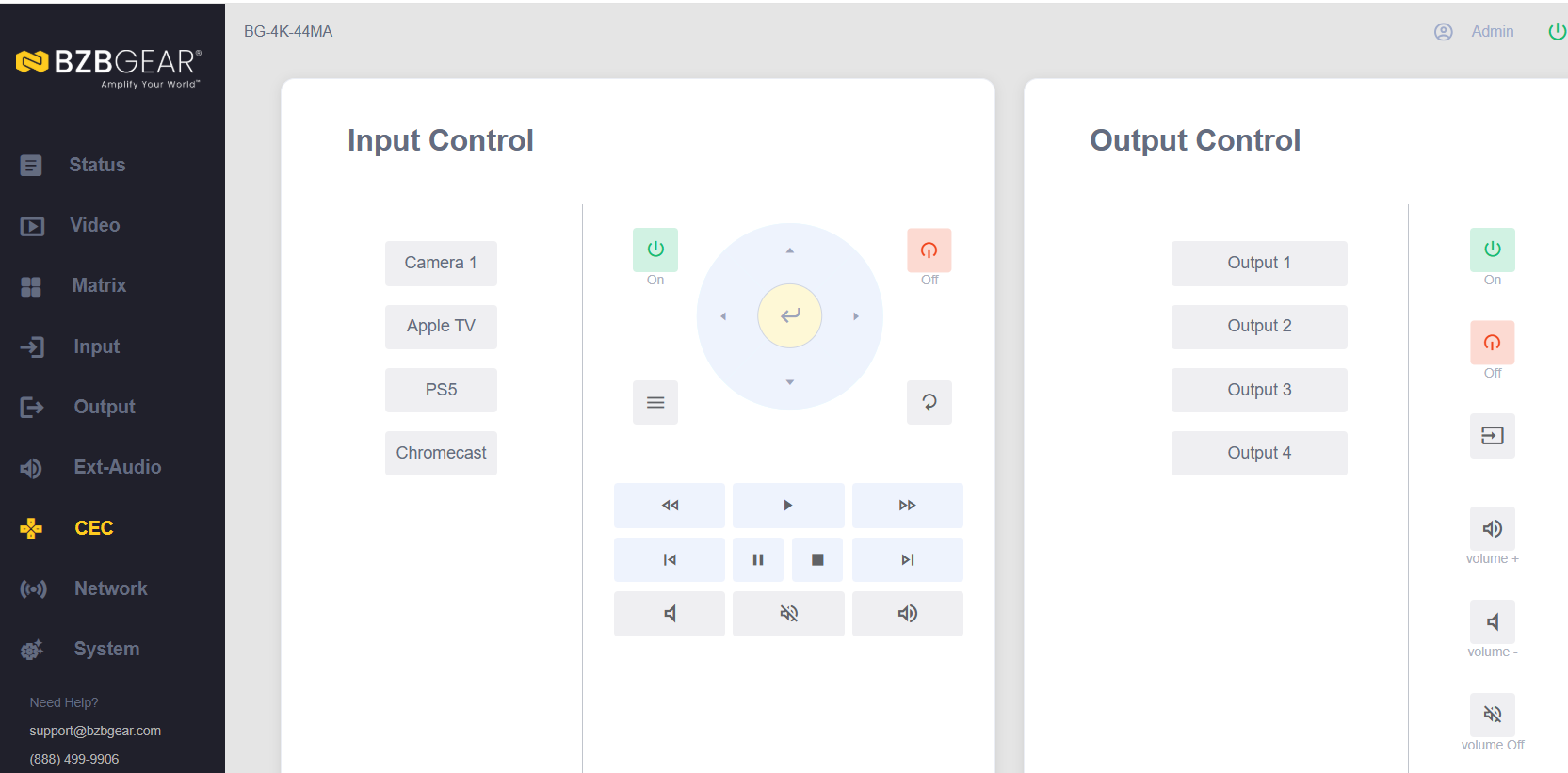
CEC and Network. You'll find CEC control and network settings in the web GUI, where you can adjust the unit's IP settings — leave it on DHCP or assign a static address if your install calls for one.
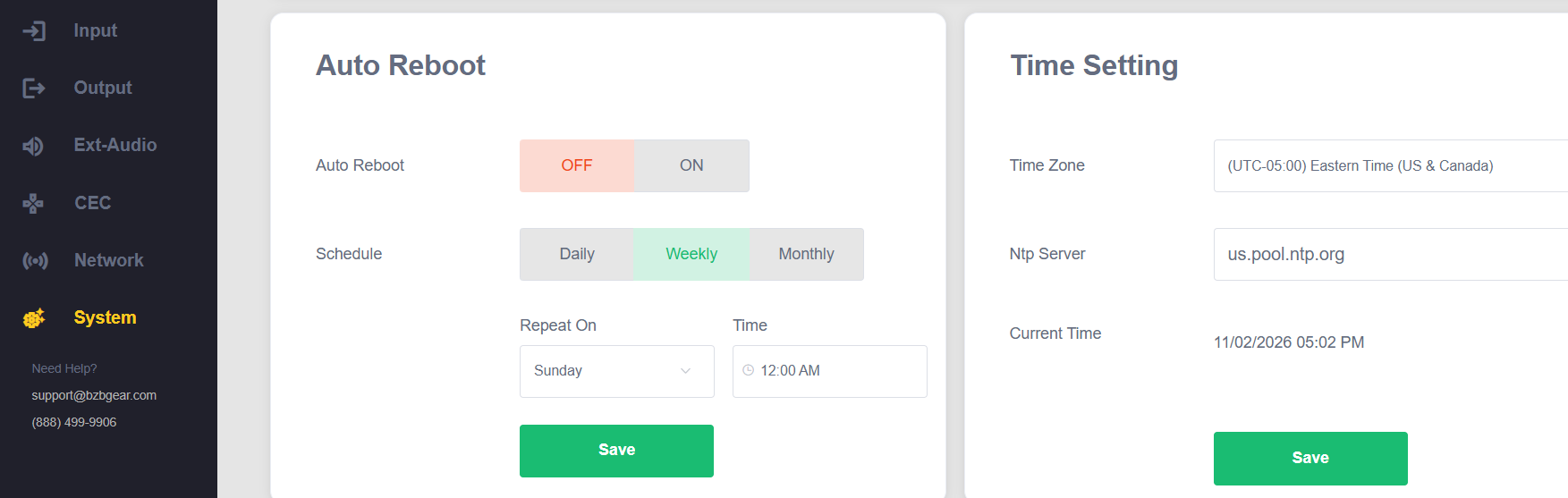
System settings. The System tab covers the essentials — firmware updates, factory reset, a reboot, and the ever-popular option to turn off the unit's beep.
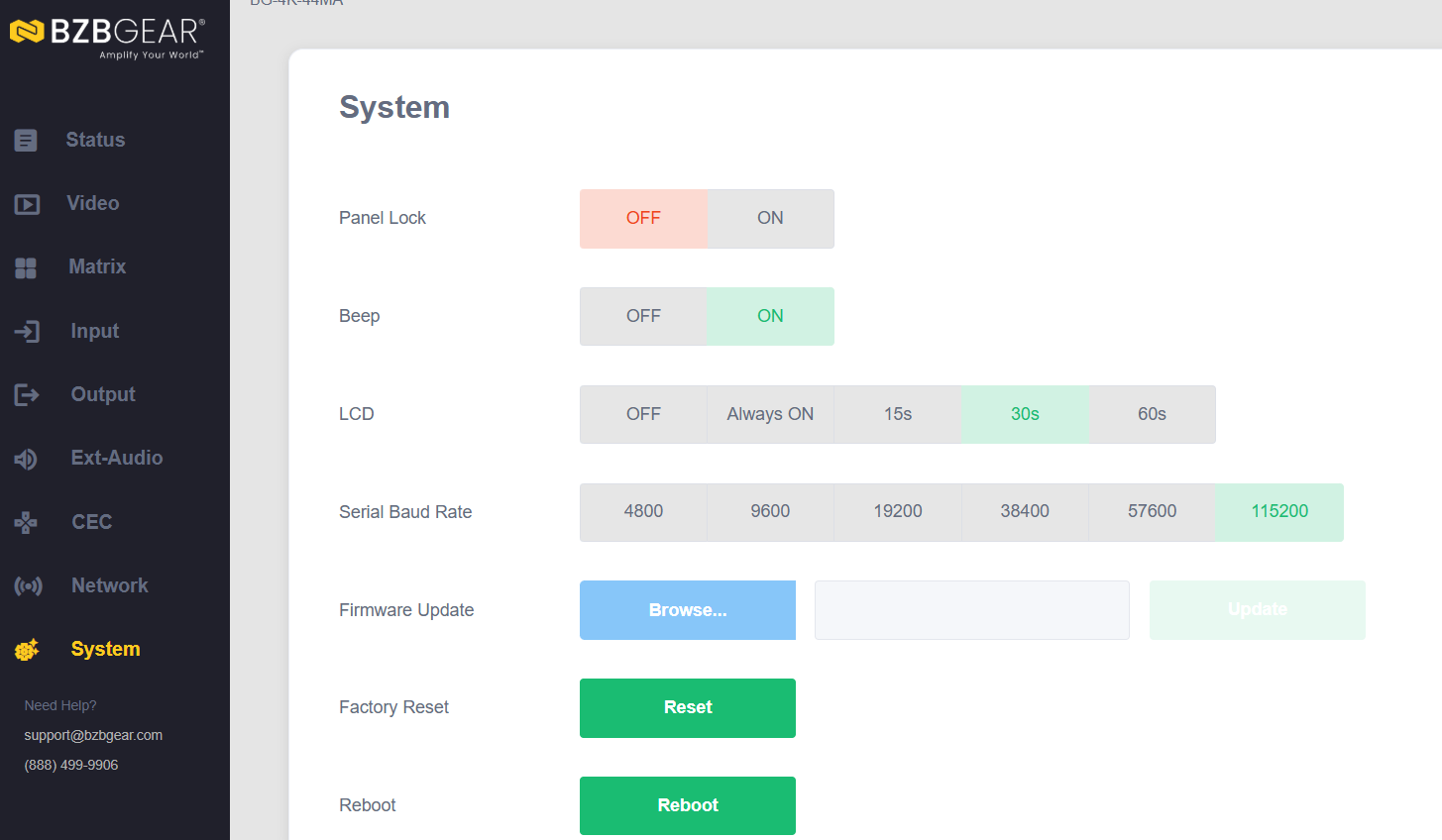
It also has the option to set an Auto Reboot Scheduler to automatically reboot the unit consistently at a desired timeframe.
That's How Simple It Is
That's the BG-4K-44MA — connect to it, log into the web GUI, and you've got easy video switching, flexible audio matrixing and extraction, labeled inputs and outputs, and presets, all controllable several different ways. It's a simple, versatile unit for just about any multi-source, multi-display environment.
Need a Hand?
If you run into any installation or technical questions along the way, our support team would love to help you get over any speed bumps. They can be reached at support@bzbgear.com.
For more details on the BG-4K-44MA and the rest of the BZBGEAR lineup, visit BZBGEAR.com.


8.00 a.m. - 5.00 p.m. (PST)
10.00 a.m. - 3.00 p.m. (PST)
(by appointment only)
