





How to Manually Add PTZ Cameras to the BG-COMMANDER-ULTRAX
This guide explains how to manually add an IP PTZ camera to the BG-COMMANDER-ULTRAX for network based camera control.
Before adding your cameras, make sure the BG-COMMANDER-ULTRAX and your PTZ cameras are properly connected to the same network and that each device has a unique IP address.
If you continue to experience issues after following this guide, please contact support@bzbgear.com for further assistance.
Before You Begin
Before adding your cameras to the controller, verify the following:
- Connect the BG-COMMANDER-ULTRAX and your PTZ cameras to the same network. For the most reliable setup, connect both the controller and cameras to the same network switch using Ethernet cables.
- Verify the IP addresses. The controller and cameras should be configured within the same IP range/subnet. For example, if the controller is using 192.168.1.100, a camera could use 192.168.1.101.
- Check for IP conflicts. Make sure no two cameras or other network devices are using the same IP address.
- Confirm the camera's control protocol and port. The protocol and port entered into the BG-COMMANDER-ULTRAX must match the settings supported by the camera. The UltraX supports ONVIF and VISCA over IP.
Recommended Network Test
A simple way to verify network connectivity is to connect a laptop to the same network switch as the BG-COMMANDER-ULTRAX and cameras.
- Connect the laptop to the same network.
- Make sure the laptop is configured for the same IP range as the controller and cameras.
- Open a web browser and enter the IP address of the camera.
- Verify that you can access the camera's Web GUI.
- Verify that you can also reach the BG-COMMANDER-ULTRAX if its Web GUI is available.
If you cannot access the camera's Web GUI from the laptop, resolve the network connectivity issue before attempting to add the camera to the controller.
Adding a PTZ Camera to the Controller
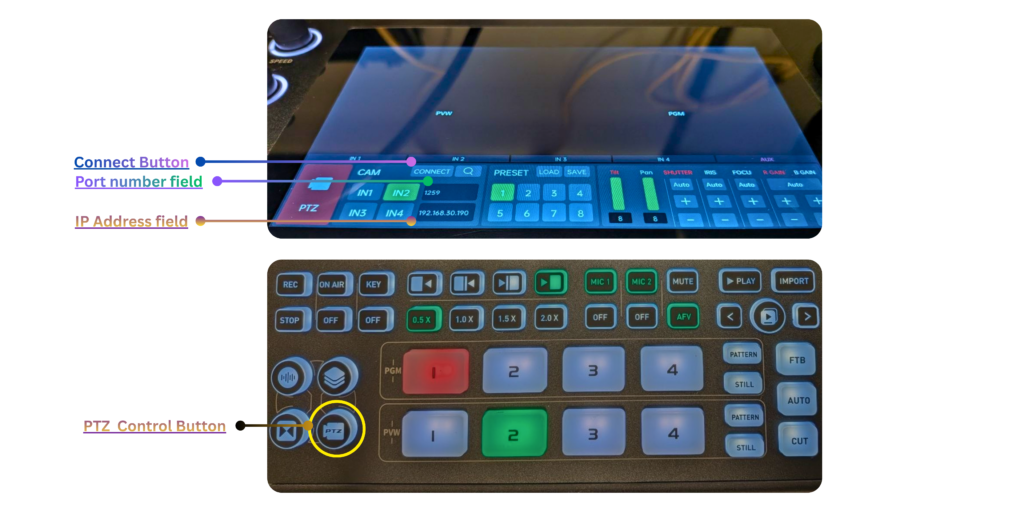
Once you have confirmed network connectivity:
- Press the PTZ button on the BG-COMMANDER-ULTRAX to enter the PTZ control interface.
- Select an available camera field.
- Enter the camera's IP address.
- Select the appropriate control protocol supported by the camera.
- Enter the camera's VISCA/IP control port, if required by the selected protocol.
- Enter the camera's username and password if required by the selected protocol.
- Save or confirm the camera settings.
- Select the camera and press Connect to establish communication with the camera.
- Once connected, use the joystick to test Pan, Tilt, and Zoom.
If the Camera Does Not Connect
If the BG-COMMANDER-ULTRAX cannot connect to the camera, verify the following:
- The camera and controller are on the same network/subnet.
- The camera's IP address is correct.
- There are no duplicate IP addresses on the network.
- The selected protocol matches the camera's supported protocol.
- The control port is correct for the selected protocol.
- The camera is accessible through its Web GUI from another device on the same network.
For VISCA over IP cameras, the correct port can vary by camera model, so refer to the camera's documentation or Web GUI to confirm the appropriate port. BZBGEAR cameras, for example, may use different VISCA ports depending on the model.
If the camera still does not respond after verifying these settings, please contact BZBGEAR Technical Support at support@bzbgear.com.


8.00 a.m. - 5.00 p.m. (PST)
10.00 a.m. - 3.00 p.m. (PST)
(by appointment only)