







How to Factory Reset the BG-MVS4X4-CV
If you need to restore the BG-MVS4X4-CV to its factory default settings, you can do so by connecting to the unit via RS-232 and sending the factory reset command.
Before You Begin
You will need the following:
- BG-MVS4X4-CV
- PC with an available USB port
- 3-pin Phoenix-to-USB RS-232 adapter
- Terminal software (such as Docklight)
Step 1: Connect to the Unit
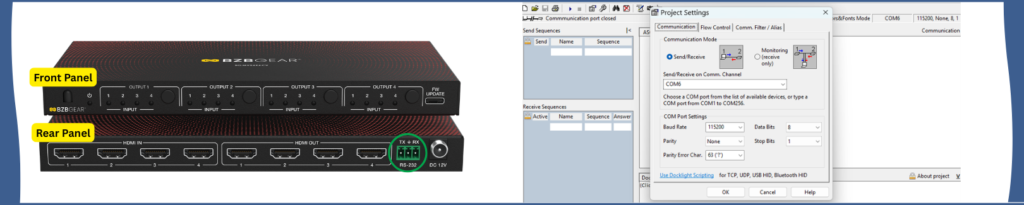
- Connect the 3-pin RS-232 port on the rear of the BG-MVS4X4-CV to your PC using a 3-pin Phoenix-to-USB RS-232 adapter.
- Open your terminal software (such as Docklight).
Step 2: Configure the Serial Connection
Configure the serial connection using the following settings:
|
Parameter |
Value |
|
Baud Rate |
115200 |
|
Data Bits |
8 |
|
Stop Bits |
1 |
|
Parity |
None |
|
Flow Control |
None |
Step 3: Send the Factory Reset Command
After the serial connection has been established, send the following command exactly as shown:
s reset!
Note: If you are unsure how to enter the command, simply copy and paste it into your terminal application.
Step 4: Verify the Reset
If the command is successful, the unit will return a response similar to the following:
reset to factory defaults
system initializing...
initialization finished!
MCU FW version x.xx.xx
Once the initialization process is complete, the BG-MVS4X4-CV has been restored to its factory default settings.
Troubleshooting
If you do not receive a response:
- Verify that the correct COM port is selected.
- Confirm the serial settings match those listed above.
- Check that the RS-232 adapter is connected correctly.
- Try disconnecting and reconnecting the serial connection before sending the command again.
If you continue to experience issues, contact BZBGEAR Technical Support at support@bzbgear.com.


8.00 a.m. - 5.00 p.m. (PST)
10.00 a.m. - 3.00 p.m. (PST)
(by appointment only)
