





How to Encode and Decode RTSP Streams with the BG-STREAM-DE
This article explains how to decode RTSP streams to HDMI and encode HDMI video into an RTSP stream using the BG-STREAM-DE. If you have any issues with getting set up, please contact BZBGEAR Support.
Network Requirements
- All devices must be on the same subnet & Gateway
- DHCP is enabled by default on the BG-STREAM-DE
Accessing the Web Interface
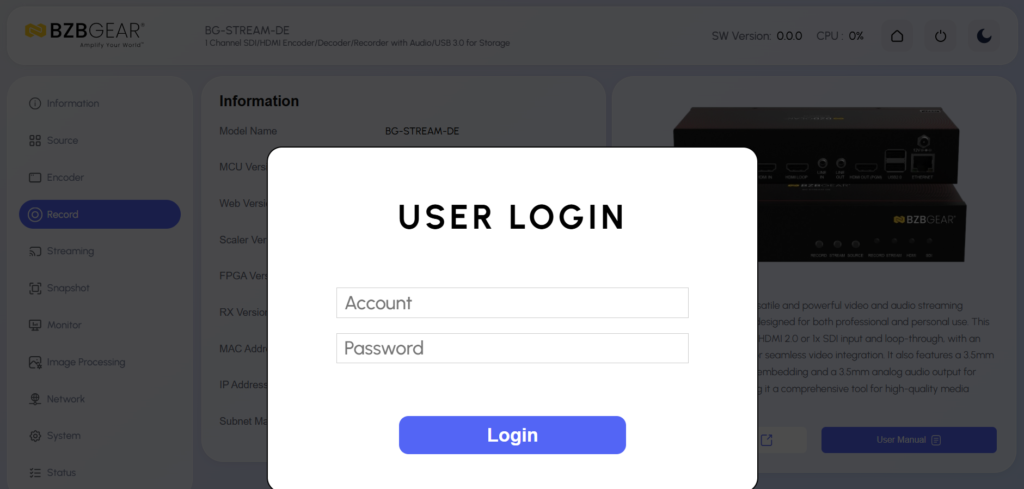
- Power on the BG-STREAM-DE and connect it to the network
- Identify the unit’s IP address using:
- HDMI output display
- Network scanning software
- Router DHCP client list
- Enter the IP address into a web browser
Default Login
- Username: admin
- Password: 0000
RTSP Decode: Displaying an RTSP Stream on HDMI
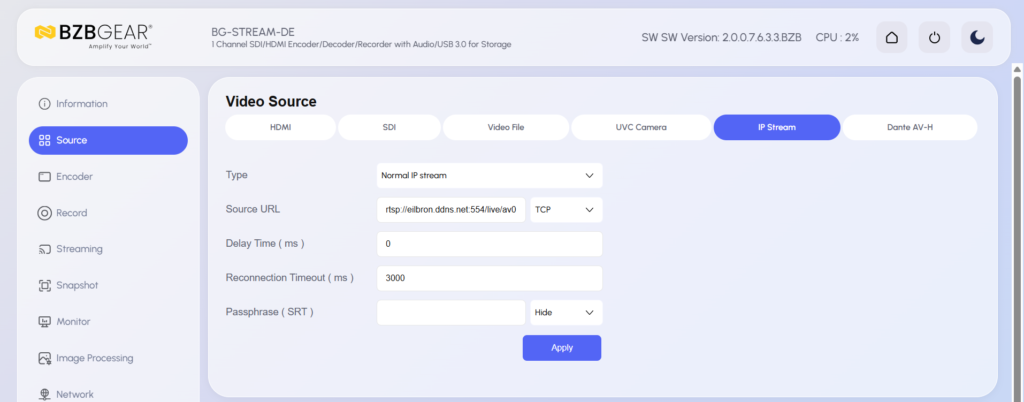
Use Case: Decode an RTSP stream from an IP camera or encoder and display it on a local HDMI monitor.
Steps
- Log into the web interface
- Navigate to Source Selection
- Select IP Stream
- Enter the RTSP stream URL
Example format:
rtsp://<ip_address>:<port>/<stream>
- Click Apply
- The RTSP stream will appear on the HDMI output
Notes
- Switching between RTSP sources only requires replacing the RTSP URL
- No reboot is required when changing RTSP sources
- Audio will follow the stream unless overridden by Line In
RTSP Encode: Creating an RTSP Stream from HDMI or SDI
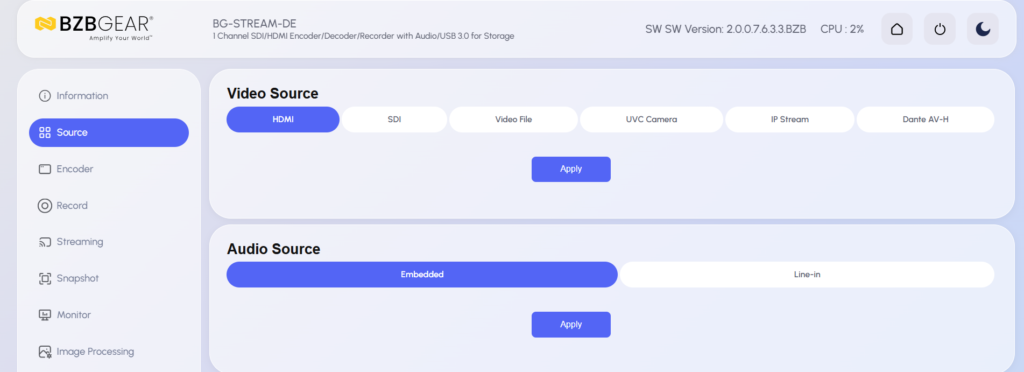
Use Case: Encode a local HDMI or SDI video source into an RTSP stream for distribution across the network.
Steps
- Navigate to Source Selection
- Select HDMI or SDI as the active source
- Click Apply
If HDMI is enabled for the first time, a reboot may be required - Navigate to Streaming
- Enable RTSP Streaming
- Configure encoder settings as needed:
- Resolution
- Frame rate
- Bitrate
- Codec (H.264 or H.265)
- Click Apply
RTSP Stream URL
Once enabled, the system generates an RTSP URL. Copy this URL to:
- Media players (e.g., VLC)
- Software decoders
- Another BG-STREAM-DE
Verifying the RTSP Stream
- Open a media player such as VLC
- Select Open Network Stream
- Paste the RTSP URL provided by the BG-STREAM-DE
- Start playback
If video appears, the RTSP encoder is operating correctly.
Audio Configuration for RTSP
Audio Source Selection
Navigate to Audio Source and choose:
- Embedded Audio (HDMI/SDI)
- Line In (external audio source)
Click Apply after making changes.
Monitor Output Settings (RTSP Decode)
To ensure proper HDMI output when decoding RTSP:
- Navigate to Monitor Settings
- Enable Auto Output Resolution
- Click Apply
- Reboot when prompted
This ensures the decoded RTSP stream matches the connected display’s capabilities.
RTSP Troubleshooting
No Video on HDMI Output
- Confirm IP Stream is selected as the source
- Verify RTSP URL format and credentials
- Ensure the stream is active using a PC-based player
RTSP Stream Not Accessible
- Confirm streaming is enabled under Streaming
- Verify encoder source is set to HDMI or SDI
- Ensure encoder and client are on the same subnet
Audio Missing
- Confirm correct audio source selection
- Check that audio is present in the RTSP stream
- Verify HDMI output volume under Monitor Settings


8.00 a.m. - 5.00 p.m. (PST)
10.00 a.m. - 3.00 p.m. (PST)
(by appointment only)