





How to Convert NDI-HX to HDMI with the BG-STREAM-ND
Network-based video is everywhere these days, but at some point that stream has to land on a real, physical display. This guide walks you through using the BG-STREAM-ND to take an NDI source off your local network and convert it into an HDMI output you can send straight to a monitor.
The BG-STREAM-ND is a versatile decoder. It can pull in NDI, RTSP, and other IP streaming protocols and turn them into a clean HDMI signal. For this walkthrough, we're keeping it simple and focusing on the most common request we get: taking an NDI camera or NDI source and converting it to HDMI so you can view it on any display. It's very point-to-point, and once you see how it works, you'll realize just how easy it is.
Let's break it down.
What You'll Need
Before you start, make sure you have the following ready:
- A BG-STREAM-ND decoder
- An NDI source on your network (for this demo, we're using a BG-ADAMO-4K NDI camera)
- A network switch and your local network (the BG-ADAMO-4K is PoE and DHCP-enabled, so it powers over Ethernet and hops onto the network automatically)
- A computer connected to the same local network
- A monitor or display with an HDMI input
- An HDMI cable to connect the decoder to your display
The key thing to remember: every device — the camera, the decoder, and your computer — needs to be on the same local network so they can talk to each other.
Part 1: Connect Everything to the Network
Step 1: Get your NDI source online
Connect your NDI camera or source to your network switch. If you're using the BG-ADAMO-4K, one Ethernet cable handles both power (PoE) and the network connection, and DHCP gets it an IP address automatically. That's it — no separate power supply, no manual IP setup.
Step 2: Connect the BG-STREAM-ND to the network
Plug the BG-STREAM-ND into the same network switch. This is what lets the decoder "see" the NDI streams available on your network.
Step 3: Connect the decoder to your display
Run an HDMI cable from the HDMI OUT on the BG-STREAM-ND to your monitor.
Step 4: Put your computer on the same network
Connect your computer (wired or through the same switch) to the local network. You'll use it to log into the decoder's web interface and choose your source.
Part 2: Log In to the BG-STREAM-ND Web GUI
Step 1: Find the decoder's IP address
Once the BG-STREAM-ND is on your network, you'll need its IP address. The easiest way is to run a quick IP scan — most scanning tools will list the device by its MAC address so you can spot it. In our demo, the decoder came up at 192.168.30.141 (yours will differ depending on your network).

Step 2: Open the web interface
Type the decoder's IP address into your web browser's address bar and hit Enter.
Step 3: Log in
Enter the default credentials:
- Username: admin
- Password: 0000
Hit login, and you're in.
Part 3: Select Your NDI Source
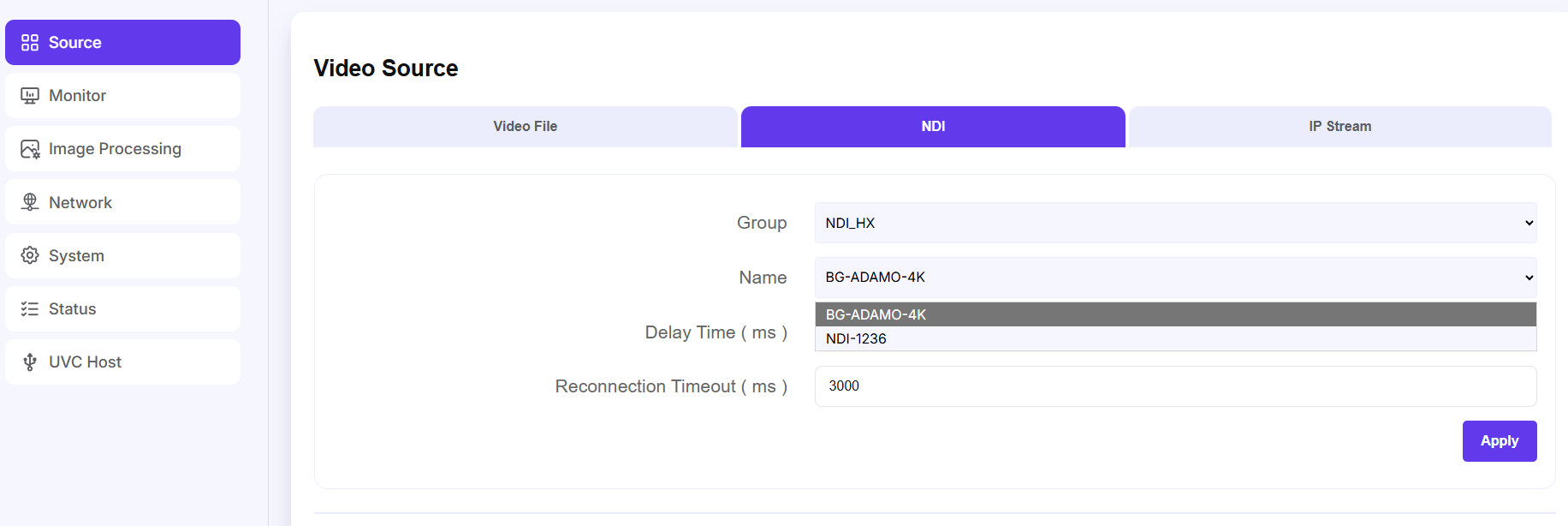
Step 1: Open the Source tab
The first tab in the web interface is your Source tab. This is where you tell the decoder what you want to convert. The BG-STREAM-ND can decode several source types — a video file, NDI, an or IP stream— and you can even embed audio here. For this guide, we're working with NDI.
Step 2: Choose your NDI stream
You'll see a list (or drop-down) of the NDI streams currently available on your network. Pick the one you want to send to your monitor — in our case, the BG-ADAMO-4K NDI feed.
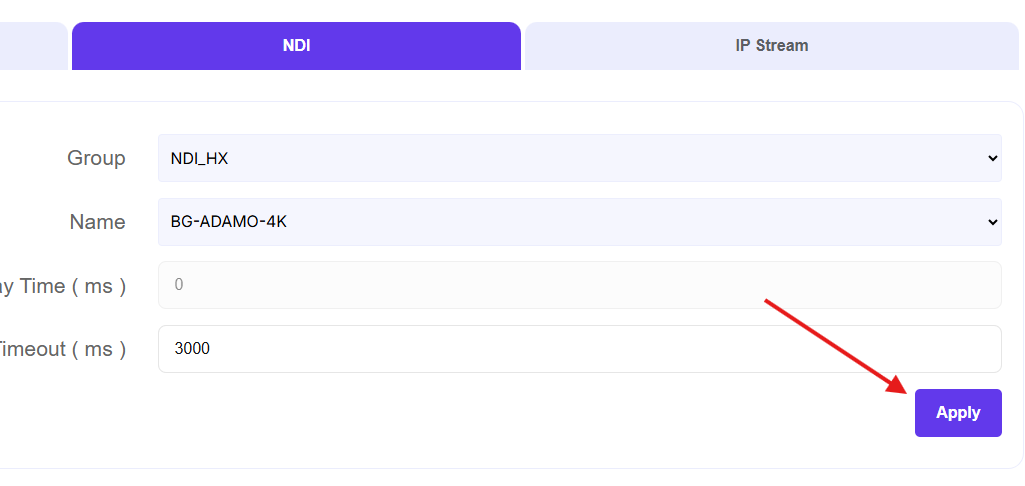
Step 3: Apply the selection
Click Apply to confirm your NDI source. This locks in the stream you want the decoder to decode.
Step 4: If the feed doesn't appear on the monitor, reset the decoder
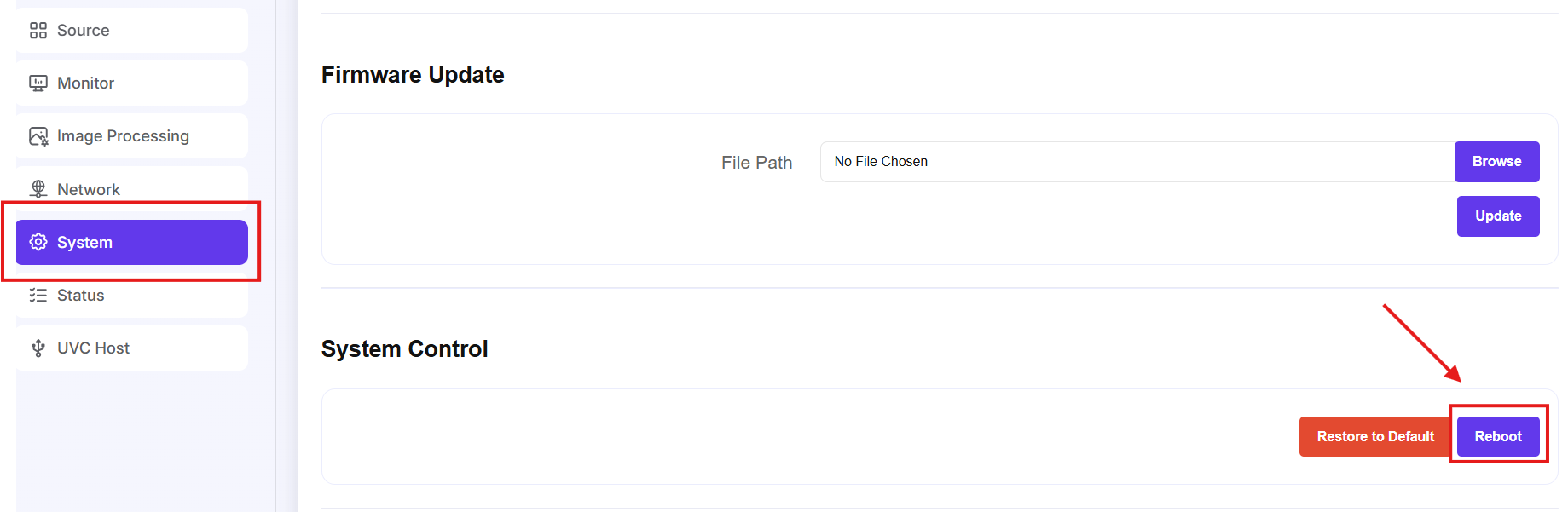
Sometimes, right after you make the connection, you may need to reset the decoder to confirm the handshake between the decoder and the display. This is normal — give it a reset, and the signal should lock in.
Reset can be performed in the System menu:
Part 4: Fine-Tune and Explore Your Options
Once your feed is up, the web interface gives you plenty of room to adjust things to your setup.
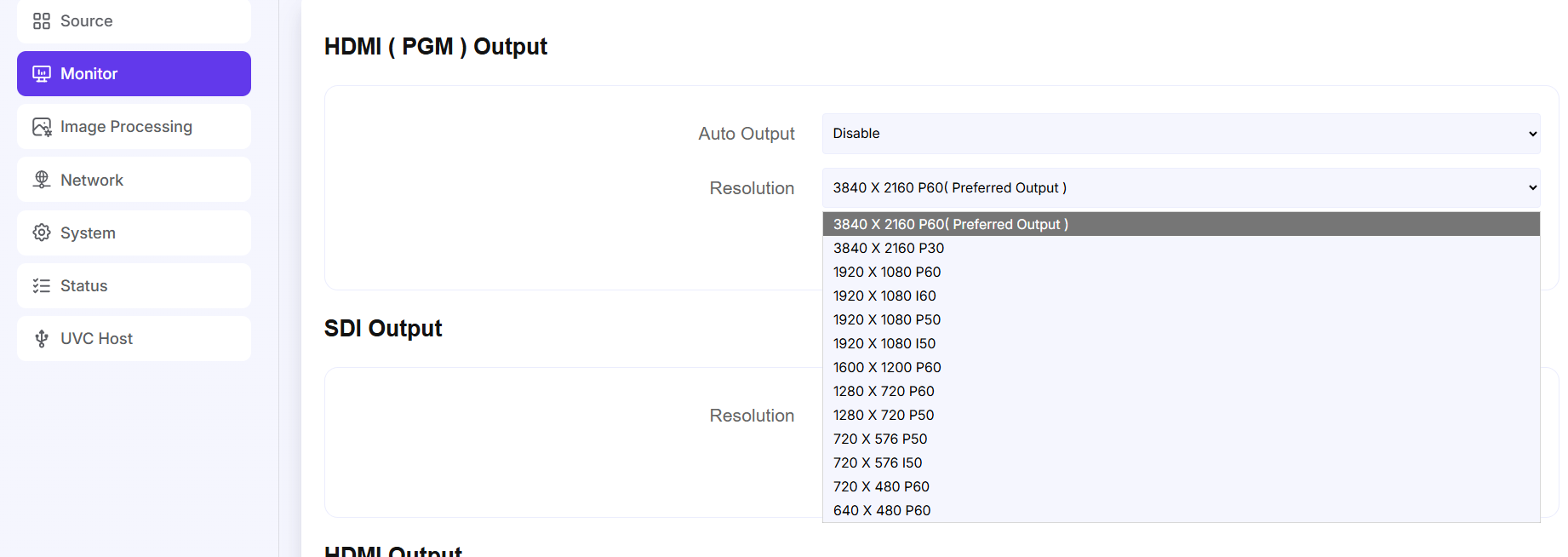
Adjust your output resolution. Head into the output settings via Monitor tab and you'll find a wide range of resolution options to match the resolution of whatever display you're feeding.
Explore the rest of the settings. The interface also includes network settings, image processing (screen settings, video parameters, camera parameters), system options, firmware updates, factory reset, user management, and an output status readout. It's all fairly straightforward to navigate.
Switch between multiple NDI feeds. If you have more than one NDI source on your network, you can switch between them right from the drop-down and change which feed appears on your monitor. This makes the BG-STREAM-ND a flexible little tool for point-to-point monitoring across several cameras or sources.
That's How Simple It Is
Taking an NDI stream off your network and putting it on a physical display used to feel like a chore. With the BG-STREAM-ND, it comes down to getting everything on the same network, logging in, picking your source, and hitting apply. Whether you're monitoring a single NDI camera or juggling a handful of feeds, the BG-STREAM-ND keeps it easy and reliable.


8.00 a.m. - 5.00 p.m. (PST)
10.00 a.m. - 3.00 p.m. (PST)
(by appointment only)
