





How to Encode HDMI to Dante AV-H with the BG-STREAM-E
This guide explains how to use the BG-STREAM-E encoder to encode an HDMI source, such as a PTZ camera, into a Dante AV-H source that can be routed and viewed in a Dante network.
The BG-STREAM-E supports multiple streaming protocols, including Dante AV-H, RTSP, RTMP, SRT, and more. This guide focuses specifically on converting an HDMI source to Dante AV-H.
Part 1: Connect the Source
Step 1: Connect the HDMI source
Connect the HDMI output from your source device to the HDMI input on the BG-STREAM-E.
Example source:
BG-ADAMO-4K PTZ Camera
In this example, the camera is not a native Dante camera. The BG-STREAM-E is used to convert the HDMI signal into a Dante AV-H stream.
Step 2: Connect the BG-STREAM-E to the network
Connect the BG-STREAM-E to your local network using Ethernet.
The BG-STREAM-E supports PoE, so it can be powered through a PoE network switch. This makes setup easier because a separate power cable is not required.
Setup review:
- HDMI camera connected to the BG-STREAM-E via HDMI cable
- BG-STREAM-E connected to a PoE network switch via Cat cable
- Laptop connected to the same local area network via Cat cable
Step 3: Make sure your computer is on the same network
Connect your laptop or computer to the same local network as the BG-STREAM-E.
This allows the computer to access the BG-STREAM-E web GUI and detect the Dante AV-H stream in Dante Controller.
Part 2: Log In to the BG-STREAM-E Web GUI
Step 1: Find the encoder’s IP address
By default, the BG-STREAM-E is set to DHCP. It will automatically receive an IP address from the local network if DHCP is enabled.
To find the assigned IP address, use a network scanner. Advanced IP Scanner is a great option for Windows. You can identify the device by its MAC address or local network information.
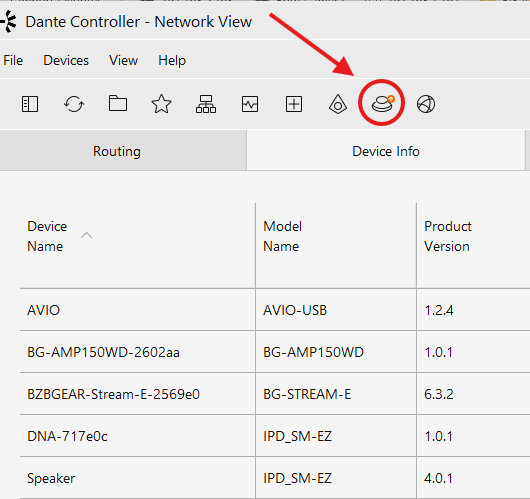
Dante Controller can also be used to find the current IP address under the Device Info tab:
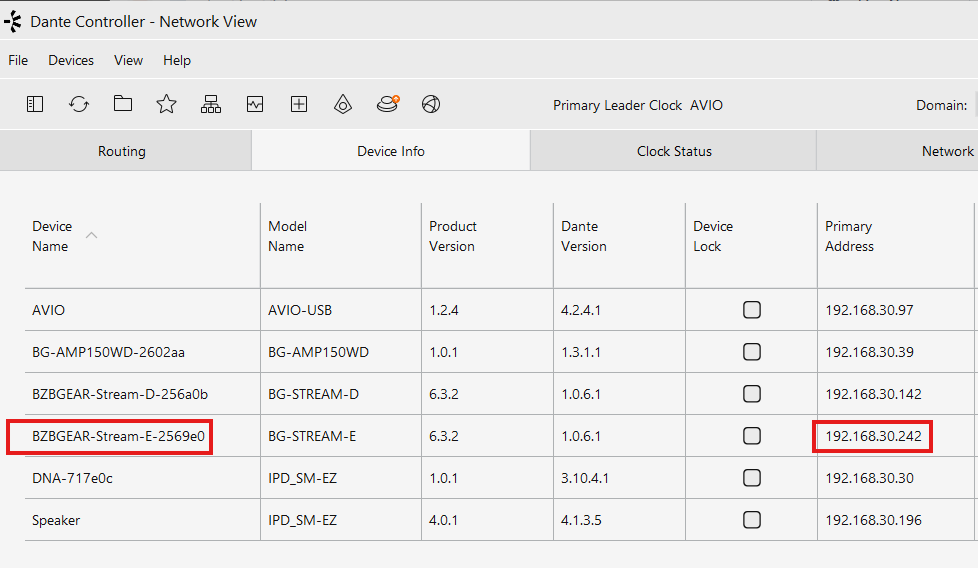
Example IP address:
192.168.30.242
Your IP address will be different depending on your network.
Step 2: Open the web GUI
- Open a web browser.
- Enter the BG-STREAM-E IP address into the address bar.
- Press Enter.
Step 3: Log in
Use the default login credentials:
Username: admin
Password: 0000
After logging in, you will be taken to the BG-STREAM-E web interface.
Part 3: Confirm the HDMI Input Signal
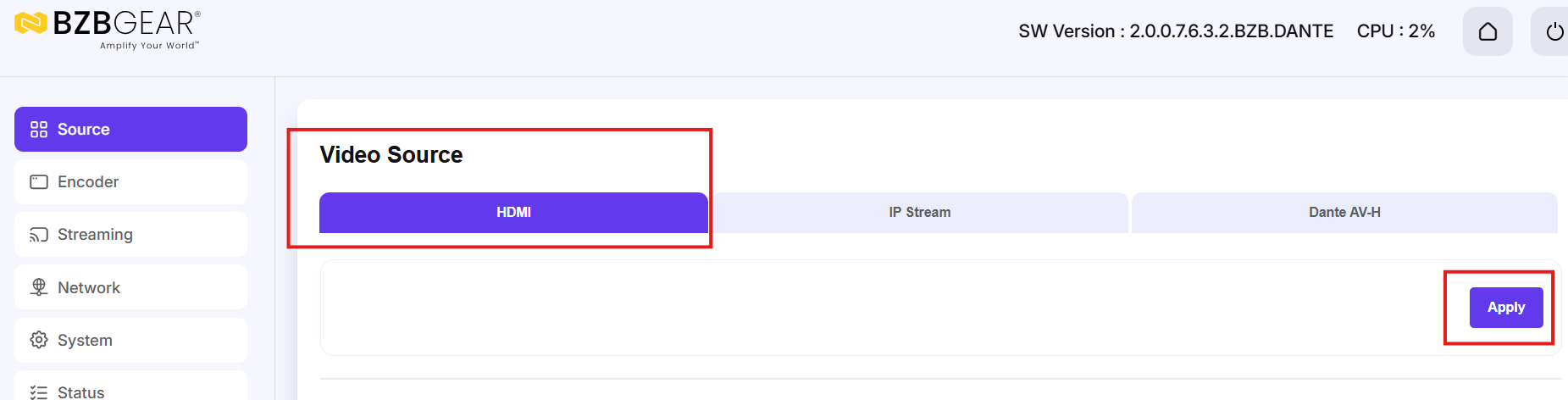
Step 1: Select the video source
Go to the Source settings and confirm that the source is set to HDMI.
This allows the encoder to establish the proper HDMI handshake with the connected source.
On initial setup, the unit may require a reset after the first HDMI handshake.
Step 2: Check the input status
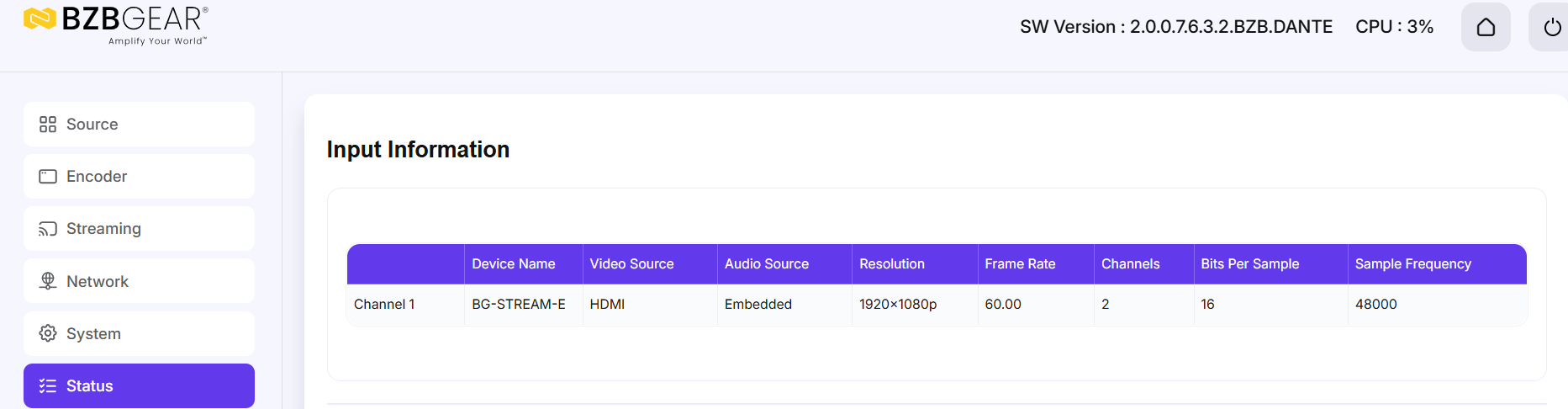
Go to the Status page.
Confirm that the HDMI source is connected successfully.
Example status from the video:
1080p60
Once the video source is detected successfully, the encoder is ready to be configured for Dante AV-H:
Part 4: Configure Dante AV-H Streaming
Step 1: Go to the streaming settings
Open the Streaming section in the web GUI.
This is where you can choose the output protocol for the encoded stream.
Step 2: Select Dante AV-H as the stream type
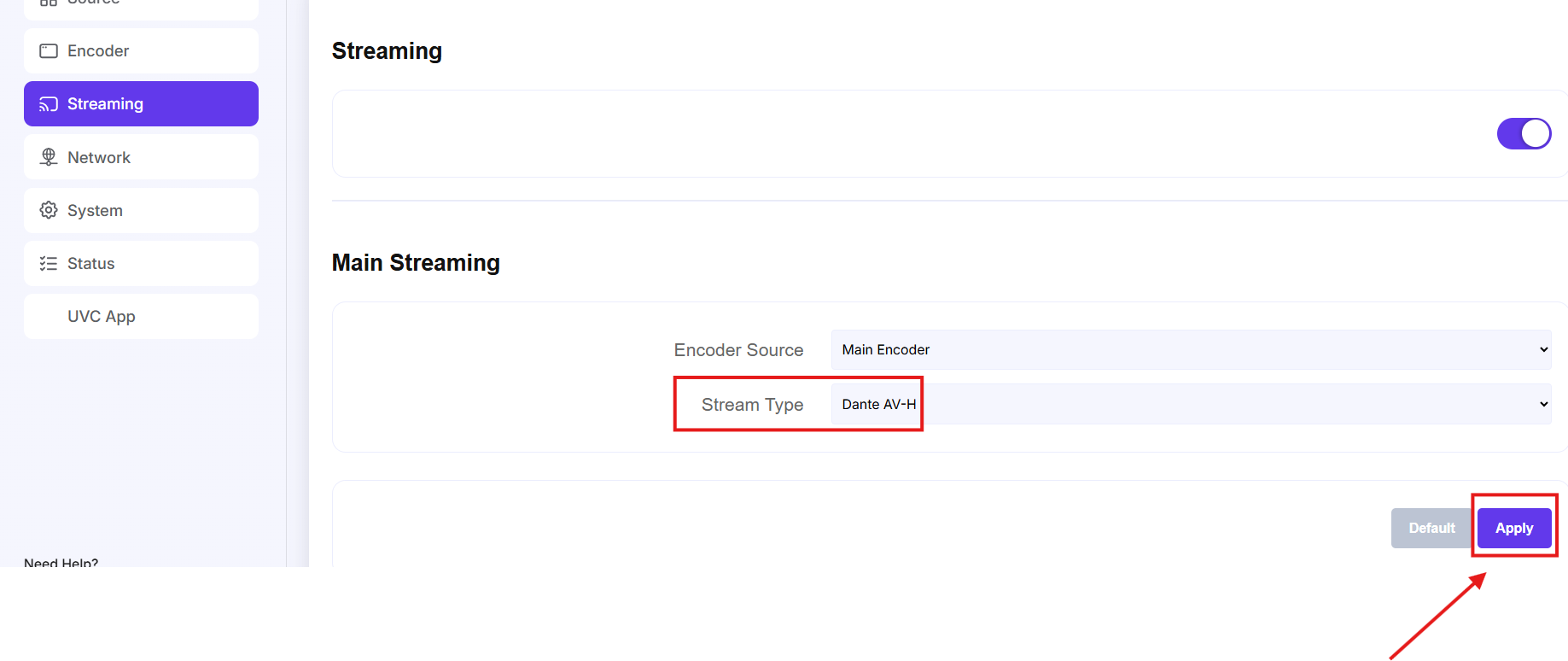
In the main streaming settings, locate the Stream Type dropdown menu.
Available options may include:
- RTSP
- HLS
- RTMP
- SRT
- TS
- Dante AV-H
Select Dante AV-H.
Click Apply to save the stream type:
Step 3: Turn on streaming
After applying the Dante AV-H stream type, enable streaming by turning on the streaming toggle switch.
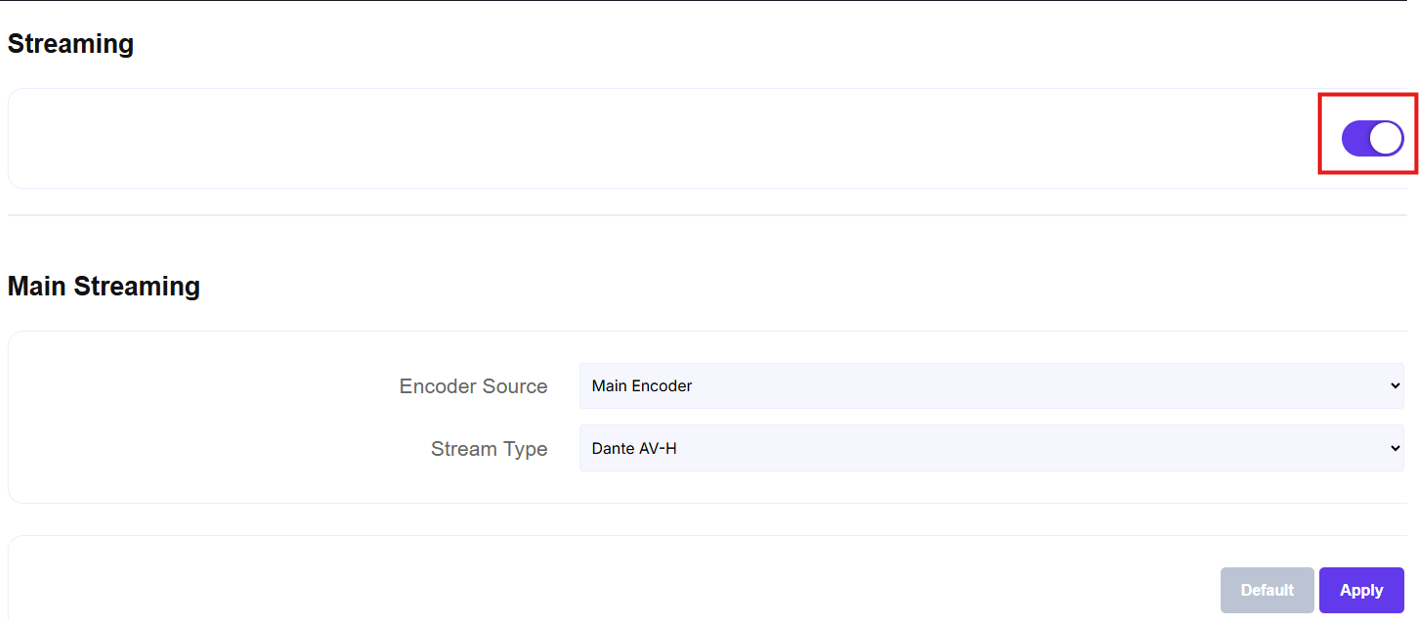
When the switch is active, it will be grayed out, and the encoder will begin streaming the HDMI source as a Dante AV-H signal.
The toggle switch will look like this when active:

Step 4: Review additional settings if needed
The BG-STREAM-E web GUI also includes additional system options, such as:
- Encoder settings
- Resolution settings
- Frame rate settings
- System settings
- Firmware updates
- Factory reset
- User settings
For a basic HDMI-to-Dante AV-H setup, the most important settings are the HDMI input, stream type, and network configuration.
Part 5: Activate the BG-STREAM-E in Dante Controller
Since the BG-STREAM-E is a Dante Ready device, it must be activated in the Dante ecosystem. This can be done in Dante Controller.
Download Dante Controller for free here:
https://www.getdante.com/products/software-essentials/dante-controller/
Step 1: Open Dante Controller
Open Dante Controller on your computer.
Make sure your computer is connected to the same network as the BG-STREAM-E.
Step 2: Refresh the device list
Refresh Dante Controller if needed.
You should see the BG-STREAM-E appear under the Device Info tab.
Check the network status and confirm that the device shows a healthy connection.
Step 3: Activate the Dante subscription
In Dante Controller, click the Dante Activator icon.
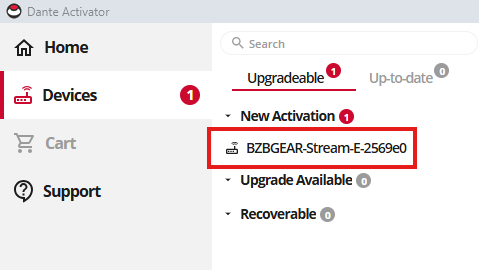
In the device list, you should see the BG-STREAM-E listed as an Upgradeable New Activation.
From here, follow the prompts to purchase and apply the upgrade.
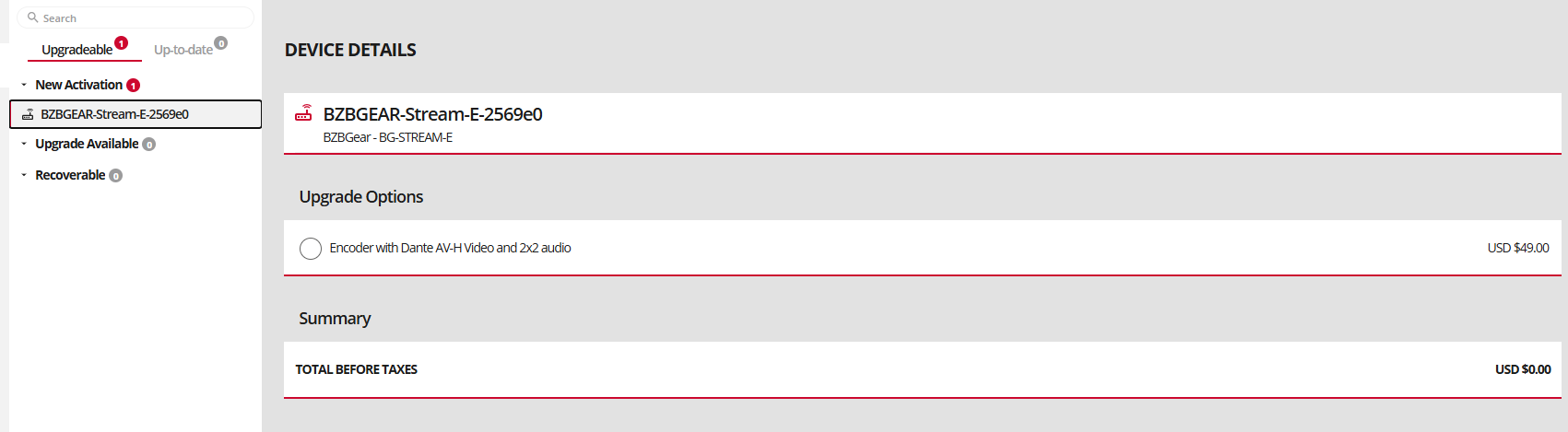
After the upgrade, your BG-STREAM-E will appear in the Dante Routing tab as a transmitter. It is now ready to route its audio and video channels to any available Dante receiver endpoints.


8.00 a.m. - 5.00 p.m. (PST)
10.00 a.m. - 3.00 p.m. (PST)
(by appointment only)