







How to Connect the BG-AVTPG-MINI-G2 to the PC Control Software
The BG-AVTPG-MINI-G2 is a powerful little signal test generator and analyzer — and while you can drive it right from the buttons on the unit, connecting it to the PC control software gives you full control from your computer. This guide walks you through getting connected so you can manage everything on-screen.
Let's break it down.
Part 1: Connect the Unit to Your Computer
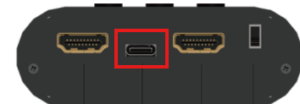
Connect the unit to your computer using the USB-C cable (provided in the box), plugged into the USB port on top of the unit.
Part 2: Download and Open the Software
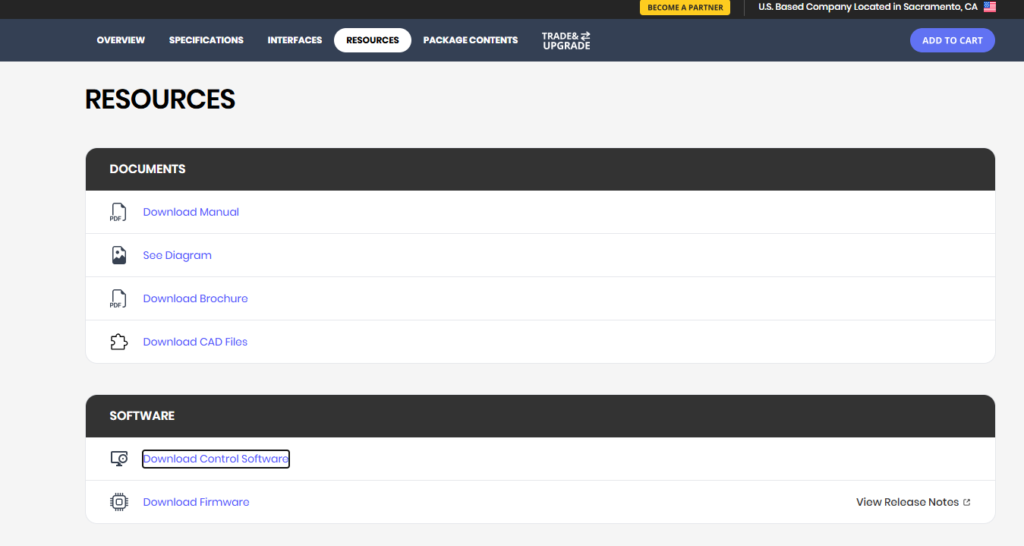
Step 1: Download the software
Download the control software from the product page: BG-AVTPG-MINI-G2 — HDMI 2.1 48Gbps Portable Signal Test Generator and Analyzer (1080p FHD, 4K120 UHD, 8K60).
Step 2: Extract and open the folder
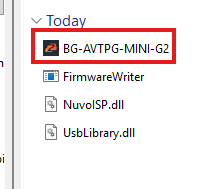
Once downloaded, extract the folder, open it, and find the BG-AVTPG-MINI-G2 software inside.
Step 3: Launch the software
Double-click the software to open it.
Part 3: Connect and Take Control
Step 1: Click Connect
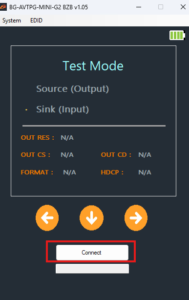
With the software open, click Connect.
Step 2: Confirm the status populates
Once connected, all of the unit's current status will populate on-screen.
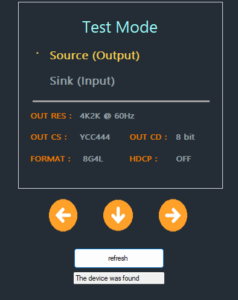
That's it — you now have full control of your BG-AVTPG-MINI-G2 from your computer, without needing to keep pushing the buttons on the unit.


8.00 a.m. - 5.00 p.m. (PST)
10.00 a.m. - 3.00 p.m. (PST)
(by appointment only)