







How to Check the Firmware Version on BZBGEAR 8K Splitters and Switchers
This guide explains how to check the current firmware version on compatible BZBGEAR 8K splitters and switchers.
If you are experiencing an issue with your device or believe a firmware update may be required, please check the current firmware version before contacting BZBGEAR Support. When contacting Support, provide your product model and current firmware version so our team can determine whether an update is available or recommended.
What You’ll Need
- A Windows PC
- The GTool Firmware Tool
- A compatible USB cable for your device:
- USB-C
- Micro USB
Step 1: Download and Open the GTool Firmware Tool
Download the GTool Firmware Tool [here].
Note: GTool is currently compatible with Windows PCs only.
Depending on your Windows security settings, you may receive a warning that the application is from an unrecognized or unverified source. This can occur because GTool is not a publicly distributed application. If you received the tool directly from BZBGEAR, follow the Windows prompts to allow the application to run.
Step 2: Connect the Device to Your PC
Using the appropriate USB cable for your device, connect the BZBGEAR splitter or switcher directly to your Windows PC.
Depending on the model, the device will use either a USB-C or Micro USB connection.
Step 3: Connect to the Device in GTool
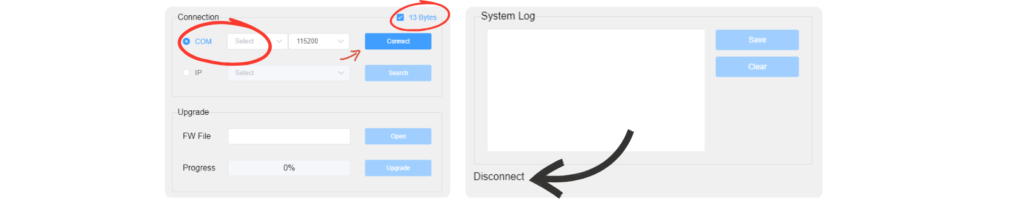
- Open GTool after connecting the device to your PC.
- Select the correct COM port in the upper right corner of the application.
- Check the 13 Bytes option.
- Click Connect.
- Once connected, the current firmware version will be displayed in the GTool interface.
If the firmware version does not appear, verify that the correct COM port is selected and that the USB connection is secure.
Step 4: Provide the Firmware Version to BZBGEAR Support
Take note of the firmware version or capture a screenshot of the GTool window showing the version.
Email support@bzbgear.com with the following information:
- Product model
- Current firmware version
- Brief description of the issue you are experiencing
- Screenshot of the GTool firmware version, if available
Our Support team will review the information and let you know if a firmware update is available or recommended for your device.


8.00 a.m. - 5.00 p.m. (PST)
10.00 a.m. - 3.00 p.m. (PST)
(by appointment only)
