




How to Add IP Cameras to the BG-COMMANDER-G2
This guide walks you through adding and configuring IP cameras on the BG-COMMANDER-G2. Follow each step carefully to ensure proper network communication, camera discovery, and control.
If you experience any issues after completing this guide, please contact support@bzbgear.com.
Step 1: Power and Network Connection
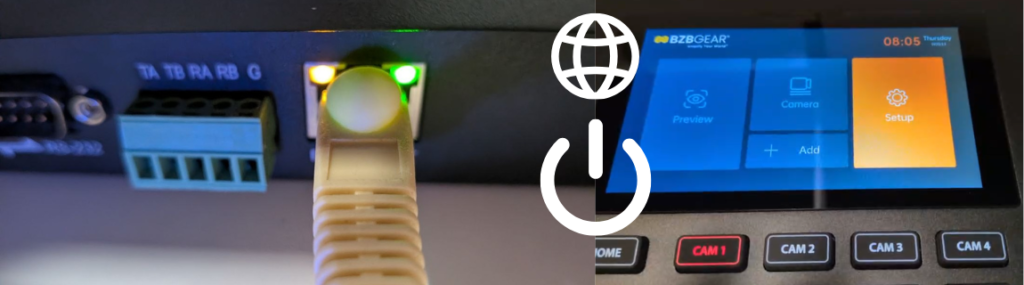
Ensure the BG-COMMANDER-G2 is powered on and connected to your network.
You have two options:
- PoE (Power over Ethernet): Connect the controller to a PoE-capable network switch to supply both power and network connectivity.
- Power Adapter + Network Cable: Use the included power supply and connect the controller to your network switch via Ethernet.
Confirm that the unit has fully booted before proceeding.
Step 2: Configure Network Settings
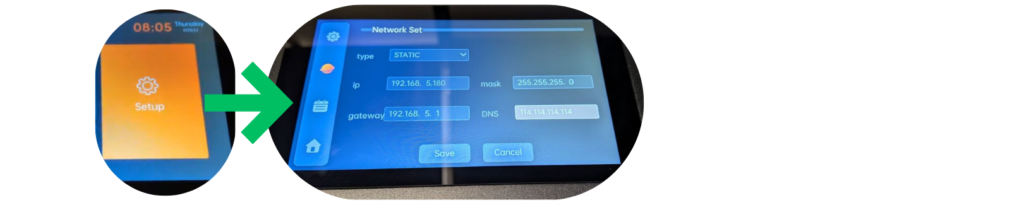
- Enter the Setup menu.
- Tap the network icon (Saturn-shaped icon) to access network settings.
- Choose one of the following:
- DHCP: Automatically assigns an IP address.
- Static IP: Manually configure network settings.
Static IP Configuration Tips
- IP Address: Must match your network’s IP scheme.
- Default Gateway: Typically the first three octets of your network, ending in .1
(Example: 192.168.1.1) - Subnet Mask: Commonly 255.255.255.0
After entering the correct values, save the settings and wait for the controller to finish initializing before continuing.
Step 3: Add Cameras to the Controller
- Ensure all cameras are:
- Powered on
- Connected to the same network switch as the controller
- On the same IP range as the BG-COMMANDER-G2
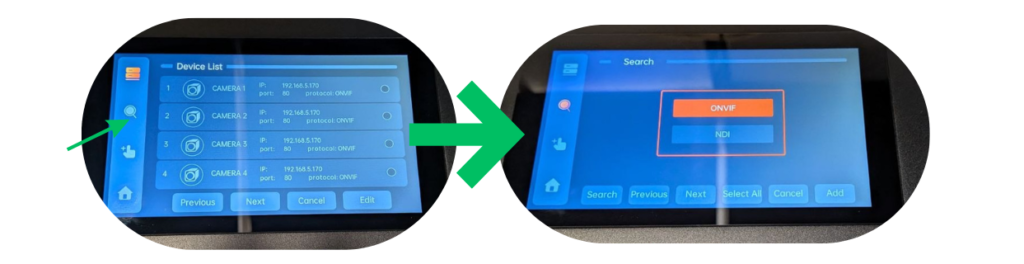
- On the controller screen, tap Add or Camera.
- Tap the magnifying glass icon to search for cameras.
- Select ONVIF as the discovery protocol.
- Once cameras are found, add them to the controller.
Channel Assignment
- Camera channels default to Channel 8 to prevent accidental overwrites.
- Change each camera to its correct channel number after adding.
Protocol Notes
- You may change the control protocol if required.
- Important: Changing the control protocol may remove the RTSP stream URL.
- After changing protocols, edit the camera channel and re-enter the RTSP URL if necessary.
Step 4: Test Camera Preview and Control
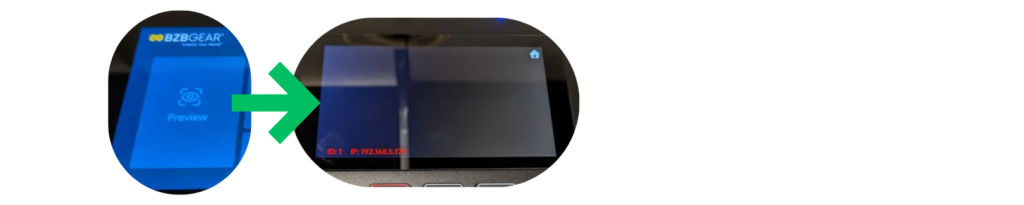
- Tap Preview to confirm video and control functionality.
- Verify that:
- Live video is visible
- PTZ and camera controls respond correctly
If Preview Is Not Displayed
- Check for any error messages on the controller screen.
- Adjust camera video encoding settings, such as:
- Lower resolution
- Lower frame rate
- Lower bitrate
- Verify the RTSP stream URL:
- Test it on a PC or laptop using VLC or OBS Studio
- Confirm network connectivity:
- Ping the controller and cameras from a PC
- Access each device’s web GUI
- Power cycle the system if a handshake or initialization issue is suspected.
If Camera Control Is Not Working
- Confirm the control protocol and port number are correct and supported.
- Test network communication by accessing and controlling the camera from a PC or laptop on the same network.
FAQs
What is the default IP address of the BG-COMMANDER-G2?
- 192.168.5.180
What are the default Web GUI login credentials?
- Username: admin
- Password: (no password)
What control protocol is used by default during auto search?
- ONVIF or NDI
How do I exit Preview mode?
- Press the Setup/Menu button on the controller, or
Tap the Home button on the screen


8.00 a.m. - 5.00 p.m. (PST)
10.00 a.m. - 3.00 p.m. (PST)
(by appointment only)