







How to Access the Web GUI of the BG-AVENTO-4K
This guide explains how to find the IP address of your BG-AVENTO-4K and access its Web GUI. If you are still unable to access the Web GUI after following these steps, please contact support@bzbgear.com for assistance.
Finding the IP Address of the BG-AVENTO-4K
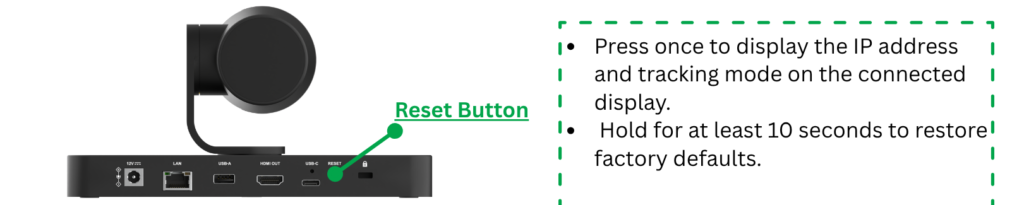
The BG-AVENTO-4K uses DHCP by default, allowing it to automatically obtain an IP address from your network once connected.
- Connect the BG-AVENTO-4K to your network using an Ethernet cable
- Press the RESET button on the front panel to display the device's current IP address.
Alternatively, you can use the IR remote control to access the device's network information and view its IP address - Take note of the IP address displayed by the device
Accessing the Web GUI
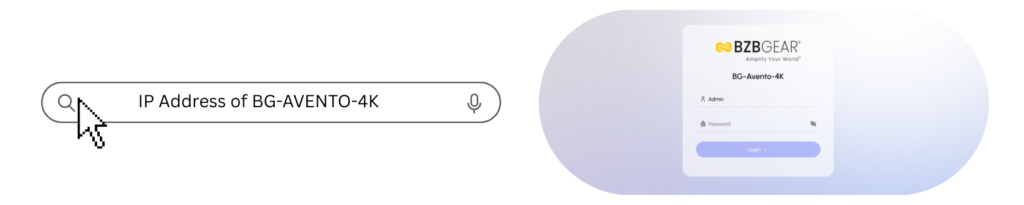
- Connect your computer to the same network as the BG-AVENTO-4K
- Open a web browser
- Enter the BG-AVENTO-4K's IP address into the browser's address bar and press Enter.
For example:
http://192.168.1.100 - The BG-AVENTO-4K login page should appear
- Enter the default credentials:
- Username: admin
- Password: admin
- When logging in for the first time, you will be prompted to change the default password
- Enter a new password and click Apply to access the main interface
Password Requirements:
- 4–16 characters
- Alphanumeric characters only
Troubleshooting Web GUI Access
If you are unable to access the Web GUI using the device's IP address, check the following:
- Verify the network connection: Make sure the BG-AVENTO-4K is properly connected to your network and that the Ethernet connection is active
- Confirm your PC is on the same network: Your computer should be connected to the same network and VLAN as the BG-AVENTO-4K
- Check for firewall restrictions: Temporarily check your computer's firewall or network security settings to ensure they are not blocking communication with the device
- Try a different browser: If the login page does not load, try accessing the Web GUI using another web browser
- Perform a ping test: Open Command Prompt on your PC and use the ping command with the camera's IP address. This can help determine whether the device is reachable on the network
Example:
ping 192.168.1.100 - Check the network switch: If the BG-AVENTO-4K is connected to a managed network switch, verify that the switch detects the device and that the corresponding Ethernet port is active
If the BG-AVENTO-4K responds to ping but the Web GUI still does not load, try accessing the IP address from another computer or browser. If you continue to experience issues, please contact support@bzbgear.com.


Get insider
updates & offers
Learn more
Get insider updates and offers
Join our vibrant community of BZBGEAR insiders today and unlock a world of exclusive updates, irresistible offers, and invaluable education.
Sales Inquiries
Leave your phone number, and one of our specialists will reach out to you shortly.
Call Us
Technical support
Monday - Friday
8.00 a.m. - 5.00 p.m. (PST)
8.00 a.m. - 5.00 p.m. (PST)
Saturday - Sunday
10.00 a.m. - 3.00 p.m. (PST)
(by appointment only)
10.00 a.m. - 3.00 p.m. (PST)
(by appointment only)
Phone & Email Support