







Fixing RTSP Stream Artifacts in OBS
Applies to: BZBGEAR cameras streaming over RTSP (e.g., BG-ADAMO-JR) using an OBS Studio Media Source.
1. Symptom
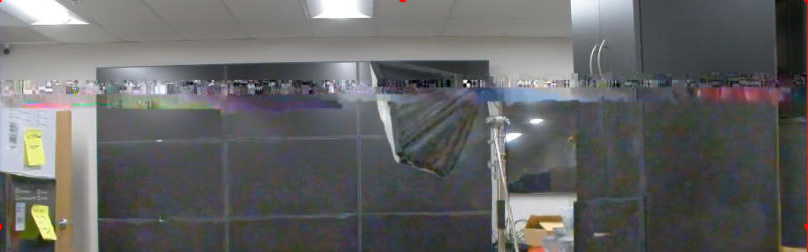
The camera feed in OBS Studio displays smearing, torn horizontal bands, or blocky colored streaks, especially when objects or people move through the shot.
The same RTSP stream may appear normal in VLC or on other PCs.
2. Cause
OBS Studio typically receives RTSP video over UDP by default. UDP prioritizes speed but does not retransmit packets that are lost during transmission.
When packets are dropped, the video decoder may receive incomplete image data, resulting in visible corruption. This is more likely on Wi-Fi or congested networks.
Important: If the stream displays correctly in VLC and on other PCs, the issue may be related to how OBS handles the stream or to the local PC's network or decoding configuration. This does not necessarily indicate a camera fault.
3. Solution: Force RTSP Over TCP
Configure OBS to receive the RTSP stream over TCP instead of UDP. TCP retransmits lost packets, helping ensure that complete video data reaches the decoder. This can reduce visible artifacts, although it may introduce additional latency or stuttering on a poor network connection.
Step 1: Open the Media Source Properties
- Open OBS Studio.
- Locate the camera's RTSP source in the Sources panel.
- Double-click the source, or select it and click Properties.
Step 2: Verify the RTSP Address
- Make sure Local File is unchecked.
- Confirm that the Input field contains the camera's RTSP URL.
Example:
rtsp://<camera-IP>:554/live/av0
Replace <camera-IP> with the camera's actual IP address.
Verify that the address is correct and that the camera is reachable from the PC.
Step 3: Force RTSP Over TCP
- Scroll to the bottom of the Media Source Properties window.
- Locate the FFmpeg Options field.
- Enter the following setting exactly:
rtsp_transport=tcp
- Click OK to apply the change.
- Allow the source a few seconds to reconnect.
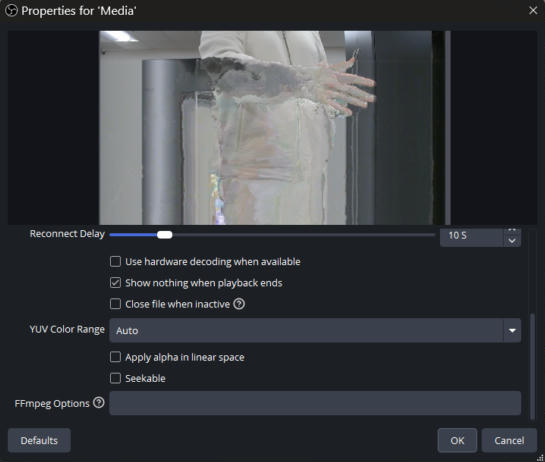
Step 4: Enable Hardware Decoding (Recommended)
In the same Media Source Properties window, enable Use hardware decoding when available, if the option is present.
Hardware decoding allows supported video decoding tasks to be handled by the GPU rather than relying entirely on the CPU. This may reduce CPU load and improve performance on systems that support it.
Click OK if you make any additional changes.
Step 5: Verify the Results
- Have someone move through the camera's field of view, or move an object in front of the camera.
- Watch the OBS preview for smearing, horizontal tearing, or blocky colored streaks.
- Check the OBS status bar in the bottom-right corner for the current and target frame rates.
For example, a steady reading of 30.00 / 30.00 FPS indicates that OBS is maintaining the target frame rate.
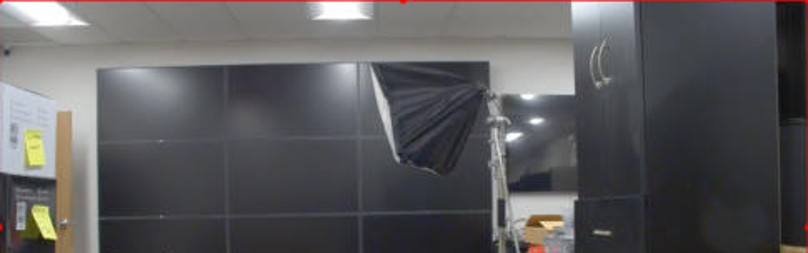
If the artifacts disappear, the TCP transport setting has likely resolved the issue.
Step 6: Troubleshoot Remaining Issues
If artifacts persist, or the video begins stuttering or lagging after switching to TCP, try the following:
- Use wired Ethernet: Connect the PC directly to a wired network instead of Wi-Fi, if possible.
- Increase Network Buffering: Increase the buffering value in the Media Source Properties window, if available. This may help with inconsistent network delivery but can increase latency.
- Reduce the camera's stream bitrate: Lower the bitrate in the camera's web interface to reduce network bandwidth requirements.
- Check PC performance: Monitor CPU and GPU utilization to determine whether the PC is struggling to decode or render the stream.
- Test another RTSP source: Compare the affected source against another camera or RTSP stream on the same PC to help isolate the cause.
4. Good to Know
The Setting Applies to Each Source
The rtsp_transport=tcp setting is configured individually for each Media Source. Apply it to every RTSP source that needs it, including sources recreated during scene changes or configuration rebuilds.
Why VLC May Look Better Than OBS
VLC may buffer more video than OBS, allowing it to conceal minor network interruptions at the cost of additional delay. OBS generally prioritizes low-latency playback, so packet loss may be more noticeable.
VLC can also use TCP for RTSP playback, allowing you to compare playback behavior using the same transport protocol.
How to Force RTSP Over TCP in VLC
If you want to test the stream using TCP in VLC:
- Open VLC Media Player.
- Navigate to Tools > Preferences.
- Select All under Show settings.
- Navigate to Input / Codecs > Demuxers > RTP/RTSP.
- Enable Use RTP over RTSP (TCP), if available.
- Save the settings and reopen the stream.
5. Summary
For RTSP video corruption in OBS Studio, start by adding rtsp_transport=tcp to the Media Source's FFmpeg Options field. Test the stream during motion to confirm whether the artifacts have disappeared.
If the issue continues, investigate network stability, buffering, stream bitrate, and PC decoding performance before concluding that the camera is at fault.


8.00 a.m. - 5.00 p.m. (PST)
10.00 a.m. - 3.00 p.m. (PST)
(by appointment only)
