





BZBGEAR BG-QuadFusion Troubleshooting Guide
BZBGEAR BG-QuadFusion Troubleshooting Guide
This guide covers common issues reported with the BG-QuadFusion series, including the BG-QuadFusion-4K and BG-QuadFusion-JR, along with recommended diagnostic and resolution steps. Still having trouble after the guide ~ Contact support@bzbgear.com
Quick Access Setting location key:
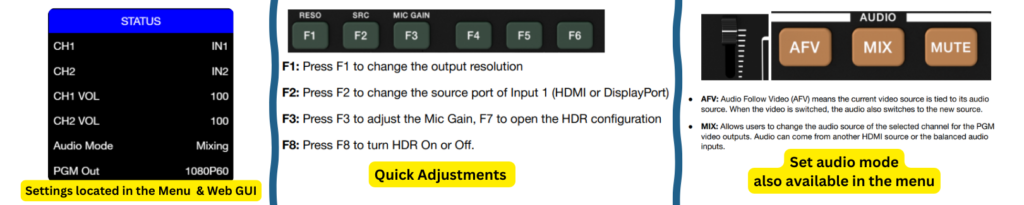
1. Audio Sync & Latency Issues (BG-QuadFusion-4K)
Issue Description
Customers may notice that audio arrives slightly ahead of video (lip-sync issue). This is expected behavior in certain workflows.
Root Cause
The BG-QuadFusion performs video processing, which introduces a 1–2 frame delay. Audio signals are not processed internally, so externally embedded audio can reach downstream devices slightly faster than video.
~ The unit does not include an internal audio delay adjustment.
Recommended Troubleshooting Steps
- Test Each Source Independently
- Connect each camera directly to an external recorder or monitor.
- Verify whether the audio delay originates at the source.
- Adjust audio delay or sync settings on the camera or recording device if available.
- Check External Audio Processing Latency
- If using software or hardware such as Pro Tools, mixers, or DSPs:
- Review output latency and buffer size settings.
- Reduce buffer sizes where possible before audio reaches the QuadFusion.
- If using software or hardware such as Pro Tools, mixers, or DSPs:
- Verify Resolution & Frame Rate Compatibility
- Confirm all devices in the signal chain support 4K (if applicable).
- Ensure all sources and outputs match the same frame rate (e.g., 30fps or 60fps).
- Mismatched frame rates can worsen sync issues.
- Adjust Embedded Audio Timing at the Camera
- If cameras embed audio (internal mic or line-in), check for:
- Audio delay, lip-sync, or A/V offset options in the camera menu.
- If cameras embed audio (internal mic or line-in), check for:
- Perform a Simple Audio Embedding Test
- Connect a basic line-level source (laptop, tablet, or phone playing music).
- Confirm audio embeds and plays correctly.
- This helps rule out a core audio embedding issue with the QuadFusion itself.
2. USB 3.0 Glitchy Video Feed on macOS (BG-QuadFusion-JR)
Issue Description
When using USB 3.0 PGM output on macOS:
- Video becomes glitchy at resolutions above 1080p30
- 1080p60 configuration works correctly on Windows PCs
- USB PGM output is unstable on Mac at higher frame rates
Root Cause
Most macOS systems and USB capture drivers have limited support for 1080p60 over USB with many video devices. This is a macOS/USB bandwidth limitation, not a hardware failure.
Recommended Troubleshooting Steps
- Downscale USB Output Resolution
- Set PGM output to 1080p30
- This is the most stable and widely supported mode on macOS
- Confirmed to resolve glitching in real-world testing
- Test on a Windows PC
- If available, connect the unit to a Windows system
- Verify that 1080p60 over USB works normally
- Confirms the issue is OS-related rather than a faulty unit
3. Multiview Display Compatibility
Common Display Issues ~ No image or unsupported signal shown on the multiview monitor.
Important Model Differences
- BG-QuadFusion-4K
- Multiview output is 4K only
- Requires a 4K-capable monitor
- BG-QuadFusion-JR
- Multiview output is 1080p60
- Requires a display that supports 1080p60
Troubleshooting Steps
- Verify monitor resolution and refresh rate support
- Test with a known compatible display
- Avoid older monitors that may only support 1080p30 or lower
4. HDMI & PGM Output Video Issues
Recommended Steps
- Reduce frame rate on HDMI or PGM outputs if video instability occurs
- Test lower formats such as:
- 1080p30
- 4K30
- Confirm all downstream devices accept the selected resolution and frame rate
5. No Audio Output
Common Cause ~ Incorrect audio mode selection.
Troubleshooting Steps
- Verify the correct audio mode is selected (embedded vs external)
- Confirm the audio source is active and sending signal
- Test with a simple known-good audio source to isolate the issue


8.00 a.m. - 5.00 p.m. (PST)
10.00 a.m. - 3.00 p.m. (PST)
(by appointment only)