





BG-UHM 3-Port 4K UHD USB/HDMI Camera Video Selector and Mixer Setup Guide
BG-UHM 3-Port 4K UHD USB/HDMI Camera Video Selector and Mixer Setup Guide
This guide will walk you through the initial setup of your BG-UHM. If you are having any issues after following this guide, please contact BZBGEAR Support.
Step 1: Power the Unit and Connect to the Network
You can power the unit in one of two ways:
- Using PoE (Power over Ethernet)
- Using the included power adapter
Once powered, connect the unit to your local network using the Ethernet port (If PoE isn’t in use).
Step 2: Locate the IP Address Using HDMI Output
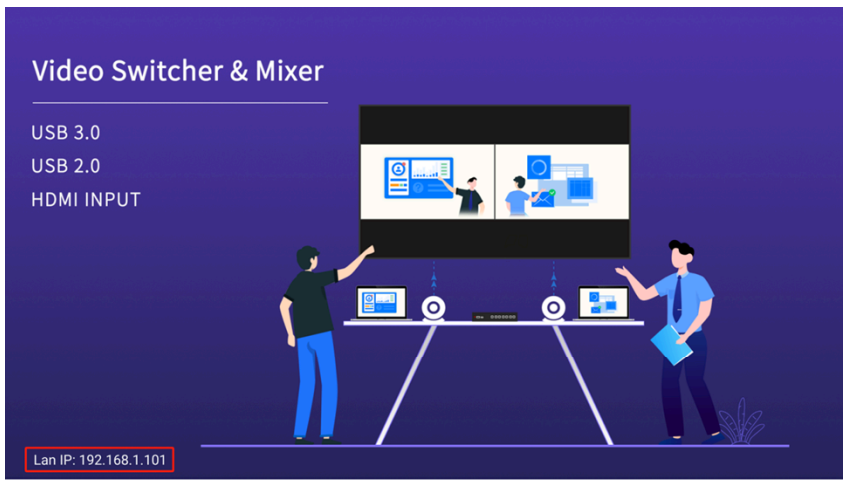
Connect a display to the HDMI output. The unit’s homepage will appear automatically and includes:
- IP address in the bottom left corner
- Product information in the top left corner
Note: You can customize the homepage background image later via the Web GUI.
Step 3: Connect Video Inputs and Outputs
- Inputs: Connect your cameras or other HDMI video sources to the ports labeled "Inputs."
- Outputs:
- HDMI output typically connects to a TV or monitor
- USB output connects to a laptop or PC for video conferencing or streaming
- HDMI output typically connects to a TV or monitor
Troubleshooting Input Display Issues:
- If your video sources do not appear on the output:
- Verify the output resolution of your cameras and sources is supported by the unit and your output device.
- Test the source directly with the output device (bypassing the mixer) to confirm compatibility.
- If direct connection works, return to the unit and check:
- Input resolution compatibility
- Proper input/output configuration in the mixer’s settings
- Input resolution compatibility
- Verify the output resolution of your cameras and sources is supported by the unit and your output device.
Step 4: Access the Web Interface for Configuration
- Open a web browser and enter the IP address displayed on the unit’s HDMI homepage into the address bar.
- Ensure your computer is on the same local network as the unit.
- The login page should appear. If it doesn’t, verify your network settings.
Default Login:
- Username/Password: admin
From the Web GUI, you can:
- Configure input switching
- Adjust resolutions and audio settings
- Customize settings and interface
- + More


Get insider
updates & offers
Learn more
Get insider updates and offers
Join our vibrant community of BZBGEAR insiders today and unlock a world of exclusive updates, irresistible offers, and invaluable education.
Sales Inquiries
Leave your phone number, and one of our specialists will reach out to you shortly.
Call Us
Technical support
Monday - Friday
8.00 a.m. - 5.00 p.m. (PST)
8.00 a.m. - 5.00 p.m. (PST)
Saturday - Sunday
10.00 a.m. - 3.00 p.m. (PST)
(by appointment only)
10.00 a.m. - 3.00 p.m. (PST)
(by appointment only)
Phone & Email Support